

This feature is available as an add-on for the Honeycomb Enterprise plan.
Please contact your Honeycomb account team for details.
Description
The Parse with Regex Processor is designed to extract and transform telemetry data—including logs, metrics, and traces—using regular expressions (regex) with named capture groups. This enables users to define specific regex patterns with named capture groups to parse and reformat data from different source fields, enhancing data analysis and insights.Use
This processor is invaluable when users need to extract and categorize specific elements from unstructured or semi-structured data. Users can employ regex patterns with named capture groups to classify extracted data, making it easily identifiable and accessible for further analysis, monitoring, or alerting.Configuration
Example Configurations
Extract Error Codes from Log Messages
In this example, the Parse with Regex Processor is configured to extract error codes embedded within log messages. Given the unstructured nature of these messages, the use of a regex pattern with a named capture group is crucial for efficient extraction and categorization.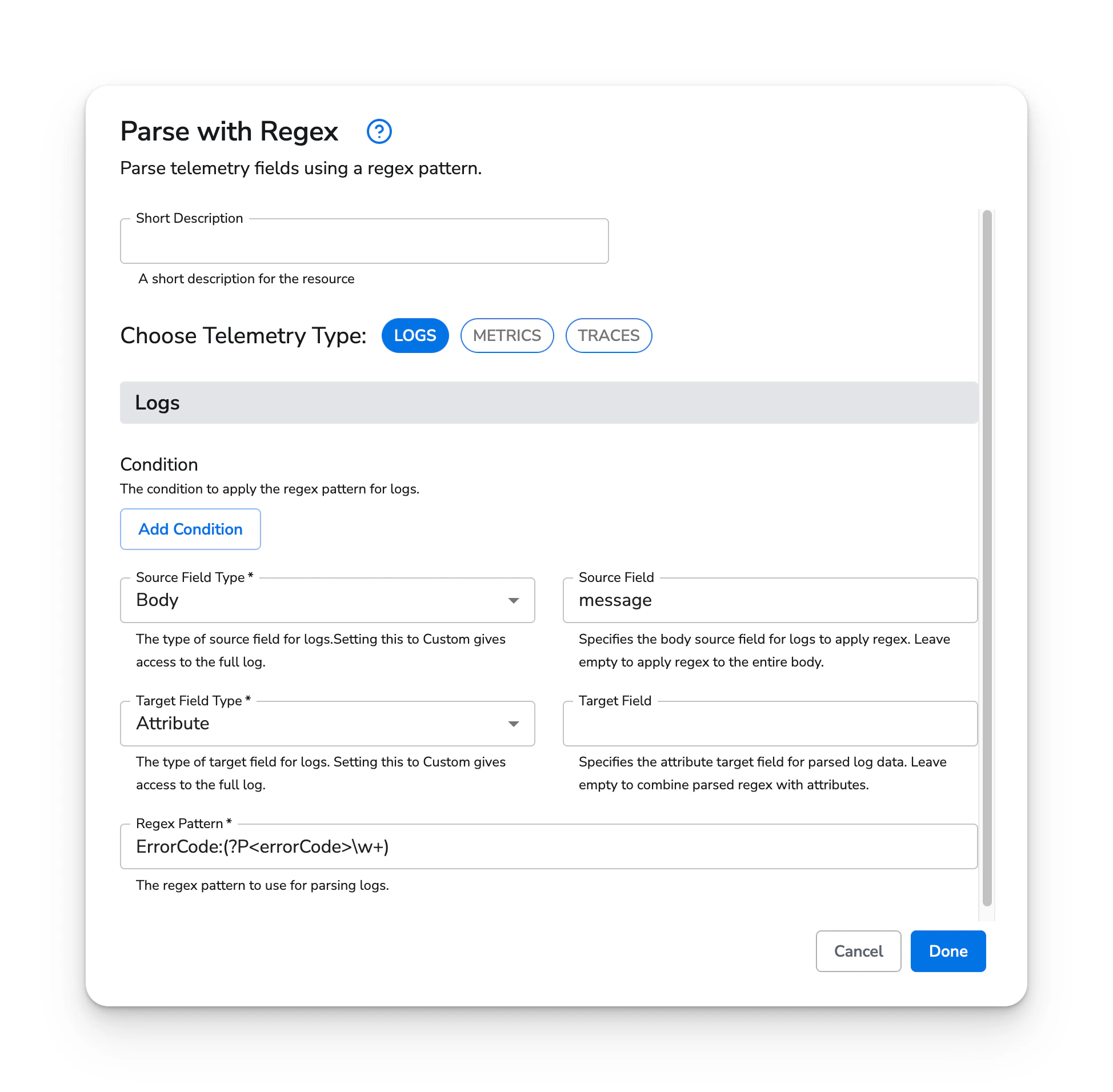
- Condition:
"body contains 'ErrorCode:'" - Source Field Type:
Body - Source Field:
message - Target Field Type:
Attribute - Regex Pattern:
"ErrorCode: (?P<errorCode>\w+)"