

Memory is in beta.
Functionality may change as we refine this feature.
If you don’t see Memory in the Canvas sidebar, it isn’t enabled for your Team yet.
How it works
Canvas builds up memory as you investigate, so later investigations can start from what earlier ones learned.Where Canvas uses your memories
Canvas uses your memories whenever you’re in the conversation, so the context you save follows you from one investigation to the next.
Automatic investigations of Triggers, SLO burn alerts, and anomalies run without a person, so there is no one whose memories Canvas can use.
Canvas doesn’t read or save memory in an automatic investigation.
How memories get saved
Memories come from both Canvas and you, so either of you can add context for later investigations. A memory gets saved in these ways:- Canvas saves context on its own: During an investigation, Canvas saves facts that a later investigation would need and couldn’t work out for itself. It doesn’t ask first. Canvas gives each memory a name and a title, and the chat shows how many memories it saved, such as “1 memory saved”. Canvas usually says what it saved in its reply, and you can review or correct the memory on the Memory page.
- You ask Canvas to remember something: In a Canvas chat, tell Canvas what to remember. For example, “Remember that the orders service retries a payment three times before it gives up.”
- You add a memory yourself: Add a memory on the Memory page. To learn more, refer to Adding a memory.
Who can see your memories
Memory works per person, so the context you save shapes your investigations and not your teammates’. Only you can see your memories, and you can’t see a teammate’s memories. Team owners and admins can’t see your memories either. Memories belong to one Team. The memories you have on one Team are separate from the memories you have on another. If you leave a Team, no one else can see your memories on that Team. Your agent can also read your memories through the Honeycomb MCP server.Adding a memory
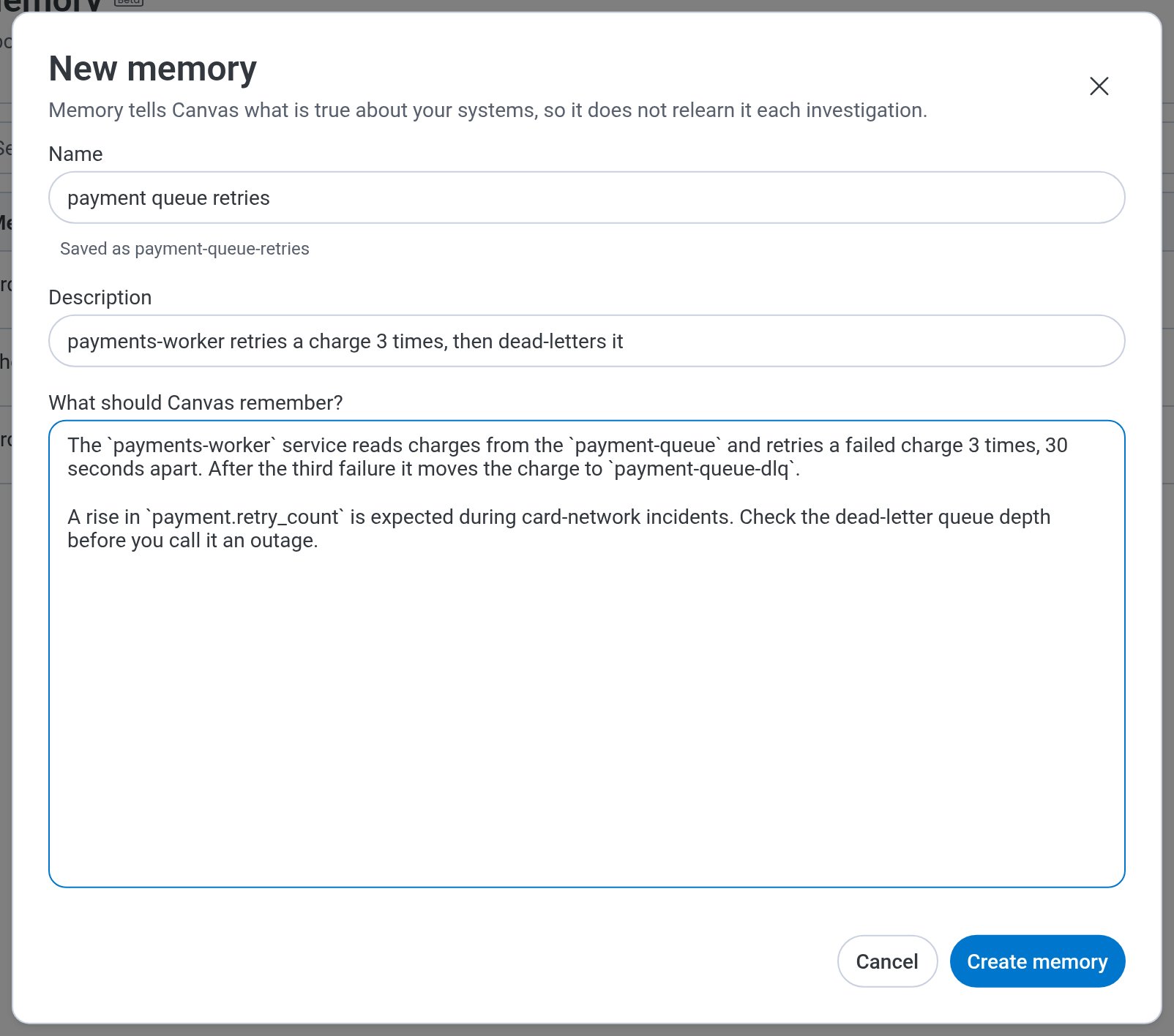
Add a memory when you want Canvas to know something about your systems before an investigation starts.- Select Canvas () from the navigation menu.
- In the Canvas sidebar, expand Configuration, then select Memory.
- Select New memory.
-
Enter details:
- Select Create memory.
Reviewing your memories
Canvas treats your memories as known context, so a memory that is wrong or out of date can mislead Canvas in later investigations. Review your memories from time to time, and edit or delete the ones that are no longer true. To view a memory:- Select Canvas () from the navigation menu.
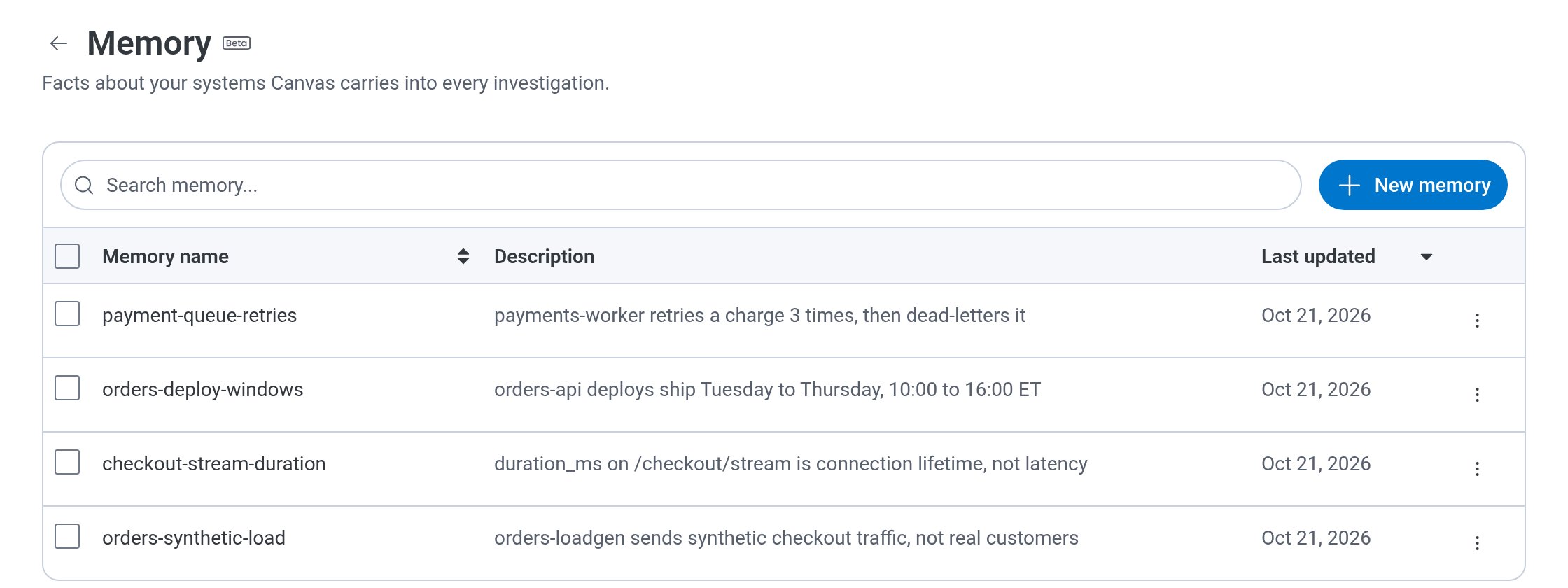
- In the Canvas sidebar, expand Configuration, then select Memory. The Memory page lists your memories with their name, description, and the date each one was last updated.
- Locate the memory you want to view, or find it with the Search memory… field, which searches names, titles, and descriptions.
- Select the memory’s name.
Editing a memory
Edit a memory when a fact about your systems changes. To edit a memory:- Select Canvas () from the navigation menu.
- In the Canvas sidebar, expand Configuration, then select Memory.
- Select More Actions () for the memory, then choose Edit.
- Make your changes.
You can’t change the name of a memory.
- Select Save changes.
Deleting memories
Delete a memory when it is no longer true, so it doesn’t mislead later investigations. Canvas stops using a deleted memory in new investigations. An investigation that’s already open keeps what it loaded before the delete, such as the memory’s description, but it can’t read the memory again. To delete a single memory:- Select Canvas () from the navigation menu.
- In the Canvas sidebar, expand Configuration, then select Memory.
- Select More Actions () for the memory, then choose Delete.
- In the confirmation modal, optionally choose why you are deleting the memory, then select Delete to confirm.
- Select Canvas () from the navigation menu.
- In the Canvas sidebar, expand Configuration, then select Memory.
- Select the checkbox beside each memory you want to delete.
- Select Delete. The button shows the number of memories you selected.
- In the confirmation modal, optionally choose why you are deleting the memories, then select Delete to confirm.