

Data visualizations depend on Honeycomb dataset fields being mapped to source fields in your sent data.
To learn how to map your data, visit Map Your Data.
Visualizations by Data Type
Home lets you visualize the data in your dataset in different ways: as trace-specific or log-specific visualizations, and as events in a table.Trace Visualizations
The Traces view contains visualizations to help you better understand your trace data and to surface signals in the noise.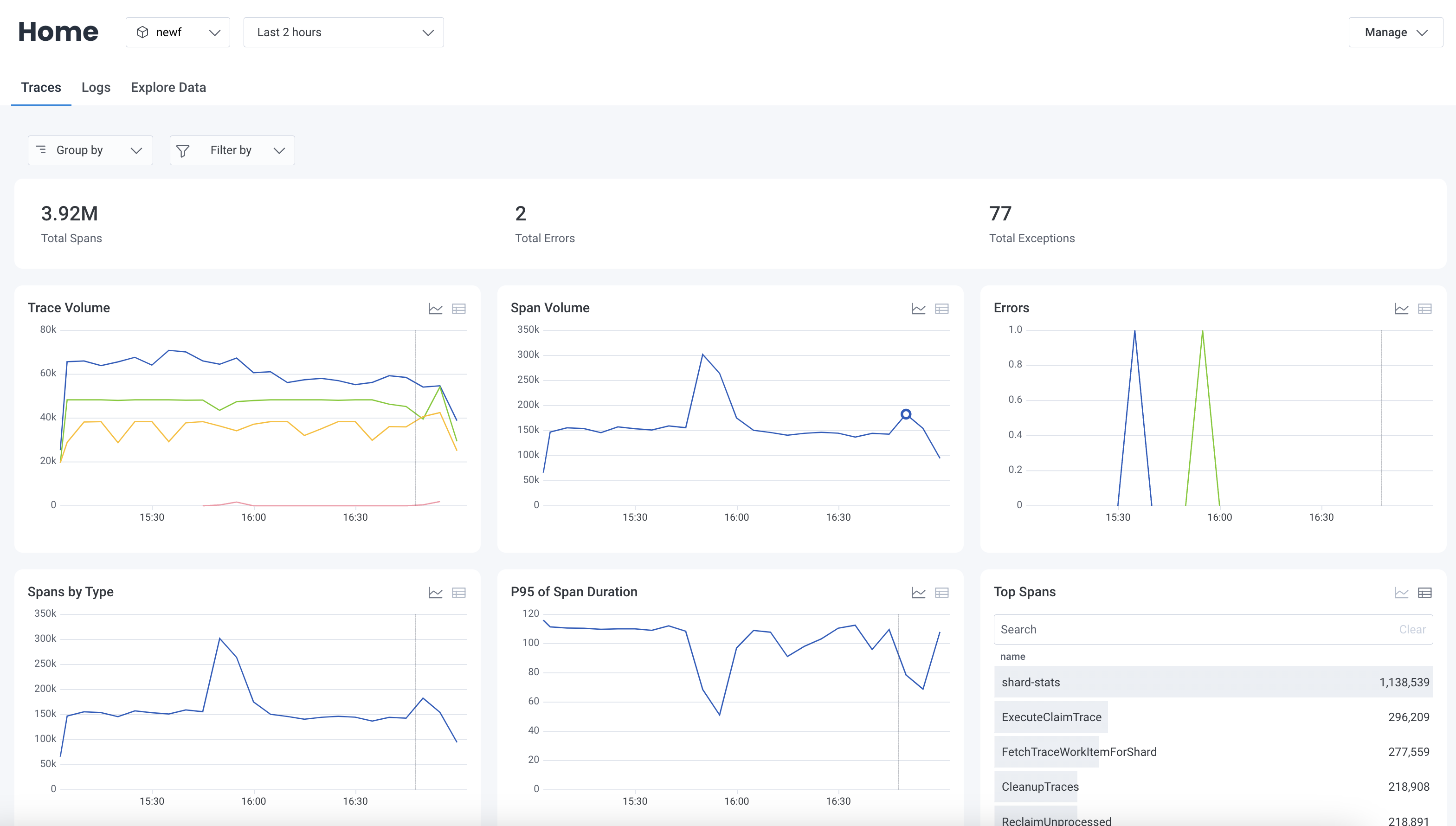
- Total Spans Displays the total number of spans within the selected time range.
-
Total Errors
Displays the total number of spans that contain
errorwithin the selected time range. -
Total Exceptions
Displays the total number of spans that contain
exception.messagewithin the selected time range. -
Trace Volume
Displays the total number of traces over time grouped by
namewithin the selected time range. - Span Volume Displays the total number of spans over time within the selected time range.
-
Errors
Displays the total number of errors over time grouped by
errorwithin the selected time range. - Spans by Type Displays the total number of spans over time grouped by span type within the selected time range.
-
Top Spans
Displays the total number of spans grouped by
namewithin the selected time range in descending order. - P95 of Span Duration Displays the 95th duration percentile for spans over time within the selected time range.
-
Exception Volume by Type
Displays the number of spans that contain
exception.typegrouped byexception.typewithin the selected time range. -
Top Exceptions
Displays the total number of spans that contain
exception.messagegrouped byexception.messagewithin the selected time range in descending order.Total Exceptions, Exception Volume by Type, and Top Exceptions charts depend on the availability ofexception.typeandexception.messagefields. To learn how to recordexceptionwith OpenTelemetry, visit OpenTelemetry’s documentation on exception spans.
Logs Visualizations
The Logs view contains visualizations to help you better understand your log data and to surface signals in the noise.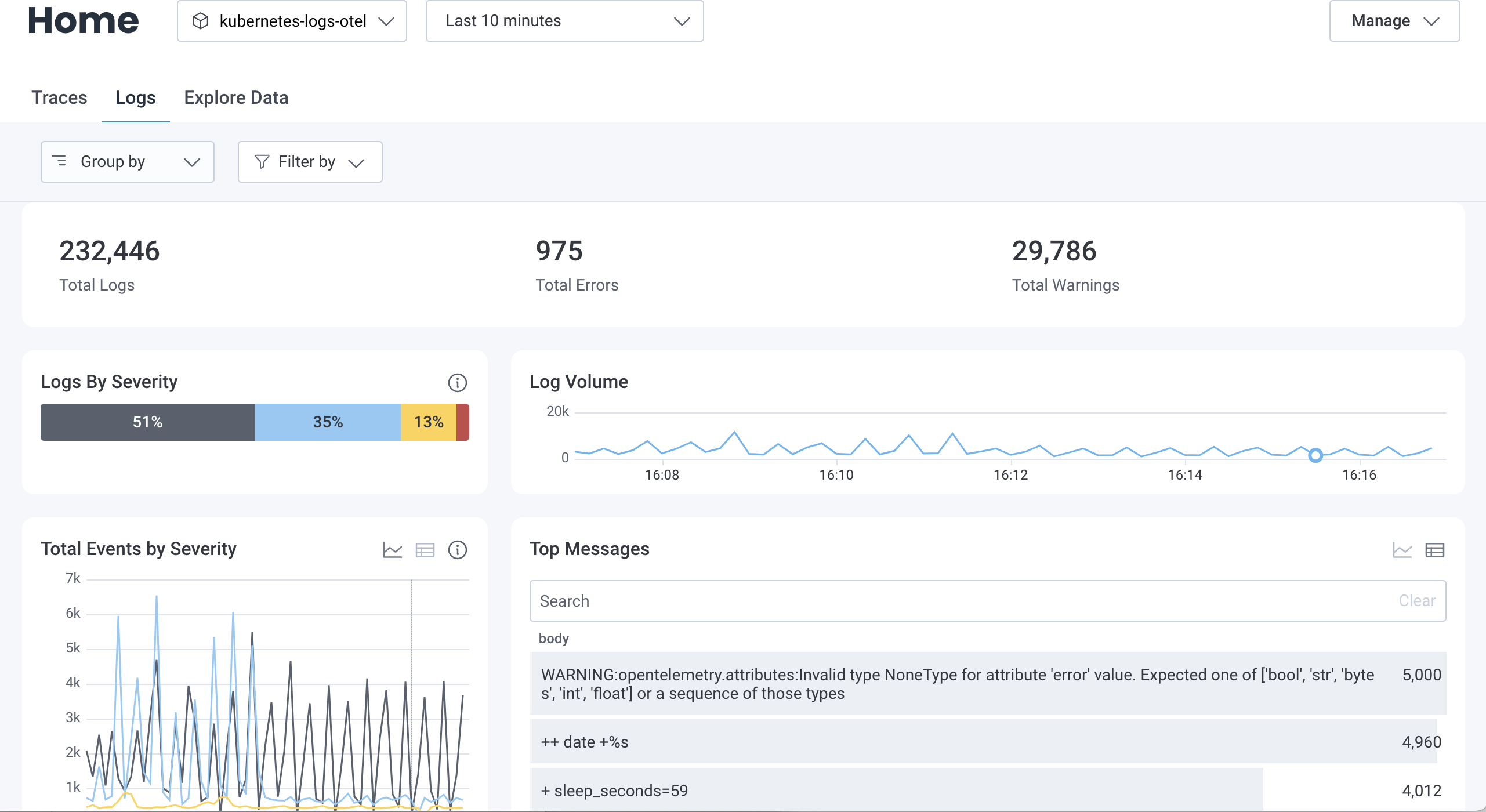
- Total Logs: Displays the total number of logs received within the selected time range.
-
Total Errors:
Displays the total number of logs that contain
errororfatalseverities within the selected time range. -
Total Warnings:
Displays the total number of logs with
warnseverities within the selected time range. -
Logs by Severity:
Displays the percent of logs by severity levels within the selected time range.
Only standard severities, which include
fatal,error,warn,info,trace,debug, andunspecified, are distinctly represented. Other, non-standard severities are bucketed into anOthergroup. - Log Volume: Displays a line graph of the log volume within the selected time range.
-
Total Events by Severity:
Displays the volume of logs, grouped by severity, within the selected time range.
Select the Show table () or Show chart () icon to switch between displaying this data as a table or line graph.
Non-standard severities are also displayed in this chart.
- Top Messages: Displays the most frequently occurring log messages within the selected time range. Select the Show table icon () or Show chart icon () to switch between displaying this data as a table or line graph. Enter a string in the search box to filter the body by that string.
-
Total Errors by Severity:
Displays the volume of logs where severity is
errororfatal, grouped by severity, for the selected time range. Select the Show table icon () or Show chart icon () to switch between displaying this data as a table or line graph. - Top Errors: Displays the most frequently occurring errors within the selected time range. Select the Show table icon () or Show chart icon () to switch between displaying this data as a table or line graph. Enter a string in the search box to filter the body by that string.
Grouping & Filtering
You can slice and dice visualizations in the Traces or Logs views by selecting options within the Group by and Filter by dropdowns.Group By
Use the Group by dropdown to group all logs visualizations by additional fields.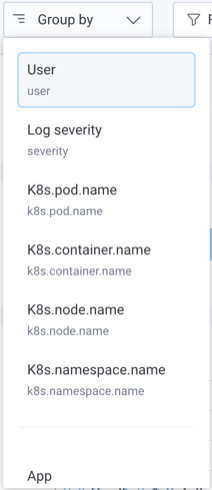
- From the Group by dropdown, select Customize Groups.
- In the modal, for Property, select the field you want to be able to group your data by.
- Enter a Display Name, and select Add Field.
- From the Group by dropdown, select Customize Groups.
- In the modal, locate the Existing Fields section.
- Locate the group that you want to delete, and select the Delete icon ().
- Close the modal.
Filter By
Use the Filter by dropdown to filter all logs visualizations by additional fields.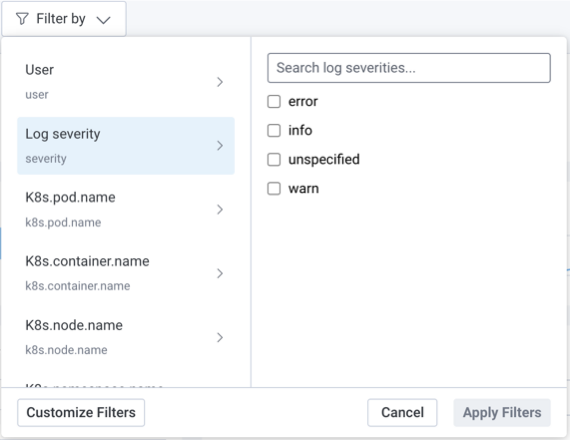
- From the Filter by dropdown, select Customize Filters.
- In the modal, for Property, select the field you want to be able to filter your data by.
- Enter a Display Name, and select Add Field.
- From the Filter by dropdown, select Customize Filters.
- In the modal, locate the Existing Fields section.
- Locate the filter that you want to delete, and select its Delete icon ().
- Close the modal.
- From the Filter by dropdown, select a field you would like to filter by.
- Select the values you would like to include for the field.
- Repeat for any other fields you would like to filter by.
- Select Apply Filters.
Chart Actions
Use chart actions to dig deeper into the insights displayed on Honeycomb Home. Select any point on a line graph or any values in a table to open the action menu.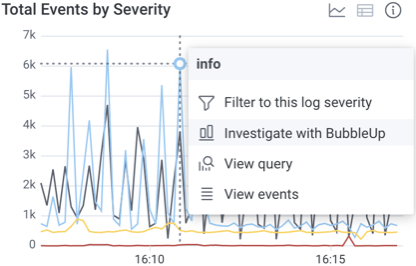
View Query
Each visualization lets you navigate directly to the Query Results page for the underlying query. To explore a visualization’s underlying query:- Select a point on a chart or a cell in a table.
- From the context menu, select View Query.
Identify Outliers
Visualizations that are grouped by fields will let you use BubbleUp to explore differences between groups:- On a grouped visualization, select a point on a chart or a cell in a table.
- From the context menu, select BubbleUp Outliers.
Filter
Visualizations that are grouped by fields will let you filter directly by a severity or log message group. To filter directly by a group:- Select a point on a chart or a cell in a table.
- From the context menu, select Filter to this….
View Events
Each visualization lets you navigate directly to selected events. To explore events:- Select a point on a chart or a cell in a table.
- From the context menu, select View Events.
Explore Data
The Explore Data view lets you explore all of the events in the dataset.You can access the Explore Data view through either Honeycomb Home or the Query Builder.
In either case, the functionality remains the same—only the scope of the data changes.
Accessing Explore Data through the Query Builder returns all events matching the entered query, whereas accessing it through Honeycomb Home returns all events contained in the selected dataset that occurred during the defined time window.