

How it works
Chat about this page uses context from your current page to answer questions in plain language, so you can understand what you are looking at faster and decide what to do next.Page context
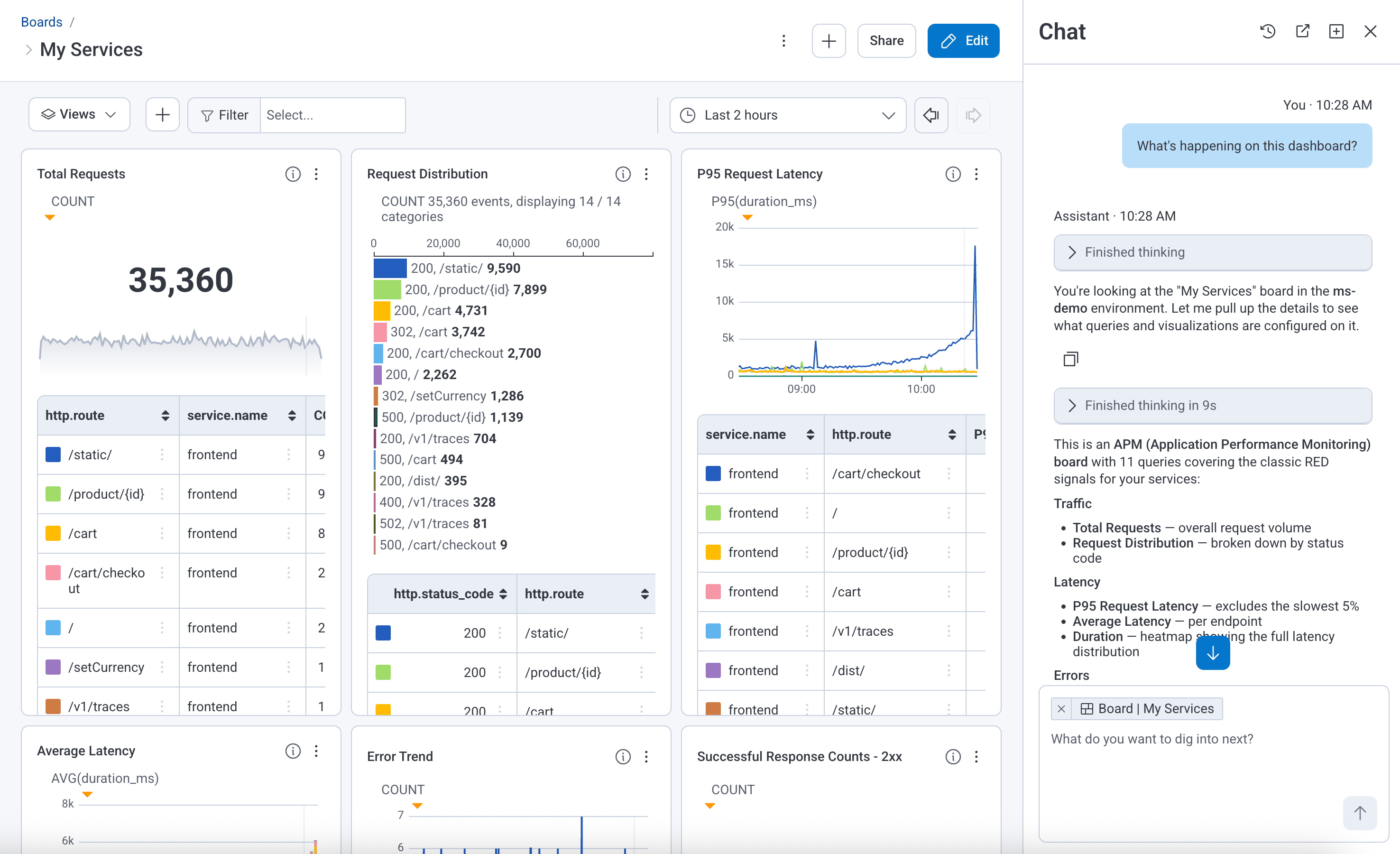
When you open the chat on a page, it reads the telemetry and analysis visible in that view. Depending on where you are, that context can include the query you are running, Board panels and their results, trace data, SLO burn rate and error budget, or Trigger configuration and firing history. Because context is scoped to the current page, Chat about this page works best for focused, in-context questions. For investigations that span multiple services or surface areas, use a full Canvas investigation instead.Responses and suggestions
Canvas responds with plain-language explanations of what it sees and suggestions for what to investigate next. You can ask follow-up questions in the same chat session to refine your understanding. Chat about this page can explain what it observes and suggest next steps, but it cannot create or modify Honeycomb resources such as Boards, Triggers, or SLOs.Escalating to Canvas
When a question requires a broader investigation, such as correlating across multiple services, drilling into traces, or collaborating with teammates, you can move the conversation into a full Canvas investigation without starting over. Select the Open in Canvas icon () in the chat panel to continue. To learn more, visit Ask Questions with Canvas.Availability
Chat about this page is available on most pages where you are viewing telemetry or analysis results. It is not available on:- Team settings
- Dataset settings
- Environment settings
- Send data
- History
Powered by Honeycomb Intelligence
To use Chat about this page, Honeycomb Intelligence must be enabled for your team. Team Owners can manage this setting in Manage Team Behavior. Use of this feature is subject to the data handling described in Honeycomb AI Policies.Start a chat
To get a quick explanation of what you are looking at, open the chat from any supported page:- Navigate to a supported page, such as query results, a Board, a trace, an SLO, or a Trigger.
- Select the Chat about this page icon ().
Example questions
These examples show the kinds of questions Chat about this page answers well: specific, in-context questions about what you are currently viewing.Query results
- What do these results mean?
- Analyze this query for me.
- Which endpoints have the highest error rate?
- Are there any errors I should know about?
Boards
- What is happening on this Board?
- Analyze this Board for me.
- Are there any problems I should look at?
- What is my error rate right now?
Traces
- Why did this fail?
- Walk me through what happened.
- What is contributing most to latency?
Triggers
- What does this alert mean?
- Why did this fire?
- What threshold is the trigger set to?
SLOs
- Why is this dropping?
- What is causing failures?
- What is driving the burn rate?
Minimize the chat icon
If you prefer a less prominent control, you can collapse the chat icon to the side of the page. Your preference is saved as you move between supported pages. To minimize the icon:- Hover over the Chat about this page icon ().
- Select the right arrow () to collapse the icon to the side of the page.
- Hover over the collapsed icon on the side of the page.
- Select the left arrow () to restore the full icon.
Learn more
- Ask Questions with Canvas: Learn how to run deeper investigations and collaborate with teammates using Canvas.
- Ask Canvas in Slack: Connect Canvas to your Slack workspace so your team can investigate observability data and receive AI-powered alert analysis without leaving Slack.
- Honeycomb Intelligence: Learn about the AI-powered features that power Chat about this page and other Honeycomb Intelligence capabilities.