

- Query traces, logs, and metrics without writing queries manually.
- Chat about the page you are on to quickly understand queries, boards, and other views.
- Automatically investigate alerts, anomalies, or why a Service Level Objective (SLO) alert fired.
- Analyze patterns across user cohorts or service dependencies as a team.
- Connect the services you already use, so Canvas can read your incidents, runbooks, and issues during an investigation.
How it works
Technical integration
Canvas integrates directly with Honeycomb’s query engine and has access to:- Team information
- Environment and Dataset metadata
- Field schemas and sample values
- Query execution capabilities
- Trace visualization tools
- Boards
- SLO and Triggers
- BubbleUp for identifying outliers
Query transparency
Canvas makes all generated queries available throughout your investigation. You can examine the exact query syntax Canvas creates from your natural language questions and modify queries directly in the Query Builder.Persistent workspaces
Canvas auto-saves investigations as persistent workspaces that you can revisit and share with Team members.Your chat and team chat
Each Canvas investigation has a Your Chat and Team chat tabs. Each chat is your own agent, letting you and your team have separate conversations with Canvas in the same investigation. You can view team chats by selecting the Team tab then choosing a teammate from the dropdown menu.Cursor chat
Cursor chat lets you send short messages that appear as bubbles near your cursor then fade away after a few seconds. It’s designed for quick, temporary communication during collaborative investigations. During an investigation with your team, press/ to open the chat input and type your message (up to 64 characters), and press Enter to send.
Mermaid diagram support
You can create editable diagrams from Mermaid text in Canvas. Flowcharts, sequence diagrams, mindmaps, and state diagrams are supported.Creating a Canvas investigation
Begin an investigation by creating a new Canvas or opening an existing query to use as context in Canvas. To start a new Canvas investigation:- Select Canvas () from the navigation menu.
- Enter your question or investigation goal as a prompt.
- Submit () your prompt.
Viewing past investigations
- Select Canvas () from the navigation menu.
- Look for a previous investigation under All Investigations.
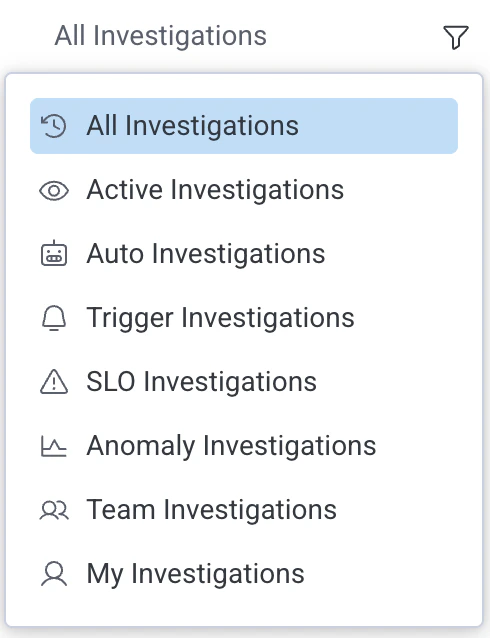
- Optionally filter by investigation type by selecting the filter button to the right of All Investigations.
- Active investigations
- Auto investigations
- Trigger investigations
- SLO investigations
- Anomaly investigations
- Team investigations
- Your (My) investigations
Adding team-level skills or context to Canvas
Team owners can add custom skills to Canvas that are available to everyone on a team.Bringing your other services into Canvas
Canvas connectors let the Canvas Agent use services such as PagerDuty, incident.io, Notion, and Linear during an investigation. Each person connects their own account, and the Canvas Agent reaches the connected service as them.Adding Mermaid diagrams
Pasting Mermaid text into a Canvas creates a diagram you can edit. You can change the style of the entire diagram or specific nodes by selecting them and using the style editor. To resize a node or adjust the placement of a line, select it and use the handles that appear.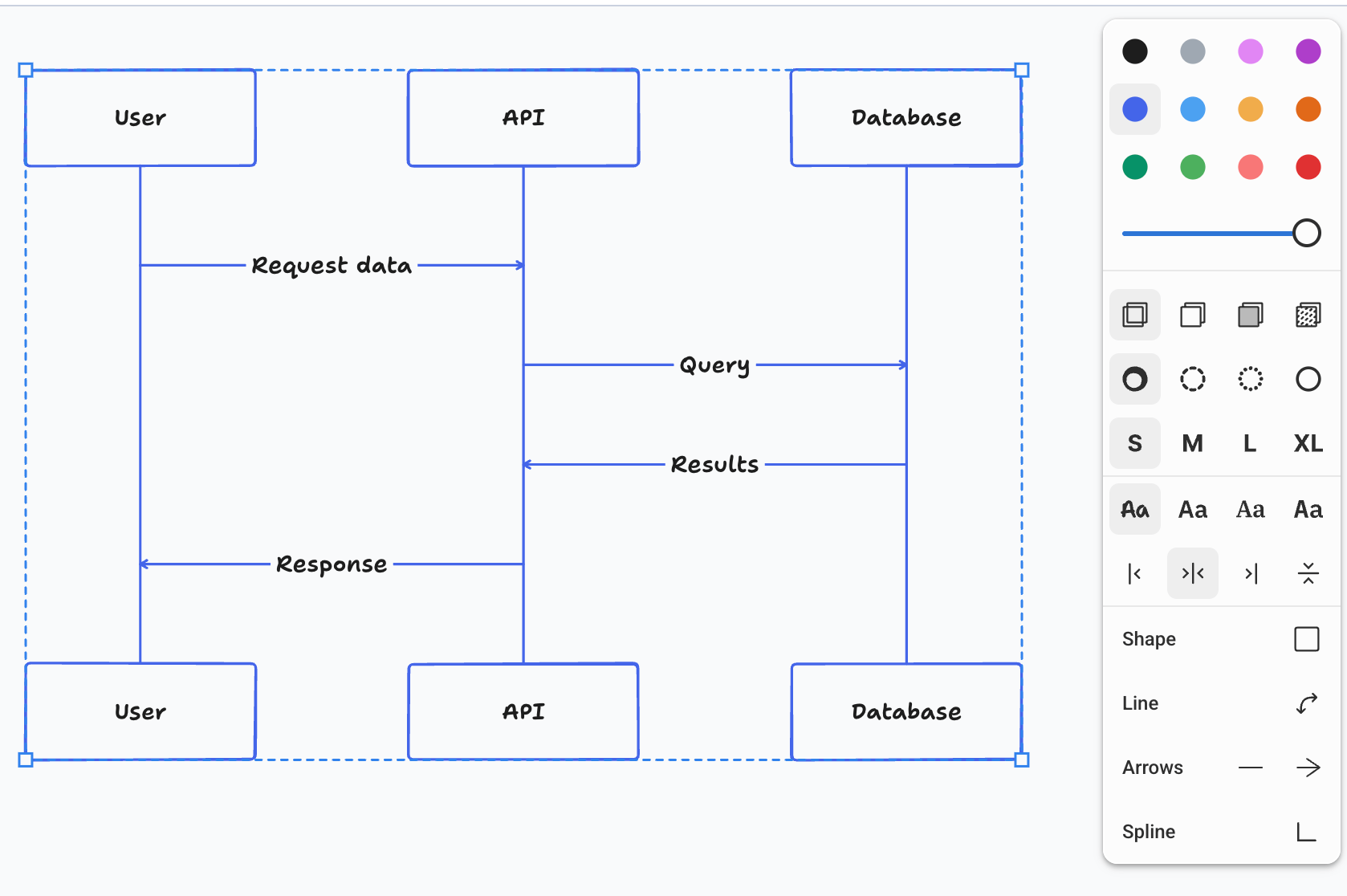
Example prompts
You can reference specific Datasets, Environments, fields, or include links to queries in your chat prompts. Use these examples as starting points to explore what’s possible in Canvas:- “What’s causing the spike in database request volume?”
- “Investigate
/link/to/a/trace/” - “What SLOs would you recommend for
@my_datasetbased on fields prefixed withmy_prefix?” - “Which user cohorts are experiencing higher latency?”
- “What fields are available in the
frontenddataset?” - “Compare database query performance between
productionandstaging.”
Effective question types
- Diagnostic questions to identify causes of specific issues:
Why did service X have high latency at 2pm yesterday? - Comparative questions to analyze differences between services or environments:
How does the error rate in production compare to staging? - Trend analysis questions to examine patterns over time:
Show me the pattern of database connections over the last week. - Correlation questions explore relationships between metrics:
Is there a relationship between cache miss rate and API latency?
Working with Canvas Results
Canvas displays the queries it generates from your natural language questions in visualization panels alongside your chat session.Interacting with visualizations
Interact with Canvas visualizations the same way you would with Query Results:- Select data points to view traces or examine the underlying query.
- Hover over data points to explore details, such as timestamps and breakdowns of the selected dimension.
Editing generated queries
Each visualization panel includes options to examine the query syntax:- Select View query.
- Select Open in new tab from the options menu ().
Sharing a query
Share individual queries from a Canvas investigation by selecting the link icon () on any query panel. This copies a shareable link to that specific query.Sharing a Canvas investigation
You can generate a shareable link to your Canvas investigation, so you can share it with your Team. To share a non-private Canvas, select Share ().Best Practices
Follow these guidelines to get the most accurate and relevant results from Canvas.- Be specific in your prompts:
- Include specific service names when applicable.
- Specify time ranges when looking at historical data.
- Mention particular metrics or dimensions of interest.
- State the relationship or pattern you are exploring.
- Iterate on your investigation:
- Start with a general question and refine based on initial results.
- Ask follow-up questions to dig deeper into patterns Canvas identifies.
- Provide context:
- If switching topics, give Canvas enough context to understand the new direction.
- Use mentions (
@) to reference specific Datasets, Environments, or fields.
- Ask for explanations:
- Ask Canvas to explain query logic or data interpretation to deepen your understanding.
Limitations
Canvas works within these boundaries:- Complex analytical questions may require iterative refinement.
- Results are limited by the data retention policy of your Honeycomb account.
- Canvas can’t modify your Honeycomb configuration or infrastructure.