

Environments
Troubleshoot issues related to managing Environments.When you try to delete an Environment, the delete button is disabled
Check that you have typed in the correct unique identifier of the environment you want to delete. It should be listed in parentheses in the prompt for the field.API Keys
Troubleshoot issues related to API Keys.You cannot see the value of your API key
For security reasons, the full, 64-character API key is only available when you first create the API key. Only the non-sensitive first 32 characters of the API Key (a region-specific prefix and the key’s identifier) are available in the Honeycomb UI thereafter. If you have misplaced the full API key, we recommend that you disable or delete the key, and create a new one.Team Access
Troubleshoot issues related to configuring access for Teams.Google SSO
Troubleshoot team member authentication access that uses Google Single Sign-on (SSO).Team members encounter a message stating that no user accounts match their credentials
When attempting to log in to Honeycomb using Google SSO, users may encounter a message stating that no accounts match their user credentials: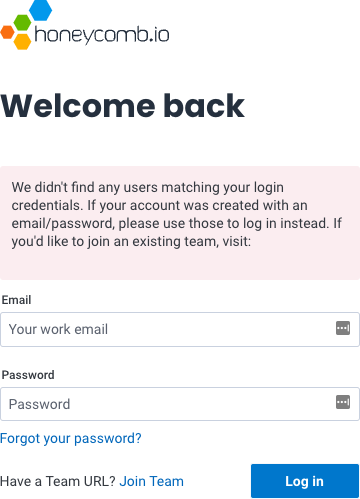
SAML SSO
Troubleshoot team member authentication access that uses SAML Single Sign-on (SSO).You receive a SAML assertion error when converting to a SAML SSO team in Honeycomb
If a “SAML Assertion” error appears, verify that your SSO Identity Provider Audience and Recipient fields match your Honeycomb team settings SSO Service Provider Issuer/Entity ID and Service Provider ACS URL fields. The Audience field should contain:https://ui.honeycomb.io/saml/<team-identifier>, while the Recipient field should contain: https://ui.honeycomb.io/auth/callback/saml/<team-identifier>.
You receive a SAML assertion error when updating your SAML certificate
If you receive a “SAML Assertion” error while updating to a new Service Provider certificate, your Identity Provider may still be configured with the older certificate. Follow the certificate rotation process to properly update your Identity Provider before updating your team’s configuration. For detailed steps, see SAML Certificate Rotation.Microsoft Entra ID SSO
Troubleshoot team member authentication access that uses Microsoft Entra ID Single Sign-on (SSO). Honeycomb requires theFirstName, LastName, and Email claims to be populated.
If your Microsoft Entra accounts are configured to use a value other than user.givenname or user.surname to represent a user’s first or last name, you may use those other values to populate the corresponding claims instead.