Accessing Query Builder
In the left navigation menu, select Query (). When the left navigation menu is compact, only the Query menu icon appears.Interacting with Query Builder
Below is an example of a blank Query Builder.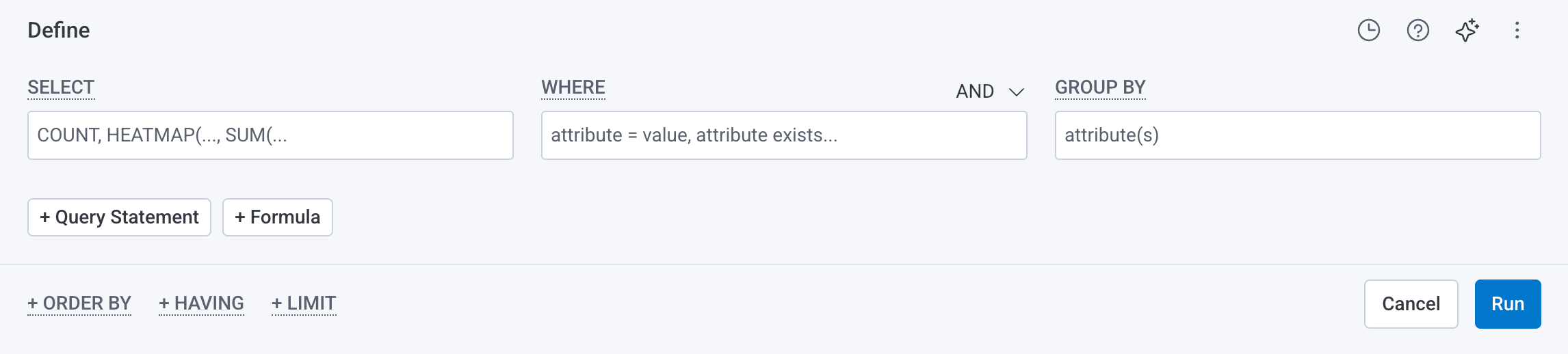
Clauses
A query in Honeycomb consists of up to six clauses:- SELECT - Performs a calculation and displays a corresponding graph over time. Most SELECT queries return a line graph while the
HEATMAPvisualization shows the distribution of data over time - WHERE - Filters based on field or attribute parameter(s)
- GROUP BY - Groups fields by field or attribute parameter(s)
- ORDER BY - Sort the results
- LIMIT - Specify a limit on how many results to return
- HAVING - Filter results based on aggregate criteria
Relational Fields
You can use relational fields in the WHERE and GROUP BY clauses to narrow your query to find traces that contain fields and values within a specific span type. You can identify span types by their prefix.Relational fields are available for use only within the Query Builder in the Honeycomb UI and only within the WHERE and GROUP BY clauses.Using relational fields automatically applies AND operators to the containing clause; all conditions within the clause must be met.
Prefixes
Relational field span prefixes follow your trace structure and include:-
root.- Matches to the root span within a trace. Any additional filters in your query will search through fields only in the matchedroot.span. -
parent.- Matches to a direct parent span within a trace. Any additional filters in your query will search through fields only in the specifiedparent.span and its immediate child spans. -
child.- Matches to a single child span within a trace and returns the corresponding parent span. Any additional filters in your query will search through fields only in the matchedchild.span. -
anyX.(any.,any2.,any3.) - Matches to a single span anywhere in the trace. UseanyX.prefixes together to query for a trace that contains up to three spans, each with their own filters. Any additional filters applied to the sameanyX.prefix will apply to the same matched span. -
none.- Matches to a single span and excludes any traces that contain that matched span. Any additional filters in your query will search through only fields not in the matchednone.span.Using multiple of the sameanyX.prefix will find many fields on a single span. Using ananyX.prefix in a GROUP BY clause requires specifying a field.
Using Query Builder
To use Query Builder, enter terms. For examples to try, refer to our Query Examples. As you type, Honeycomb autocomplete prompts with relational field prefixes and selectable query components. Execute the query by selecting Run Query or pressing Shift + Enter on the keyboard.Honeycomb supports keyboard shortcuts!
Refer to a list of supported actions by typing
? while on the Query Builder page.Using Relational Fields
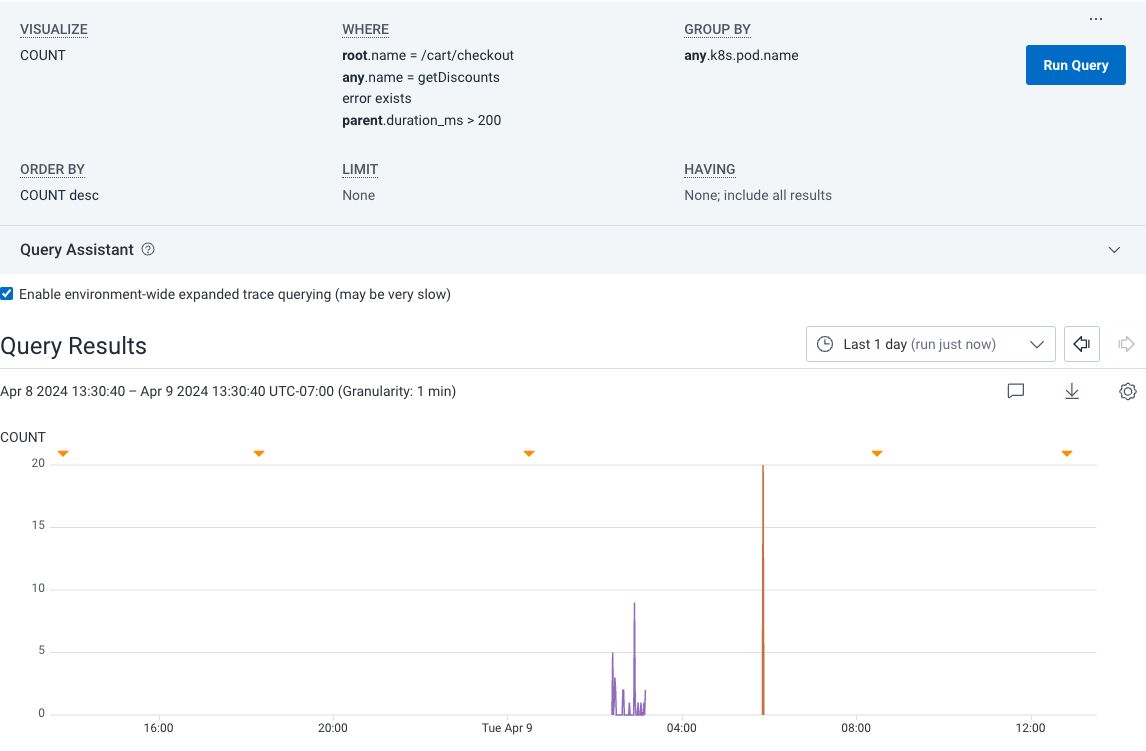
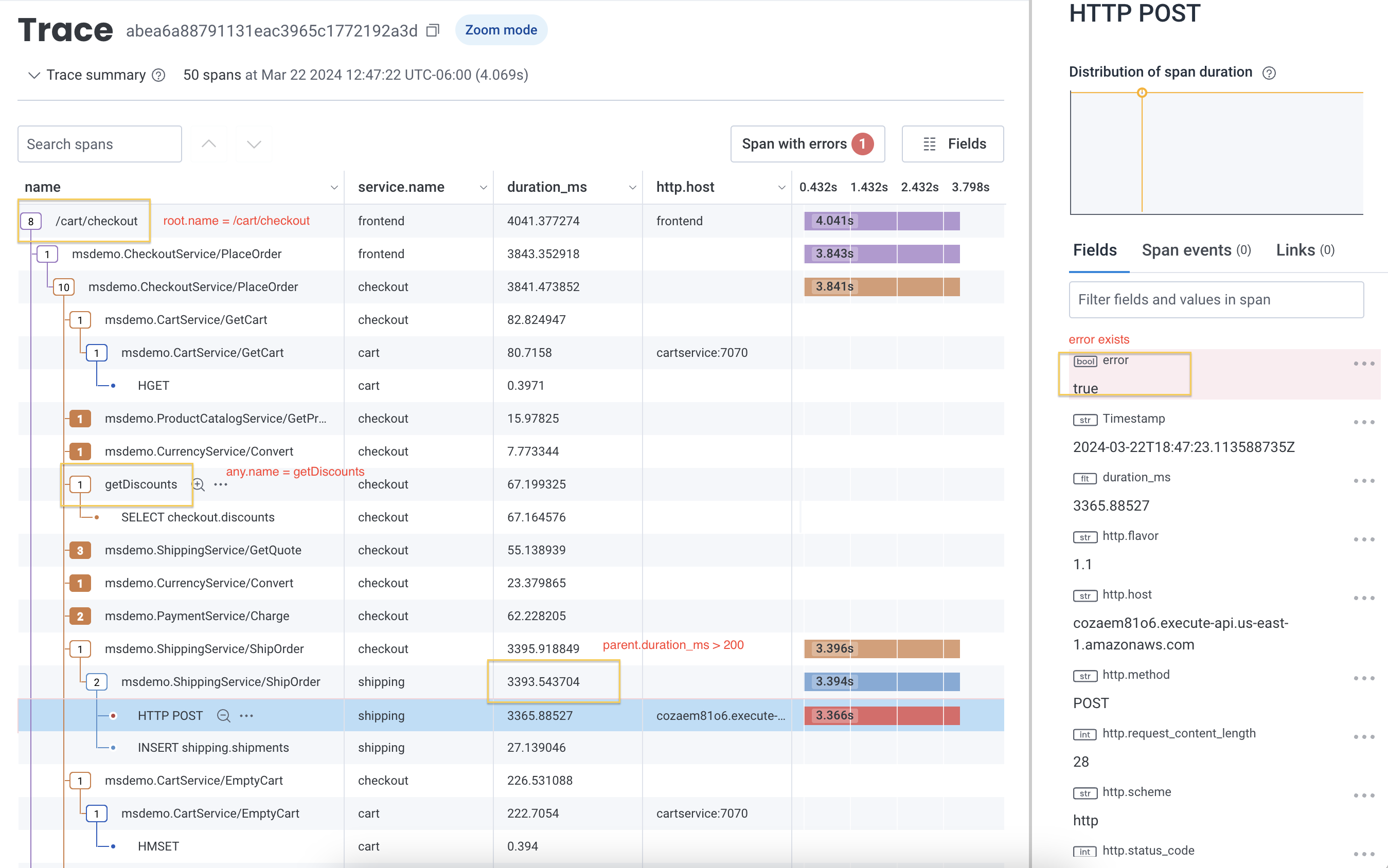
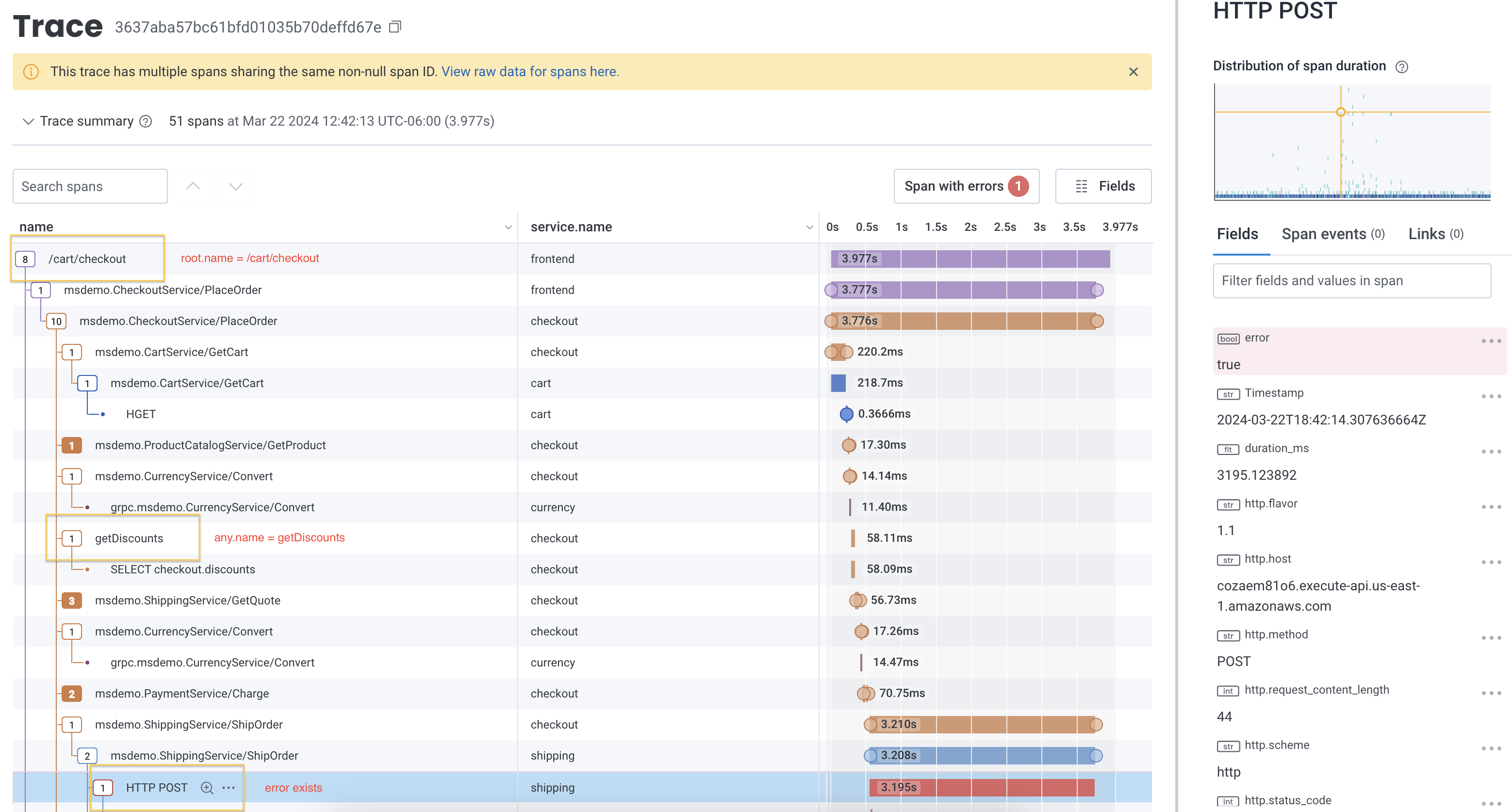
When you apply relational fields to your query, you can extend queries to use qualifying relationships that indicate where and how spans appear in a trace. For example, if you managed an e-commerce platform and were trying to determine how many users received an error when they applied a discount code during checkout, you would be interested in finding any applicable spans in your trace. This example query uses both theroot. and anyX. prefixes to find the count of all spans where an error exists, where any span in the same trace is named getDiscounts and where its root span is named /cart/checkout.
After querying, you might see the following trace summary when you select a span from the query results:
Query Builder Results
The default output for most queries will include:- a visualization, or a graph over time
- a summary table
- Specifying a SELECT clause causes a visualization to be drawn, representing that calculated value over time
- Multiple SELECT clauses result in multiple graphs, one for each calculation.
- Specifying a GROUP BY clause results in the graph having multiple lines, one for each group. The summary table will contain a single row for each unique group.
- Leaving SELECT blank results in raw event data being returned without any summarization.
Editing Queries in Query Builder
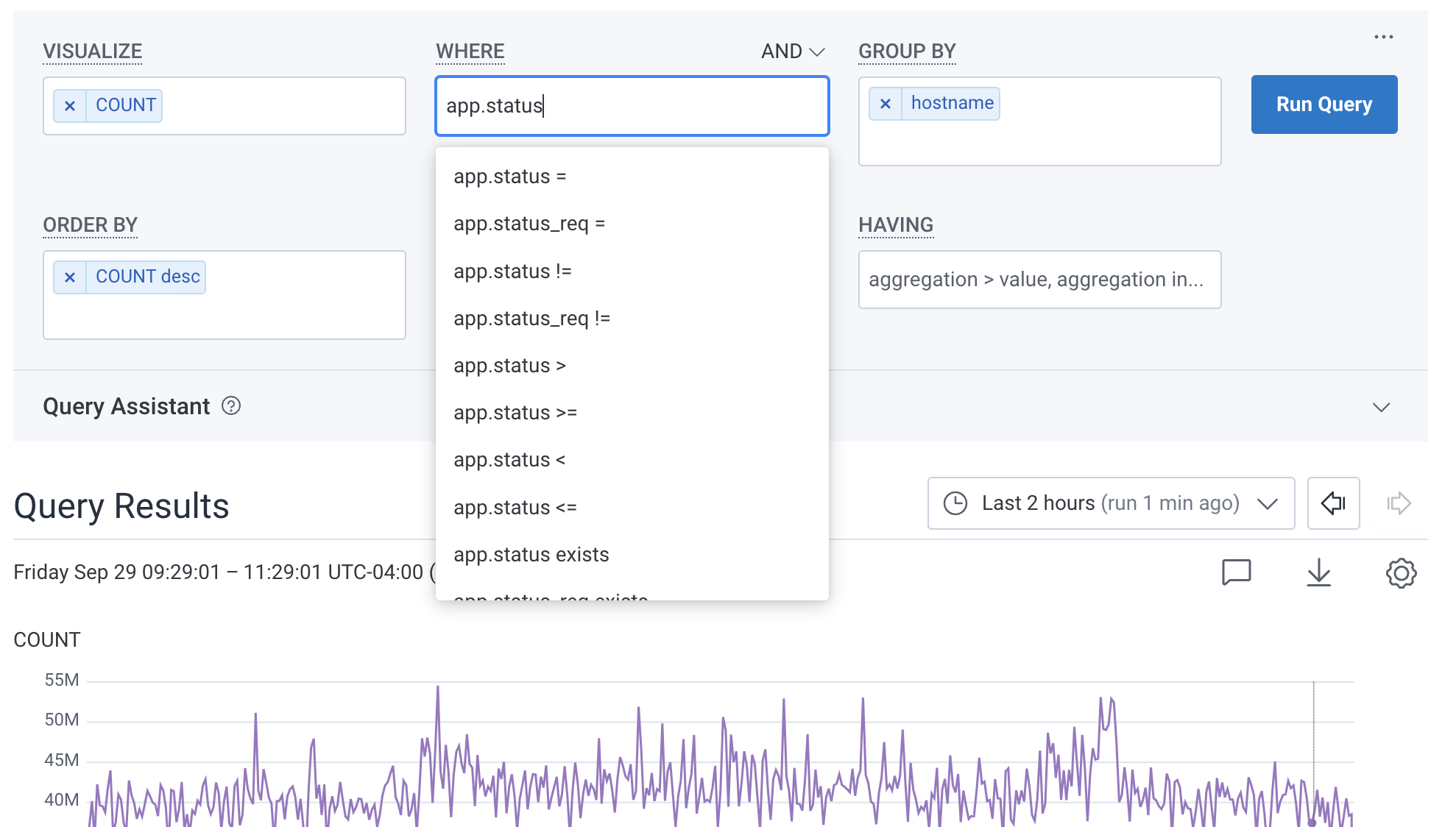
Click on any box in the Query Builder to edit the clauses there. Selecting the X removes the field from the clause. In the image below, the user already entered SELECTCOUNT and GROUP BY hostname.
When editing, they add a new WHERE clause on app.status_code.
Honeycomb autocomplete helps construct the query.
Change Datasets
In the upper left corner above the Query Builder, use the Dataset Switcher to choose to query a specific Dataset or all Datasets within your Environment. The latter option may be useful if you need to reference events that span across multiple services. When you switch datasets, Honeycomb will load the existing query on that dataset, but it will not run it automatically. You can also set a default scope for new queries per environment in Environment Settings.Change and Compare Query Time Ranges
In the bottom right corner below the Query Builder, use the time picker to modify the selected time span of the data in your query. Use a preset time range or a custom time range. Honeycomb supports running queries across different periods of time, so you can compare results to see how your systems change. Run a Time Comparison query by selecting a time range under Compare to previous time period in the time picker. Honeycomb then will run a query as defined in the Query Builder and another query for the time comparison range selected.Query Reference
SELECT
Honeycomb supports a wide range of calculations to provide insight into your events. When a grouping is provided, calculations occur within each group; otherwise, anything calculated is done so over all matching events. For example, say you have collected the following events from your web server logs: Specifying a visualization for a particular attribute (P95(response_time_ms)for example) means to apply the aggregation function (in this case, P95, or taking the 95th percentile) over the values for the attribute (response_time_ms) across all input events.
Defining multiple SELECT clauses is common and can be useful, especially when comparing their outputs to each other.
For example, it can be useful to see both the COUNT and the P95(duration) for a set of events to understand whether latency changes follow volume changes.
While most SELECT queries return a line graph, the HEATMAP visualization allows you see the distribution of data in a rich and interactive way.
Heatmaps also allow you to find outliers in data using BubbleUp.
SELECT: Basic Case
Scenario: we want to capture overall statistics for our web server. Given our four-event dataset described above, consider a query which contains:- Visualize the overall
COUNT - Visualize the
AVGofresponse_time_msvalues - Visualize the
P95ofresponse_time_msvalues
SELECT: COUNT_DATAPOINTS
COUNT_DATAPOINTS returns the total count of datapoints ingested across all metric fields in a metrics dataset. Use it to understand data volume and track what is driving your usage. The COUNT_DATAPOINTS aggregate can only be used with time-series metrics data.
A datapoint is a single recorded value for a metric at a point in time, for a unique combination of attributes. Datapoints are the unit by which metrics usage is billed. Every active time series is a unique combination of metric name and attributes, such as http.server.request.duration where k8s.node.name=node-1 which continuously produces datapoints over time. High attribute cardinality means more time series, and therefore more datapoints.
Use COUNT_DATAPOINTS to track billing usage over a time range or to spot metric ingestion spikes.
COUNT_DATAPOINTS data is only available from February 13, 2026 onward. Queries that include time ranges before this date will only reflect data ingested after that date.SELECT: COUNT_DATAPOINTS(metric_field_name)
COUNT_DATAPOINTS(<metric_field_name>) returns the count of datapoints for a specific metric field. Only rows where that column has a value are counted. The COUNT_DATAPOINTS(<metric_field_name>) aggregate can only be used with time-series metrics data.
Use this when you want to isolate the datapoint volume of a single metric. For example, comparing ingestion across metrics or identifying which metric is driving a cost increase.
If any metric data has been deleted,
COUNT_DATAPOINTS will still include those deleted datapoints in its count. COUNT_DATAPOINTS(metric_field_name) excludes deleted data.SELECT: HISTOGRAM_COUNT(metric_field_name)
HISTOGRAM_COUNT(<metric_field_name>) returns the count of observations in a histogram metric field, across the rows and time included in the query.
This aggregate can only be used on time series metrics histogram fields.
SELECT Summary Table
The SELECT clause returns both a time series graph and a column of values in the result summary table. Note that in the graph, the values shown are aggregated for each interval at the current granularity. Conversely, the values shown in the summary table are calculated across the entire time range for that query. These results can be a little surprising for some calculations. TheP95(duration_ms) across the entire time range may not look quite like the P95 value at any given point of the curve, because there may be spikes and bumps in the underlying data that are hidden in the time intervals.
The summary table for a HEATMAP shows a histogram of values of that field across the full time range.
SELECT Operations
Most SELECT operations take a single argument, with the exception ofCOUNT and COUNT_DATAPOINTS, that optionally take an argument, and CONCURRENCY, which takes no arguments.
Events that do not have a relevant attribute are ignored, and will not be counted in aggregations.
In the chart below, <field_name> refers to any field name while the <numeric_field_name> argument refers to a float or integer field.
WHERE
The WHERE clause allows you to constrain events by some attribute besides time. For example, you may want to ignore an outlier case or isolate events triggered by a particular actor or circumstance. For example, say you have collected the following events from your web server logs: You can define any number of arbitrary constraints based on event values. WHERE clauses work in concert with the specified time range to define the events that are ultimately considered by any GROUP BY or SELECT clauses.The WHERE clause does not require string delimiters or escape characters. For example, to match a URI of
/docs, you can enter uri = /docs.WHERE: Basic Case
Scenario: we want to understand the frequency of unsuccessful web requests. Given our three-event dataset described above, consider a query which contains:- SELECT the overall
COUNT - WHERE
status_code != 200
/about web request returning a 200) from consideration, and only counts the first and third events towards our SELECT clause:
WHERE: Multiple Clauses
Scenario: we want to refine our constraints further, to span multiple attributes for each event. Combining WHERE clauses returns events that satisfy either the intersection of all specified WHERE clauses, or the union. Given our three-event dataset described above, consider a query which contains:- Where
uri = "/about" - AND
status_code != 200
OR.
- WHERE
status_code = 500 - OR
status_code = 403
WHERE: Relational Fields
You can use relational fields in your WHERE clause to narrow your query to find traces that contain fields and values within a specific span type. To learn more and explore some examples, visit Relational Fields in this reference.WHERE Operations
WHERE operations may take one or more attributes.
Events are only counted if they have a relevant attribute, except in the case of the does-not-exist operation.
The syntax for the
in operator does not use parentheses.
For example, request_method in GET,POST
GROUP BY
Being able to separate a series of events into groups by attribute is a powerful way to compare segments of your dataset against each other. For example, say you have collected the following events from your web server logs: You might want to analyze your web traffic in groups based on theuri (“/about” vs “/docs”) or the status_code (500 versus 200).
Choosing to group by uri would return two result rows: one representing events in which uri="/about" and another representing events in which uri="/docs".
Each of these grouped results rows will be represented by a single line on a graph.
When using GROUP BY for more than one attribute, Honeycomb will consider each unique combination of values as a single group.
Here, choosing to group by both uri and status_code will return three groups: /about+500, /about+200, and /docs+200.
Grouping, paired with calculation, can often reveal interesting patterns in your underlying events—grouping by uri, for example, and calculating response time stats will show you the slowest (or fastest) uris.
The GROUP BY dropdown list also has a shortcut to create a calculated field.
Grouping and Selecting: Better Together
Scenario: we want to examine performance of our web server by endpoint. Given our four-event dataset described above, consider a query which contains:- Group by
uri - Select the overall
COUNT - Select the
AVGofresponse_time_msvalues
uri; Honeycomb draws one line for each group, and calculates statistics within each group:
This technique is particularly powerful when paired with an Order By and a Limit to return “Top K”-style results.
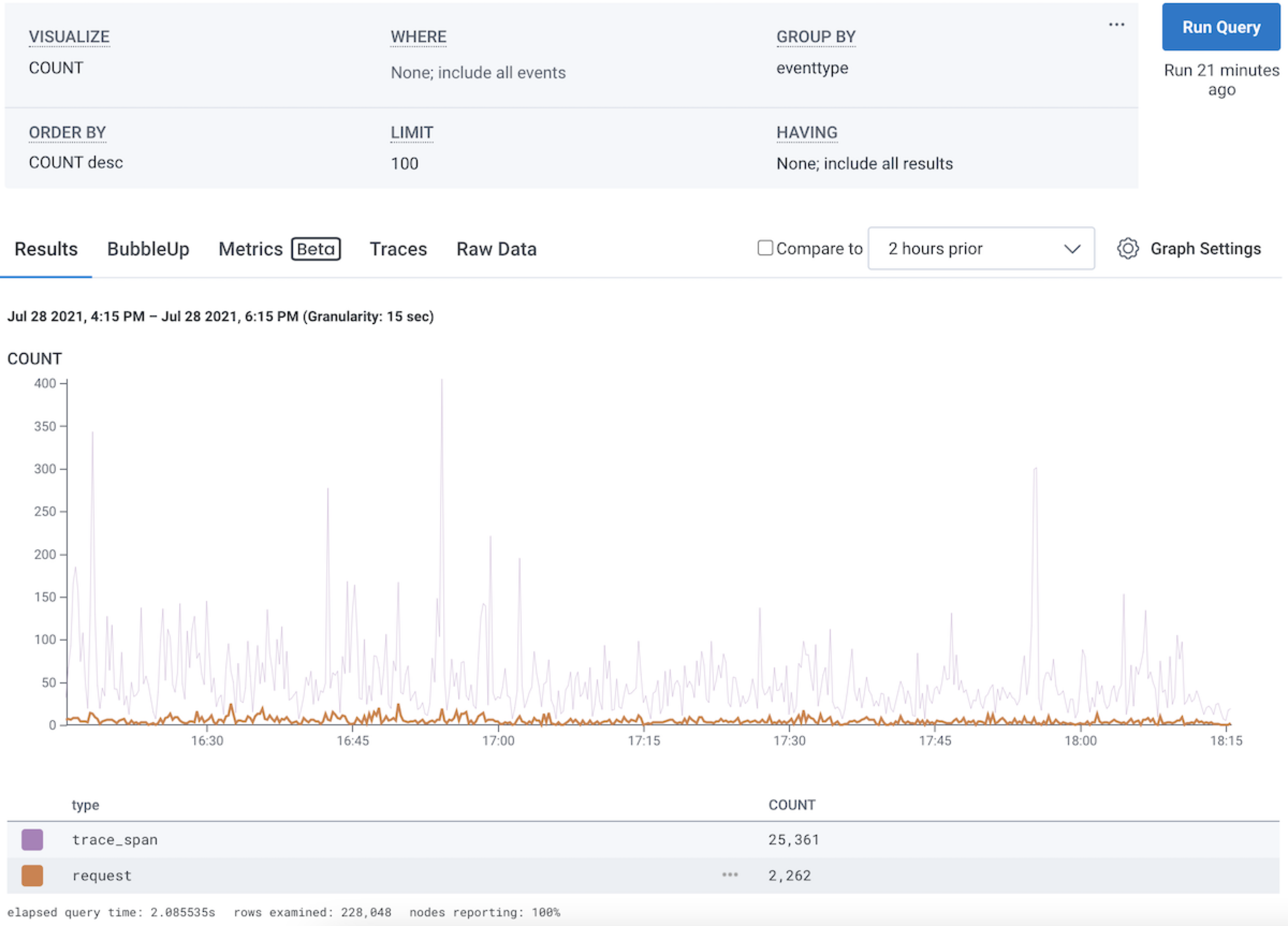
In this figure, the user has a SELECT COUNT, and GROUP BY eventtype.
The two curves, in purple and orange, show the two groups.
The popup shows that the user is hovering the trace_span eventtype, which has a count of 405 in that 15-second time range.

request and sees the orange line highlighted, and the purple line dimmed.
50-Series Visualization Limit: Honeycomb visualizes only the top 50 groups by the selected aggregation (e.g., MAX, MIN, AVG) in graphs, regardless of the LIMIT clause value. The LIMIT clause controls how many rows appear in the results table, but we will only ever show up to the top 50 groups as series in the visualization. When you change the time range, the visualized groups will change based on the query’s sort clause and the total value of each aggregation within the query’s time range, which can cause series to appear or disappear when zooming in or out.
Time Bucket Edge Effects: The first and last data points in a graph may represent shorter time intervals when query boundaries don’t align with the selected granularity. For example, with 2-minute granularity and a query ending at 08:32:44, the bucket for 08:32:00 will only contain 44 seconds of data, which can make it look like data is missing or dropping unexpectedly at the edges of graphs.
GROUP BY: Relational Fields
You can use relational fields in your GROUP BY clause to separate a series of events into groups. To learn more and explore some examples, visit Relational Fields in this reference.ORDER BY
ORDER BY clauses define how rows will be sorted in the results table. For example, say you have collected the following events from your web server logs: You can define any number of ORDER BY clauses in a query and they will be respected in the order they are specified. The ORDER BY clauses available to you for a particular query are influenced by whether any GROUP BY or SELECT clauses are also specified. If none are, you may order by any of the attributes contained in the dataset. However, once a GROUP BY or SELECT clause exists, you may only order by the values generated by those clauses.ORDER BY: Basic Case
Scenario: we just want to get a sense of the slowest endpoints in our web server. Given our four-event dataset described above, consider a query which contains:- Order by
response_time_msin descending (DESC) order - Limit to 1 result
ORDER BY as Paired with SELECT and GROUP BY Clauses
Scenario: we want to capture statistics for our web server and know what we are looking for (longresponse_time_mss).
Given our four-event dataset described above, consider a query which contains:
- SELECT
P95(response_time_ms), or the p95 ofresponse_time_msvalues - GROUP BY
uri - ORDER BY
P95(response_time_ms)in descending (DESC) order - LIMIT to the first
2results
uri and the P95(response_time_ms) for events within each distinct uri group), while the ORDER BY determines the sort order of those results (longest P95(response_time_ms) first) and the LIMIT throws away any results beyond the top 2:
As you can see, any results referencing the event with uri="/404" was excluded from our result set as a result of its relatively low response_time_ms.
This sort of Top K query is particularly valuable when working with high-cardinality data sets, where a GROUP BY clause might split your dataset into a very large number of groups.
LIMIT
The LIMIT clause provides a maximum number of result rows to return. By default, queries return 100 result rows. The LIMIT clause allows you to specify up to 1000 rows.HAVING
The HAVING clause allows you to filter on the results table. This operation is distinct from the WHERE clause, which filters the underlying events. A HAVING filter can help further refine your query results when grouping on a high-cardinality attribute, which can result in many different rows in the result table. It can also work in tandem with an ORDER BY clause. ORDER BY allows you to order the results, and HAVING filters them. Like ORDER BY, HAVING selects its series from the results table. For example, consider a query on SELECTCOUNT, P95(duration_ms) and GROUP BY endpoint.
This query would show how many times each endpoint ran, and how often it did so.
The results table from this query might look something like this:
You might want to ignore the rarest entries when they are least likely to be useful.
One way to do that is to add a HAVING clause:
The clause HAVING COUNT > 100 will filter to only results with more than 100 hits on them.
You can then ORDER BY P95( duration_ms ) to sort the results to find the slowest endpoints.
HAVING works by filtering specifically on aggregations across all results in the selected time range.
It currently does not filter time periods that match the criteria.
Take a look at the following example.
Each event has counts ranging from 0 - 9 across the time range.
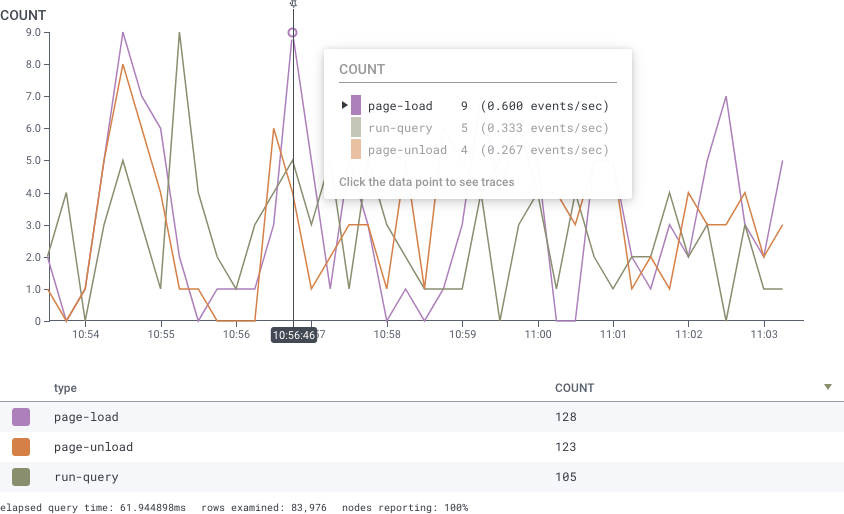
COUNT > 5.
This will still return all results in the image, since HAVING filters based off the total in the result table where all values are shown to have counts > 5.
HAVING Clause Options
The HAVING clause always refers to one of the SELECT clauses. It then takes one or more numeric arguments.
The
in operator compares where a value is one of a set: COUNT in 10, 20, 30 checks whether the COUNT is precisely one of those values.
The syntax for the in operator does not use parentheses.
Relational Fields
You can use relational fields to narrow your query to find traces that contain fields and values within a specific span type. Span types are identified by prefixes that follow your trace structure. You can use relational fields in WHERE or GROUP BY clauses in the Honeycomb UI.If you use relational fields, your conditions will be joined using AND operators by default.
Prefix: root
Theroot. prefix matches to the root span within a trace.
When you use it, additional filters in your query will match only for spans in traces that match the conditions on the root span.
You can also query with root. on its own.
If you are looking for spans somewhere in a trace that you know starts with certain fields, use root..
So you might use a query that contains:
- SELECT
COUNT - WHERE
name = HGETANDroot.name = /cartANDroot.duration_ms > 1000
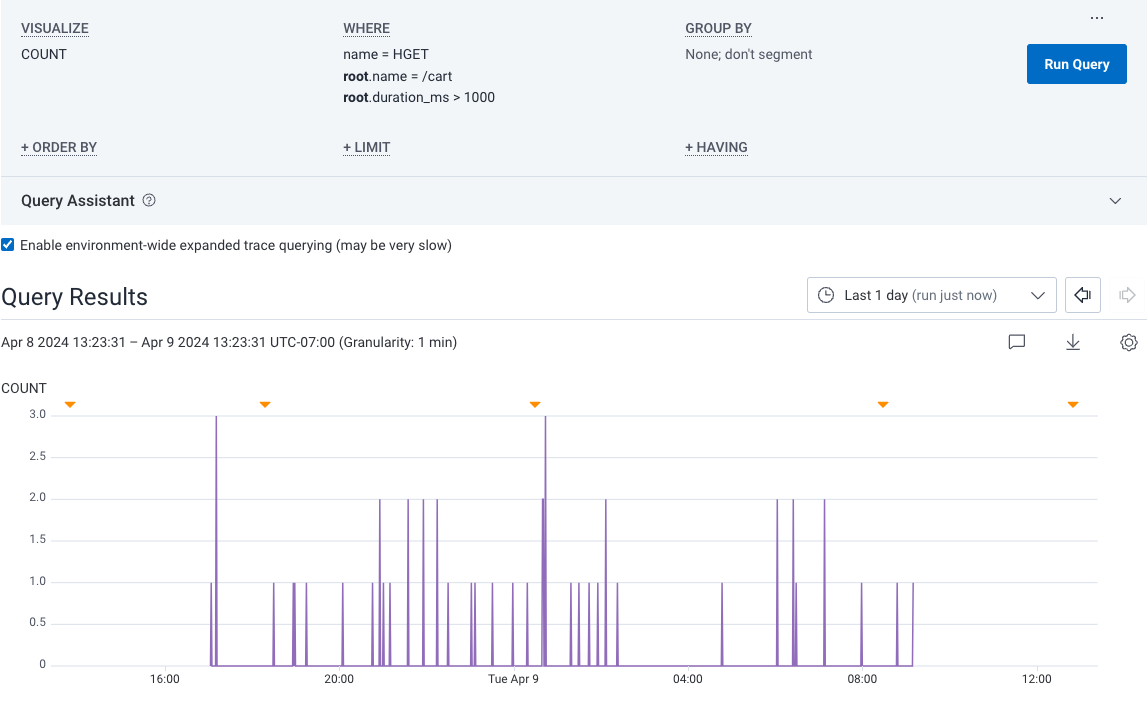
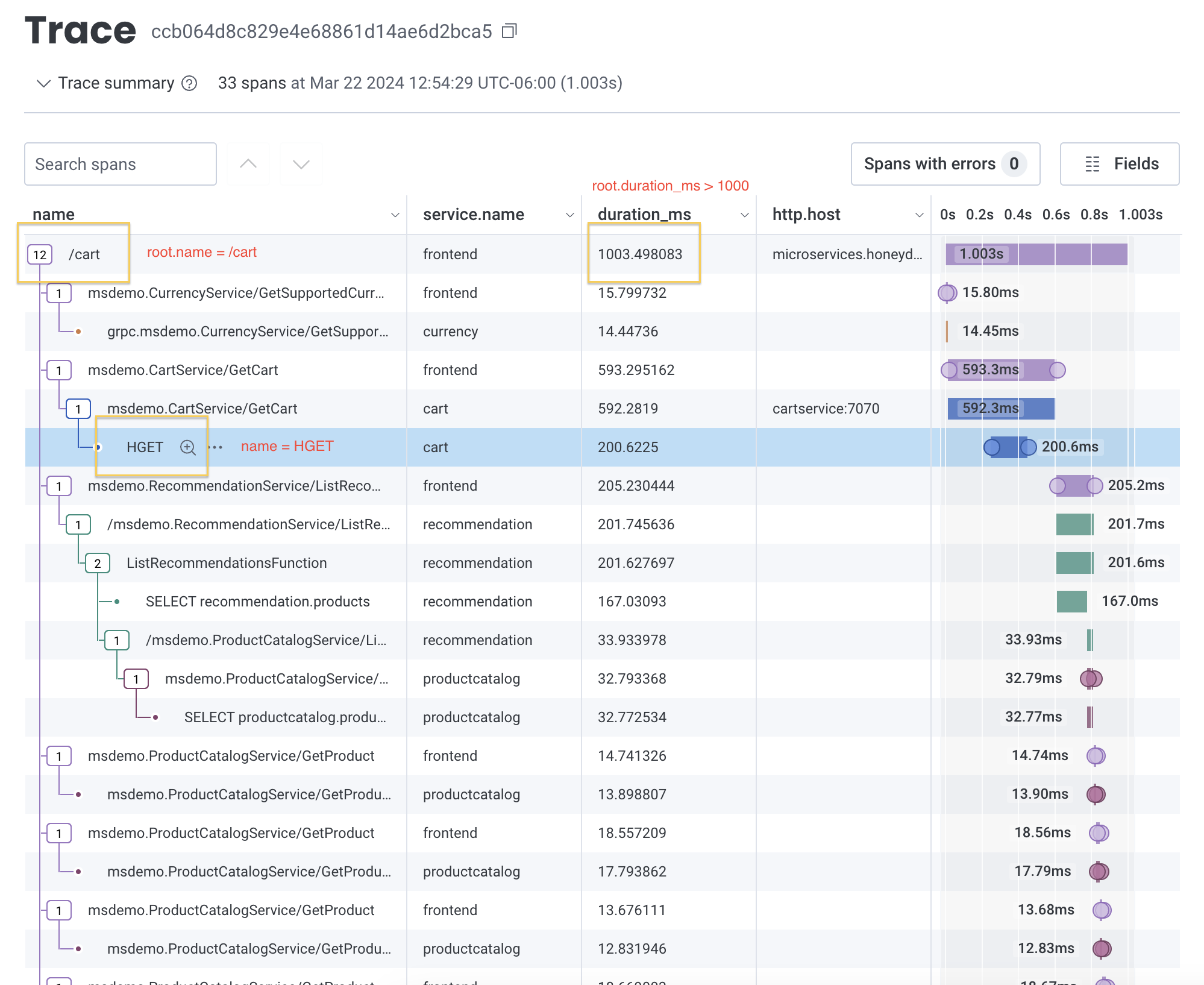
root. prefix, visit Examples: Query for Traces.
Prefix: parent
Theparent. prefix matches to a direct parent span within a trace.
When you use it, additional filters in your query will search through fields only in the specified parent. span’s immediate child spans.
For example, if you know a service is being called at a lower level inside a trace, and you want to find one of its direct child spans, use parent..
You can also use parent. with no additional filters to count the child spans of a parent span.
When you do so, Honeycomb will match to one parent span per trace.
So you might use a query that contains:
- SELECT
COUNT - WHERE
status_message existsANDparent.service.name = frontend - GROUP BY
status_messageservice.namename
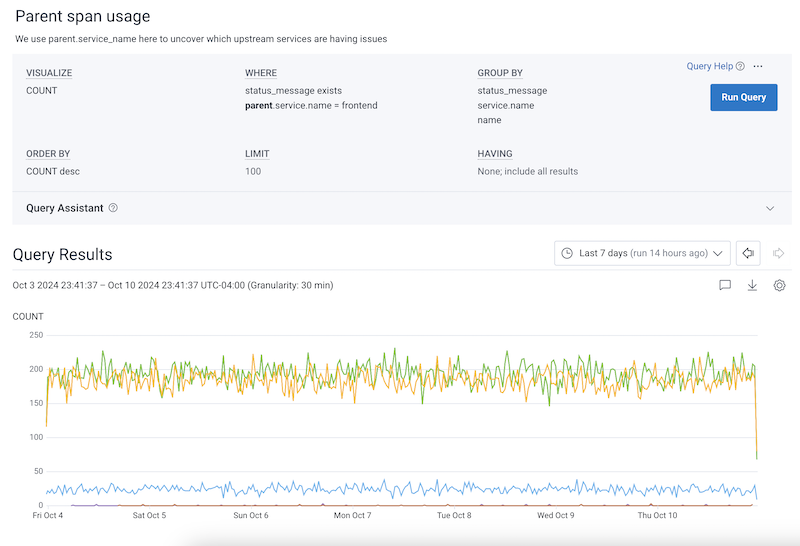
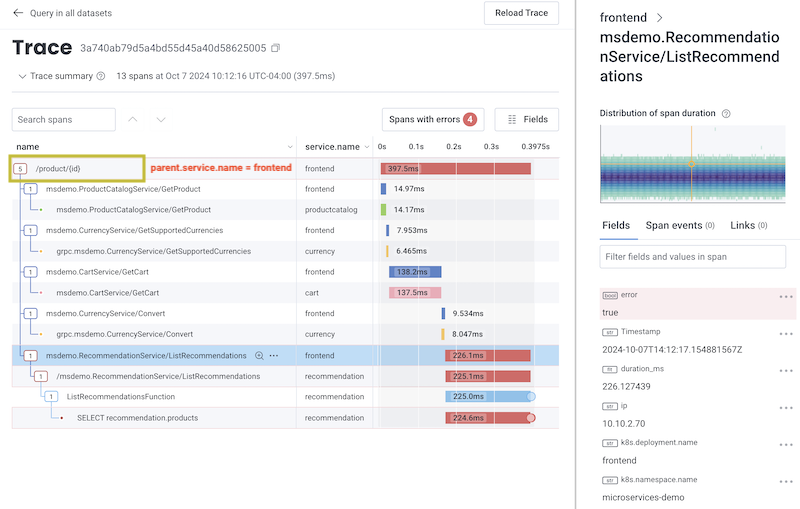
parent. prefix, visit Examples: Query for Traces.
Prefix: child
Thechild. prefix matches to a direct child span within a trace.
When you use it, additional filters in your query will search through fields only in the specified child. span.
For example, if you know a service is being called on a specific lower-level span inside a trace, and you want to search only that span, use child..
So you might use a query that contains:
- SELECT
COUNT - WHERE
name = /cart - GROUP BY
child.name
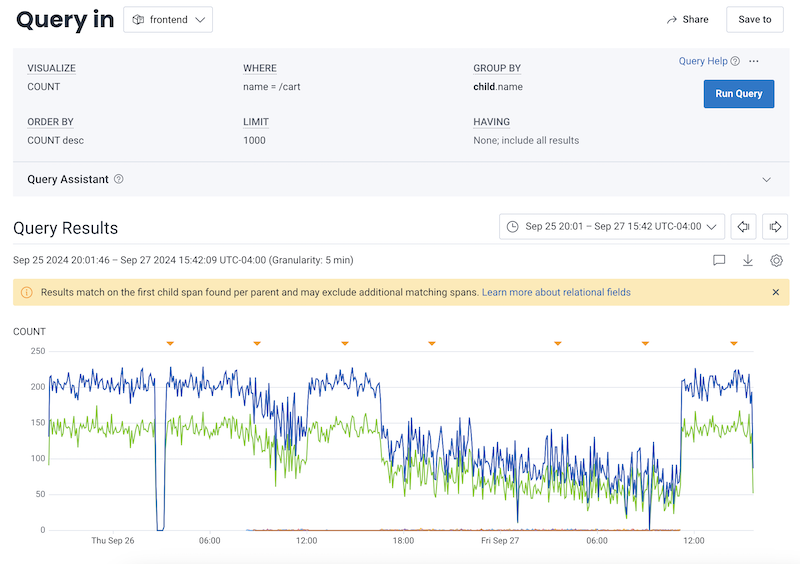

child. prefix, visit Examples: Query for Traces.
Prefix: anyX
TheanyX. prefixes (any., any2., any3.) match to a single span anywhere within a trace.
Use anyX. prefixes together to query for a trace that contains up to three spans, each with their own filters.
When you use an anyX. prefix, additional filters in your query will apply only to the same matched span.
If you are using an
anyX. prefix in your GROUP BY clause, you must also use the same anyX. prefix in your WHERE clause.
Doing so will ensure your joins are accurate.- SELECT
COUNT - WHERE
name = getDiscountsANDany.http.host = cartservice:7070ANDany.duration_ms > 100
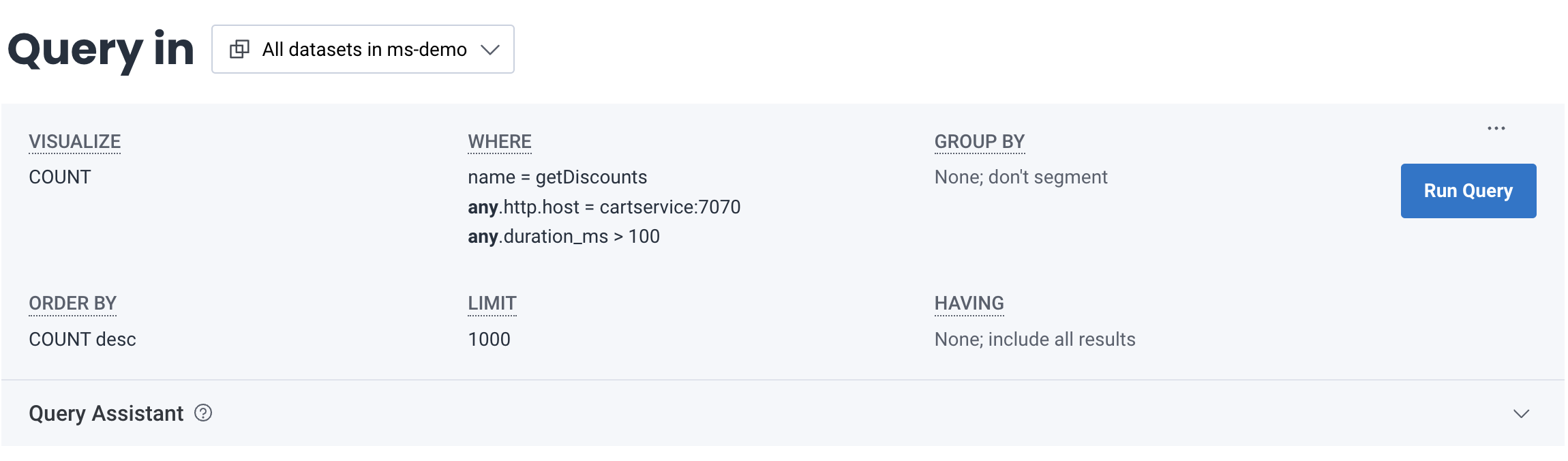
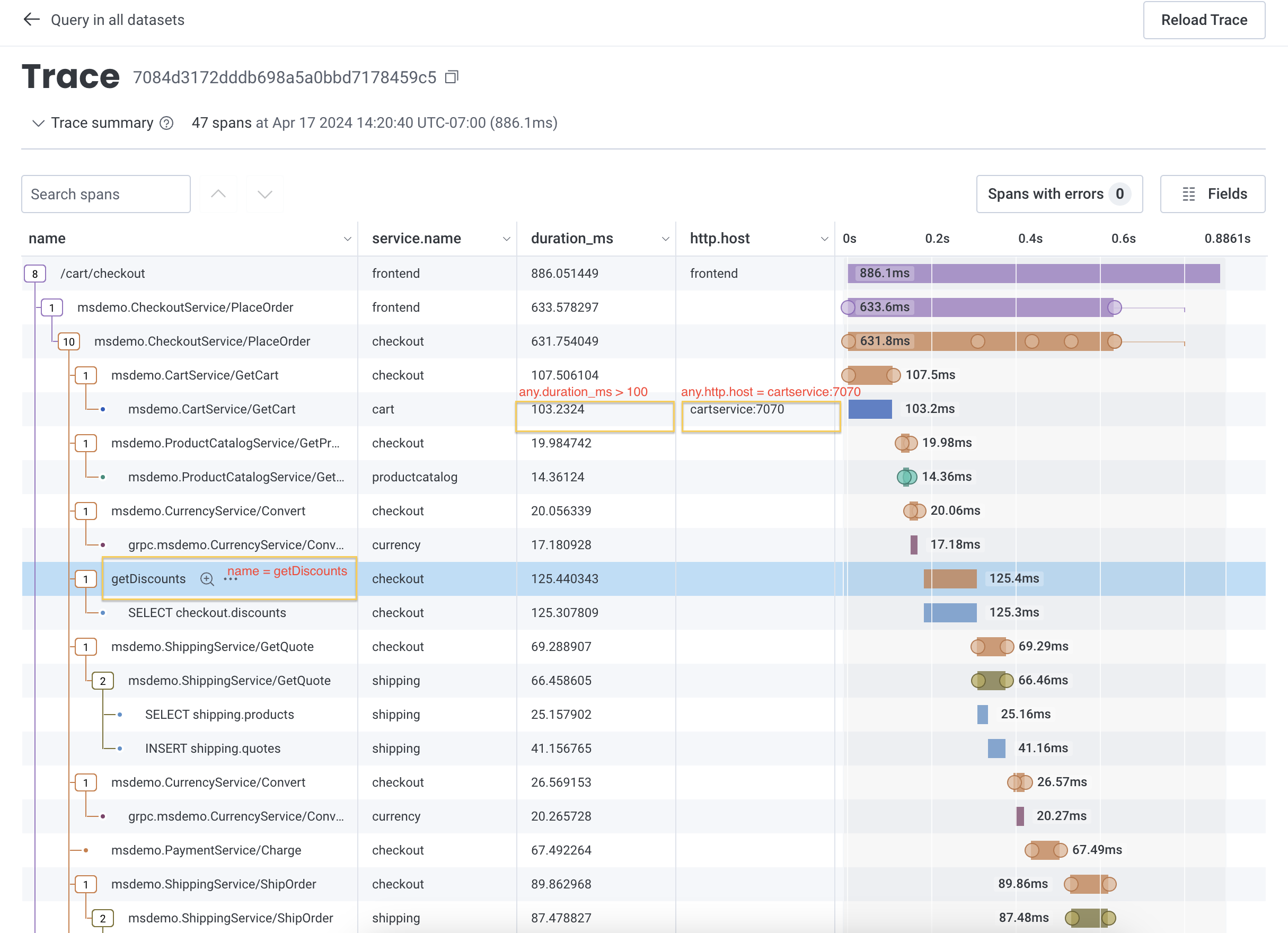
anyX. prefix, visit Examples: Query for Traces.
Prefix: none
Thenone. prefix matches to a single span and excludes any traces that contain the matched span.
When you use it, additional filters in your query will search through only fields not in the matched none. span.
So you might use a query that contains:
- SELECT
COUNT - WHERE
none.trace.parent_id does-not-exist - GROUP BY
trace.trace_id
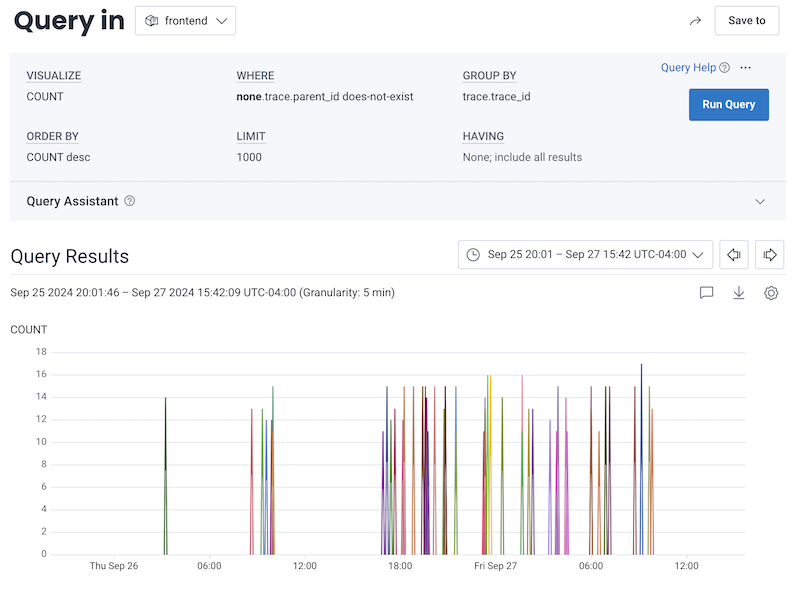

none. prefix, visit Examples: Query for Traces.
Example: Using Relational Fields Prefixes Together
You can use all of the relational fields prefixes together to perform a more complex query. So you might use a query that contains:- SELECT
COUNT - WHERE
error existsANDroot.name = /cart/checkoutANDparent.duration_ms > 200ANDany.name = getDiscounts - GROUP BY
any.k8s.pod.name