

This feature is available as part of the Honeycomb Enterprise and Pro plans.
Determine Your SLI
To identify a suitable SLI:- Express your SLI in terms of user goals. For example, “a user should be able to load our home page and see a result quickly”.
-
Identify qualified events, which are events that contain information about the SLI.
In this example, qualified events are events where
request.path = "/home". For events that are not qualified, Honeycomb returnsnull. -
Establish the criterion you will use to determine which qualified events you consider as “successful”.
In this example, success means
duration_ms < 100.
true (success), false (failure), or null (not applicable).
In other words, a SLI is defined as the number of successful events divided by the total (valid) events, and multiplied by 100 for a resulting percentage:
Define Your SLI
SLIs are represented as Calculated Fields in Honeycomb, and thus visible after creation as a field in your schema, in Query Builder, or in Triggers.
SLIs can be created using the Calculated Field creation workflow in Dataset Settings, but this creation experience is not optimized for SLIs.Instead, when creating your SLO, use the New SLI workflow as outlined below.
- Build Query mode - Allows to filter for total and successful events using syntax from the Query Builder.
- Write Formula mode - Allows advanced formula capabilities using Calculated Field syntax.
Define Your SLI with a Query
To use query syntax to define your SLI, create a new SLI and select Build Query:- During the SLO creation process, select + New SLI:
- In the New Service Level Indicator (SLI) window, enter a Display Name, which will appear elsewhere as a field name in the Query Builder.
- Optionally, include a description for your SLI.
-
Select Build Query to use Honeycomb’s query language and to define filters for total and successful events.
Following our previous example, this SLI’s query syntax for each filter would be: Total (valid) events:
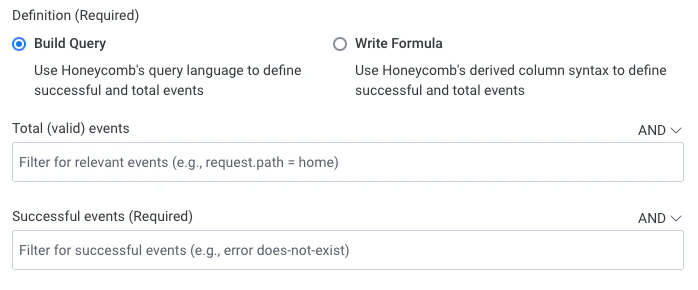
request.path = /homeSuccessful events:http:response_duration < 100 - Optionally, use the Preview Data section to preview the results of the function. Sample data from recent events helps you to verify the expression before it is saved.
- Select Save and continue creating your SLO.
Define Your SLI with a Formula
To use calculated field syntax to define your SLI, create a new SLI and select Write Formula:- During the SLO creation process, select + New SLI.
- In the New Service Level Indicator (SLI) window, enter a Display Name, which will appear elsewhere as a field name in the Query Builder.
- Optionally, include a description for your SLI.
-
Select Write Formula and define the Calculated Field formula for your SLI.
Most SLIs are written using Honeycomb’s two-argument “IF” command:
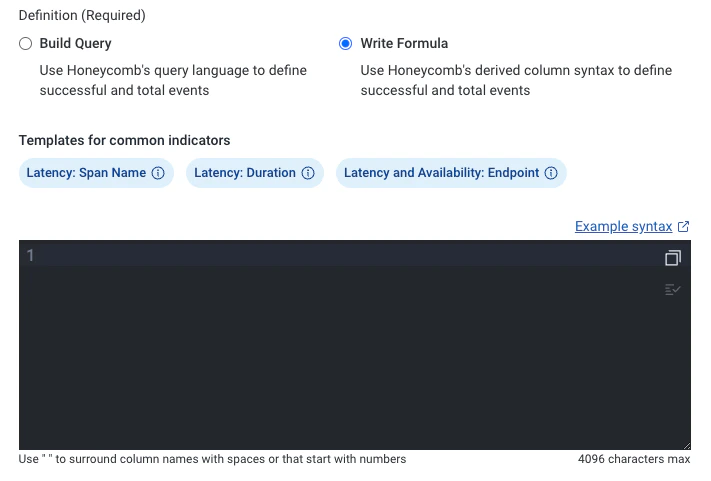
IF(qualifier, criterion). With this command,IF( $a, $b)returns$bonly if$aistrue. Otherwise, it returnsnull. Following our previous example, the Calculated Field formula for this SLI would be:IF( EQUALS( $request.path, "/home"), LT( $http.response_duration, 100))To explore more examples of formulas for SLIs, visit SLI Formulas. To learn more about syntax and available functions, visit Calculated Field Formula Reference. - Optionally, use the Preview Data section to preview the results of the function. Sample data from recent events helps you to verify the expression before it is saved.
- Select Save and continue creating your SLO.
Supported Syntax
Use the chart below to translate between Calculated Field syntax in Write Formula mode and Query syntax in Build Query mode.
Referencing another Calculated Field from a SLI (or Calculated Field) is not supported.
Test Your SLI
To test your SLI:- From the left navigation menu, select Query.
-
Query the dataset that contains your SLO.
-
In your results, confirm that three groups exist:
true(successful qualified events),false(failed qualified events), and blank (events that are not qualified). - Confirm that the three groups look correct for your use case and understanding of the dataset’s contents.