Choose the plan that fits your team’s needs. Update your Honeycomb pricing plan at any time. Upgrade to access higher event volume and advanced features, switch between paid plans, or downgrade to a different plan level as your requirements change.Documentation Index
Fetch the complete documentation index at: https://docs.honeycomb.io/llms.txt
Use this file to discover all available pages before exploring further.
Before you Begin
Before you change your pricing plan, make sure you have:- A Honeycomb account. If you don’t have an account yet, sign up for a Free plan:
- Team Owner role. Only Team Owners can change billing settings and update plans.
Compare Available Plans
Honeycomb offers multiple plan levels to fit different team sizes and needs:- Free: Get started with core observability features at no cost.
- Pro: Access flexible event volume tiers and advanced features.
- Enterprise: Customize a solution for large-scale deployments.
Change Your Plan
To complete this task, you must be a Team Owner.
- Select Account (your avatar) from the navigation menu, then choose Team Settings.
-
On the Team Settings page, select the Billing view.
The Billing view shows your current plan and billing information.
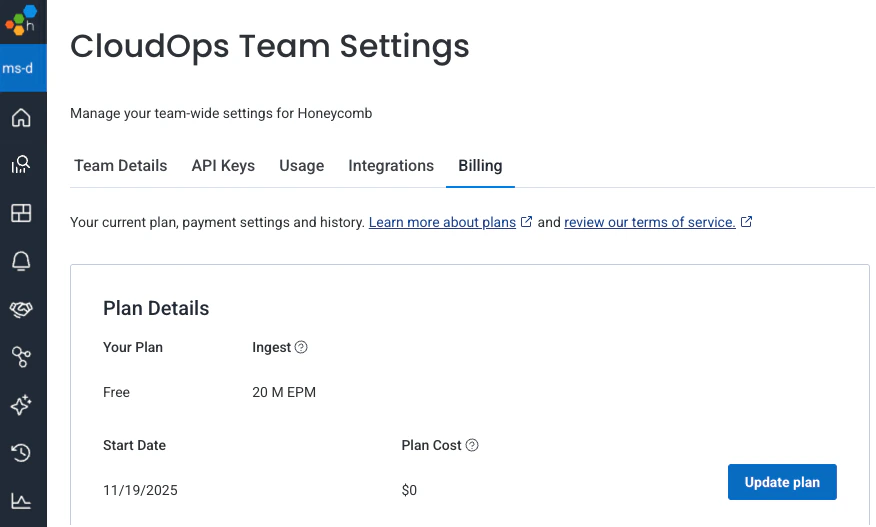
- Select Update Plan.
-
On the Select Your Plan page, review the available plans and select Select Plan next to your preferred option.
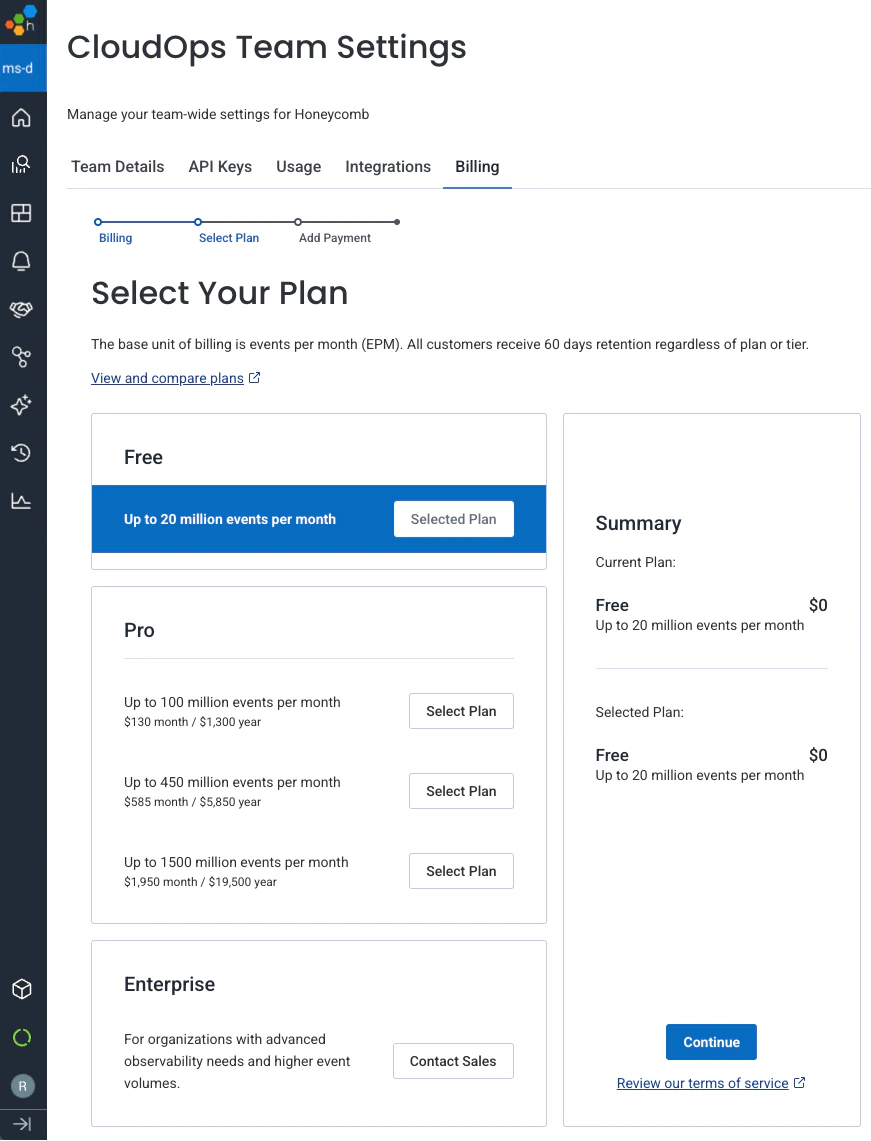
- Select Add Payment to continue to the payment details page.
-
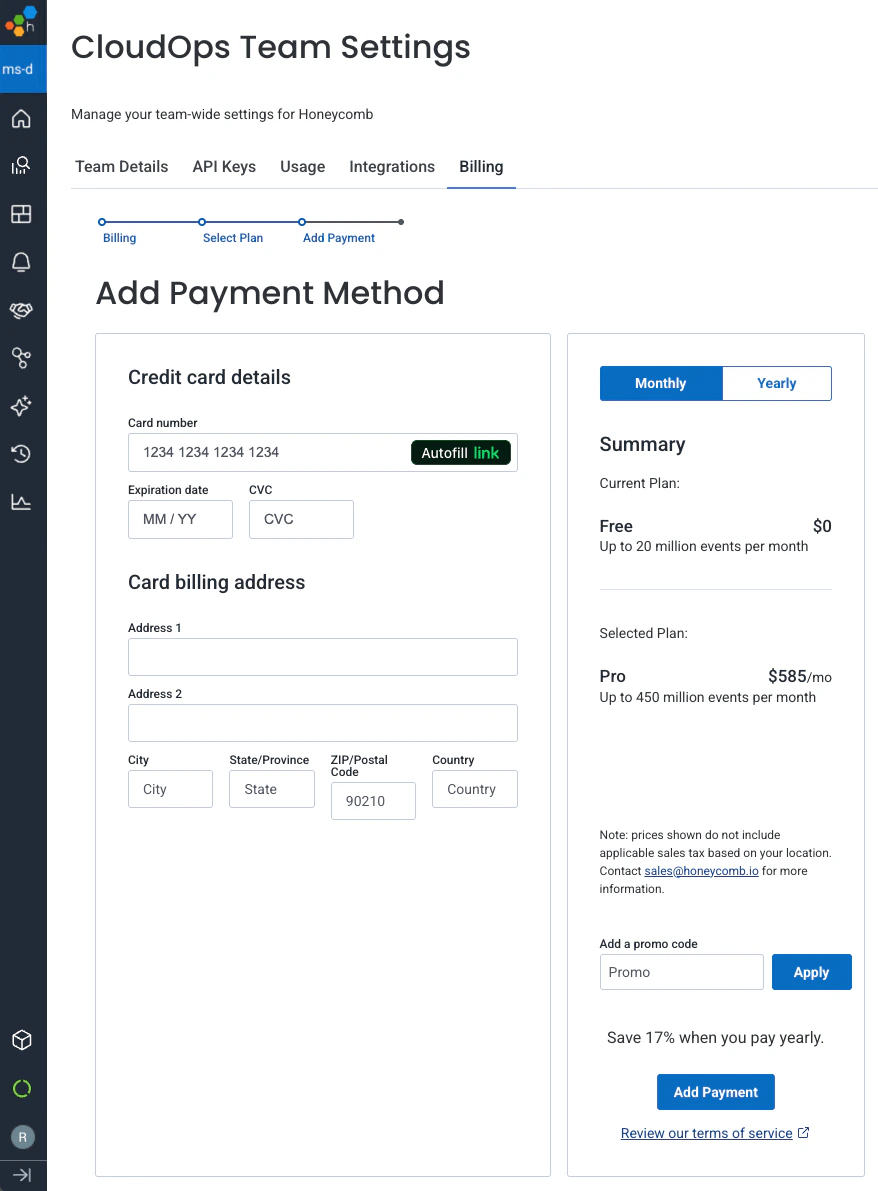
Enter your payment information:
- Credit card number, expiration date, and security code
- Billing address associated with your credit card
- Promo code (if you have one)
-
Choose your billing cycle:
- Monthly: Pay each month.
- Yearly: Pay annually (typically includes a discount).
- Review the Terms of Service, then select Add Payment.
-
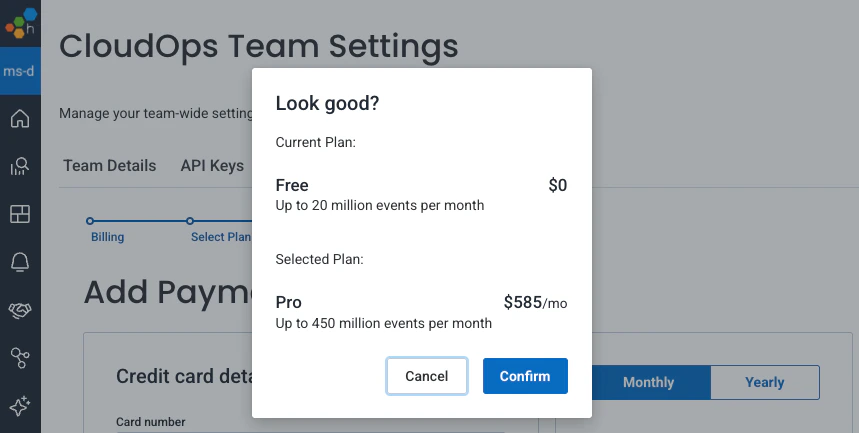
In the confirmation modal, review both your current plan and selected plan details, then select Confirm.