

What is Query History?
Query History is a searchable record of all queries run by your Team across all Datasets. When you open Query History, you can browse recent activity, search for specific queries, or explore saved queries from yourself and your teammates.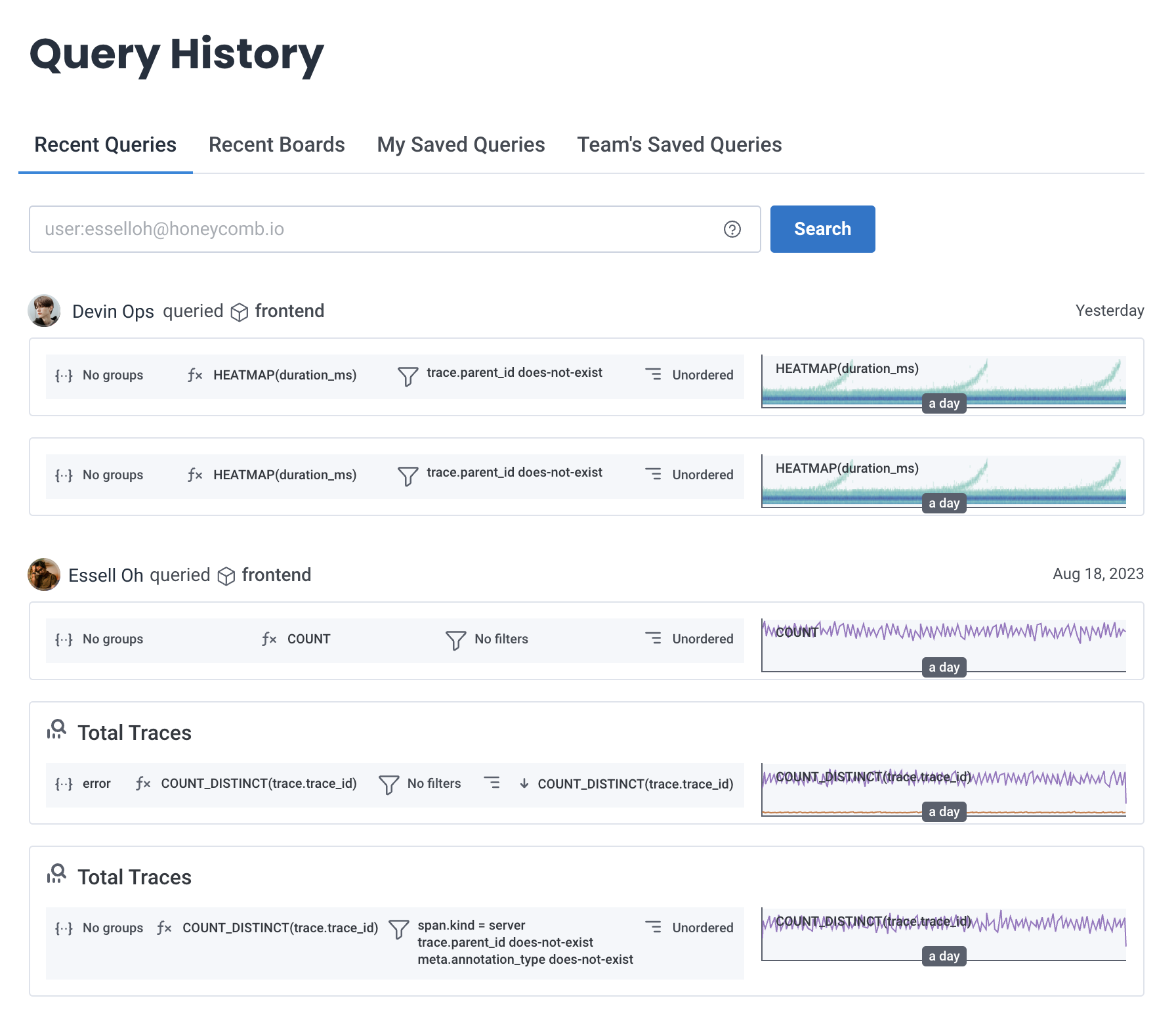
How It Works
Query History tracks all queries across all Datasets in your team. Search works across multiple fields, and results are limited to your selected Environment.Search
Query History searches across:- Titles
- Descriptions
- Query fields
- Team member email addresses
- Time
Scope
Query History shows queries from the Environment selected in your environment selector and searches across all Datasets in that Environment. To explore query history for a different Environment, switch Environments using the environment selector.Searching Query History
Use Query History search to find queries you built in the past, discover how teammates solved problems, or replay the debugging steps from an incident.- Select History () from the navigation menu.
- Enter your search terms in the search bar.
- Select Search.
Search Prefixes
Add prefixes to narrow the results of your search. You can use each prefix once per search.Example Search
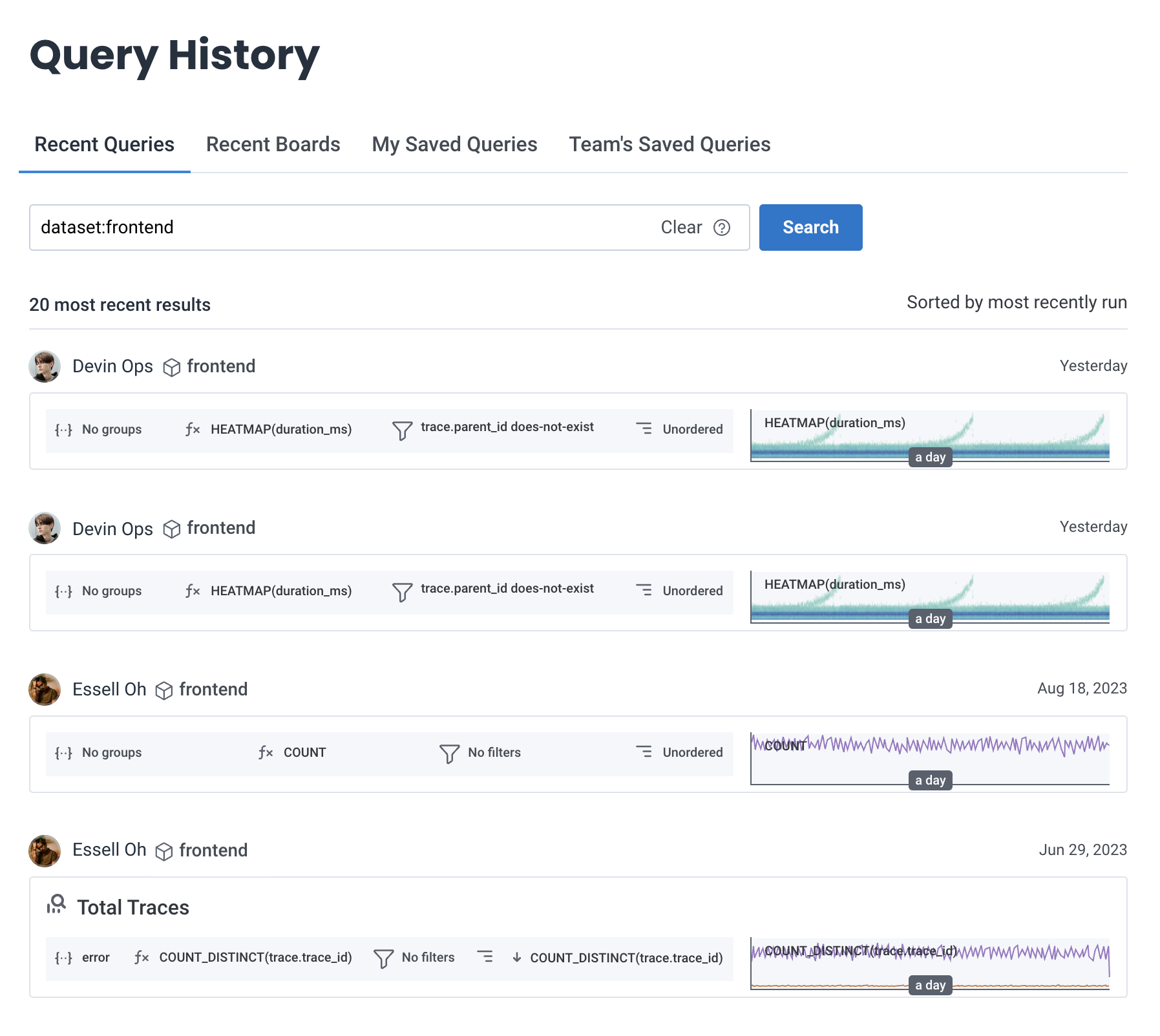
This example searches thefrontend dataset for queries run after a specific date:
Saving a Query
Save queries to My Saved Queries for personal reuse. To save a query:- Select Query () from the navigation menu.
- Build your query in Query Builder, and select Run Query.
- From the Save query dropdown, choose My Saved Queries.
-
In the modal, enter query details:
- Select Save query.
Best Practices
- Use descriptive query names: Give queries meaningful names that explain what you’re investigating. “API latency spike investigation” is more useful than “query 1.”
- Add context in descriptions: Explain why you ran the query, what you found, or what problem it solves.
- Save important queries: Don’t rely on browsing Recent Queries to find queries you’ll need again. Save them to My Saved Queries.
- Search by user: Use the
user:prefix to see how specific teammates approach problems or to find queries from subject matter experts. - Combine prefixes: Narrow results by combining prefixes, like
user:me after:2025-06-01 dataset:frontendto find your recent frontend queries.