

Clone the Repository
-
Before you begin, clone the Refinery Hands-On Lab GitHub repository and switch to the
mainbranch. Run the following commands in the terminal.
Add Your Honeycomb Ingest Key
-
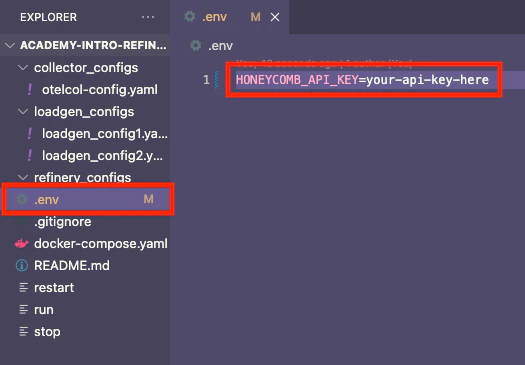
Open the
.envfile in the root of the repository. -
Paste your Honeycomb Ingest API Key where indicated:
What Does loadgen Do?
- loadgen is a small Go binary that generates synthetic telemetry.
- As long as the configuration stays the same, it produces very similar traffic each time you run it.
- This consistency makes it ideal for comparing unsampled vs. sampled data in Honeycomb.
Docker Compose Setup
- Open the
docker-compose.yamlfile. - The setup includes:
- Two
loadgencontainers - An OpenTelemetry Collector
- A Honeycomb destination
- Two
- Traffic is sent using the OpenTelemetry Protocol (OTLP) over gRPC.
loadgen Configurations
- Open the
loadgenconfiguration files. - Each config defines:
- Dataset name
- Service name
- Span depth
- Spans per trace
- Trace duration
- Trace rate (e.g., 1,000 traces per second for 2 minutes)
OpenTelemetry Collector Config
- Open the
collector_configs/otelcol-config.yamlfile. - This configuration is simple, but includes one helpful enhancement:
- It extracts
app.functionandapp.endpointfields from the generated URL. - This makes it easier to query and define sampling rules in Honeycomb and Refinery.
- It extracts
The default endpoint references
api.honeycomb.io:443. If you are in the EU, set the endpoint to api.eu1.honeycomb.io:443.Run the Environment
Use the run script to launch all services:loadgen instances, the OTel collector, and routes traffic to Honeycomb.
Explore the Data in Honeycomb
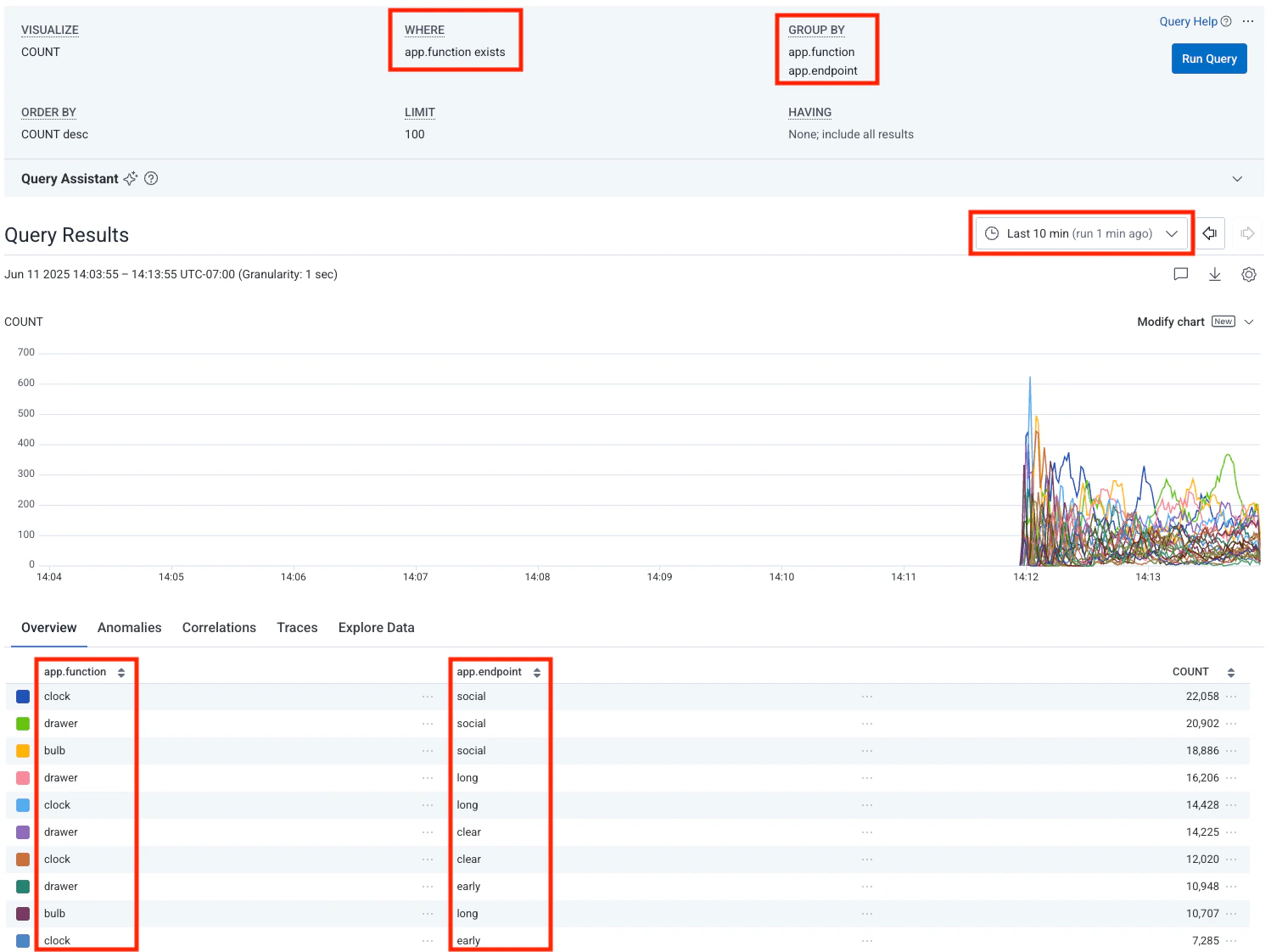
- Open the Honeycomb UI.
- Set the time range to the last 10 minutes.
-
Run a query with the following conditions:
- WHERE clause:
app.functionexists - GROUP BY:
app.function,app.endpoint
- WHERE clause:
-
Expected results:
- You will see three distinct
app.functionvalues - You will see many more
app.endpointvalues
- You will see three distinct
-
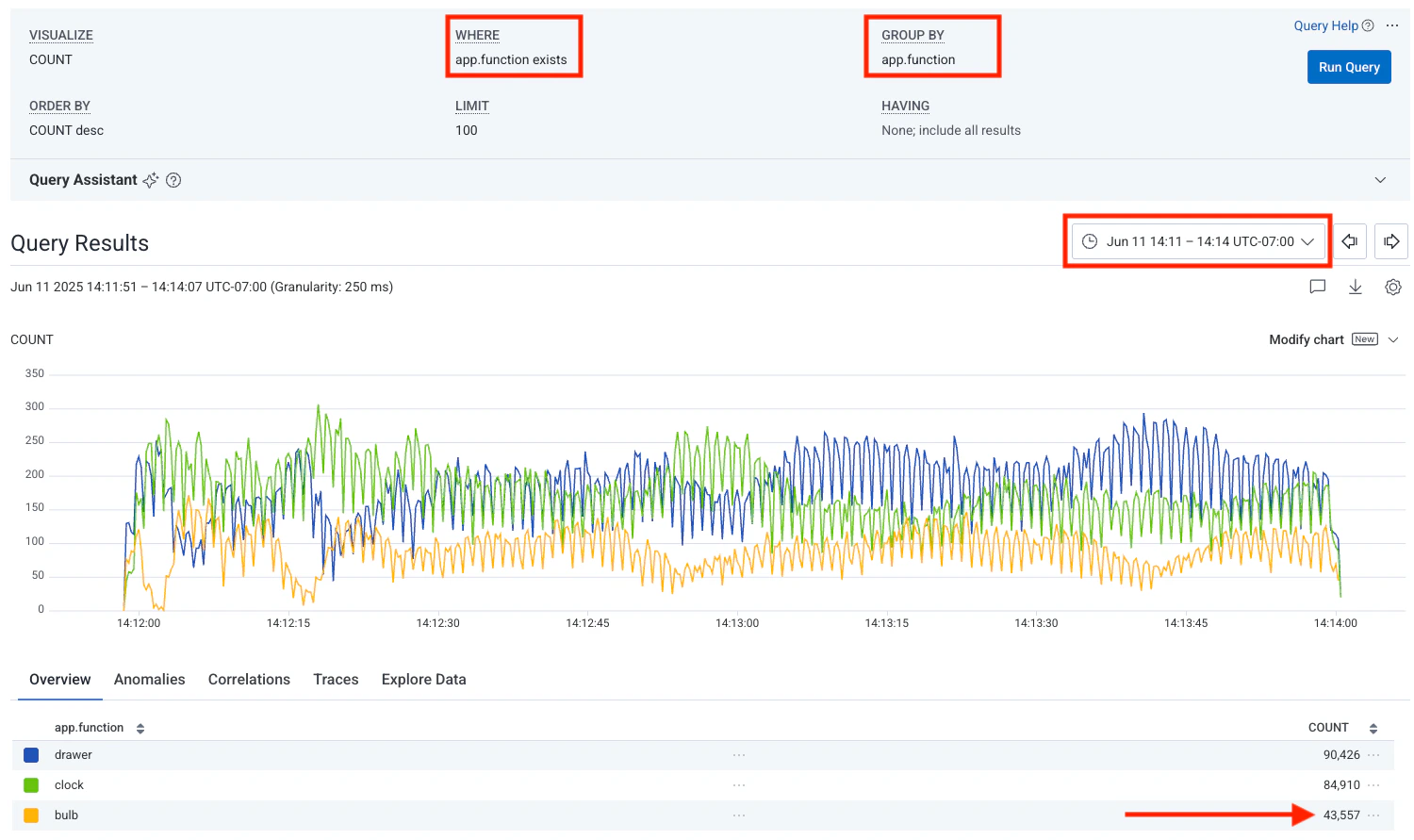
Now simplify the query:
- Remove
app.endpoint - Group only by
app.function
- Remove
Observe Traffic Patterns
-
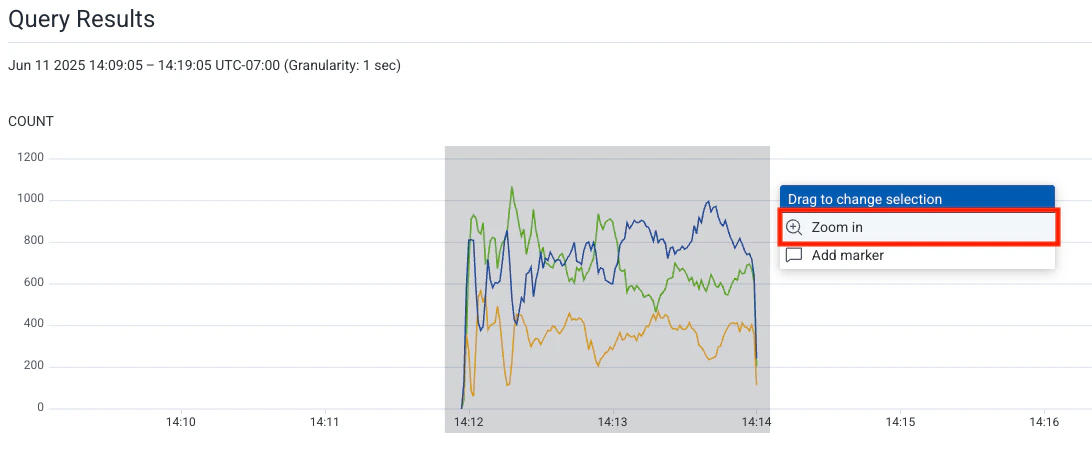
Keep the time range within the same 10-minute period. Select the area on the graph where you see activity. Then select Zoom in.
- Notice that you are now viewing a custom time range with an absolute time.
-
The third function (from
loadgen2) will show less volume. -
This creates a controlled baseline to help you observe how sampling changes the shape of your data.
Shut Down the Environment
-
Once the
loadgencontainers finish (after 2 minutes), stop the environment.
Recap
- You generated consistent trace traffic using
loadgen, explored that data in Honeycomb, and prepared your environment to test Refinery’s sampling behavior.