> ## Documentation Index
> Fetch the complete documentation index at: https://docs.honeycomb.io/llms.txt
> Use this file to discover all available pages before exploring further.
# Kubernetes Container Logs
> Read container logs from Kubernetes nodes
Ent+
This feature is available as an add-on for the [Honeycomb Enterprise plan](https://www.honeycomb.io/pricing/).
Please contact your Honeycomb account team for details.
## Supported Platforms
| Platform | Metrics | Logs | Traces |
| :-------------------- | :------ | :--- | :----- |
| Kubernetes DaemonSet | | ✓ | |
| OpenShift 4 DaemonSet | | ✓ | |
## Configuration Table
| Field | Default | Description |
| :---------------- | :---------------------------------------- | :------------------------------------------------------------------------------------------------------------------------------------------------------------------- |
| Cluster Name\* | | The cluster name that will be added as the `k8s.cluster.name` resource attribute. |
| Log Source | File | Where to read logs from. Generally, this is `file`. `file` source supports Docker json-file and Containerd cri-o log formats. Options include `file` and `journald`. |
| File Path(s) | `/var/log/containers/\*.log` | When log\_source is file. File or directory paths to tail for logs. Defaults to all container logs. |
| Journald Path\* | | When log\_source is journald. The directory containing Journald's log files. |
| Exclude File Path | `/var/log/containers/bindplane-*-agent-*` | File or directory paths to exclude. Generally, the collector's own log should be excluded. |
| Start At | end | Start reading the logs from the 'beginning' or 'end'. |
| Recombine Logs | | Options for configuring multi line logging. See [Multi Line Logging](#multi-line-logging). |
## Example Configuration
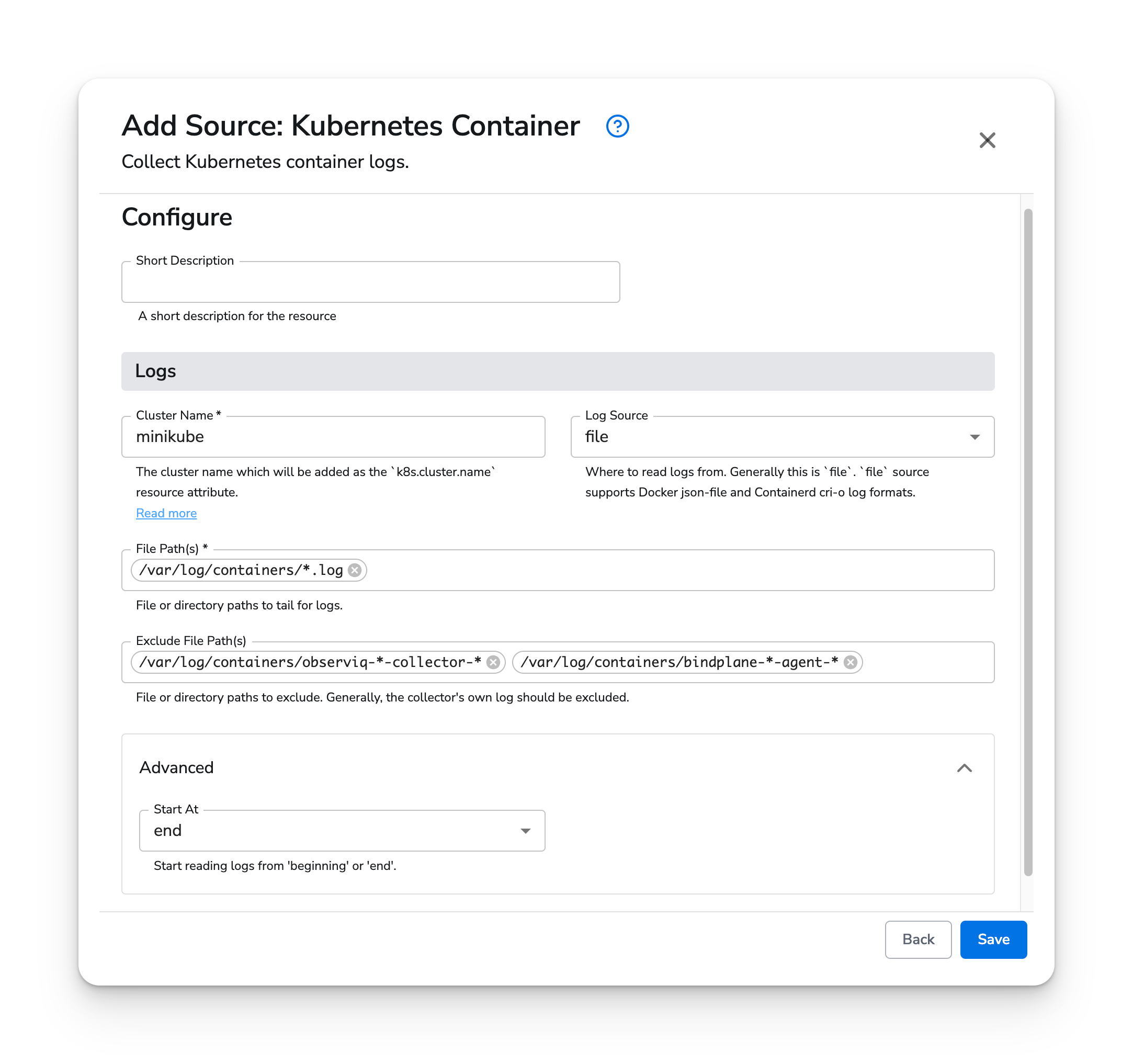
The Kubernetes Container logs source has one required parameter:
* Cluster Name: The name of the cluster, which will be inserted as the `k8s.cluster.name` resource attribute
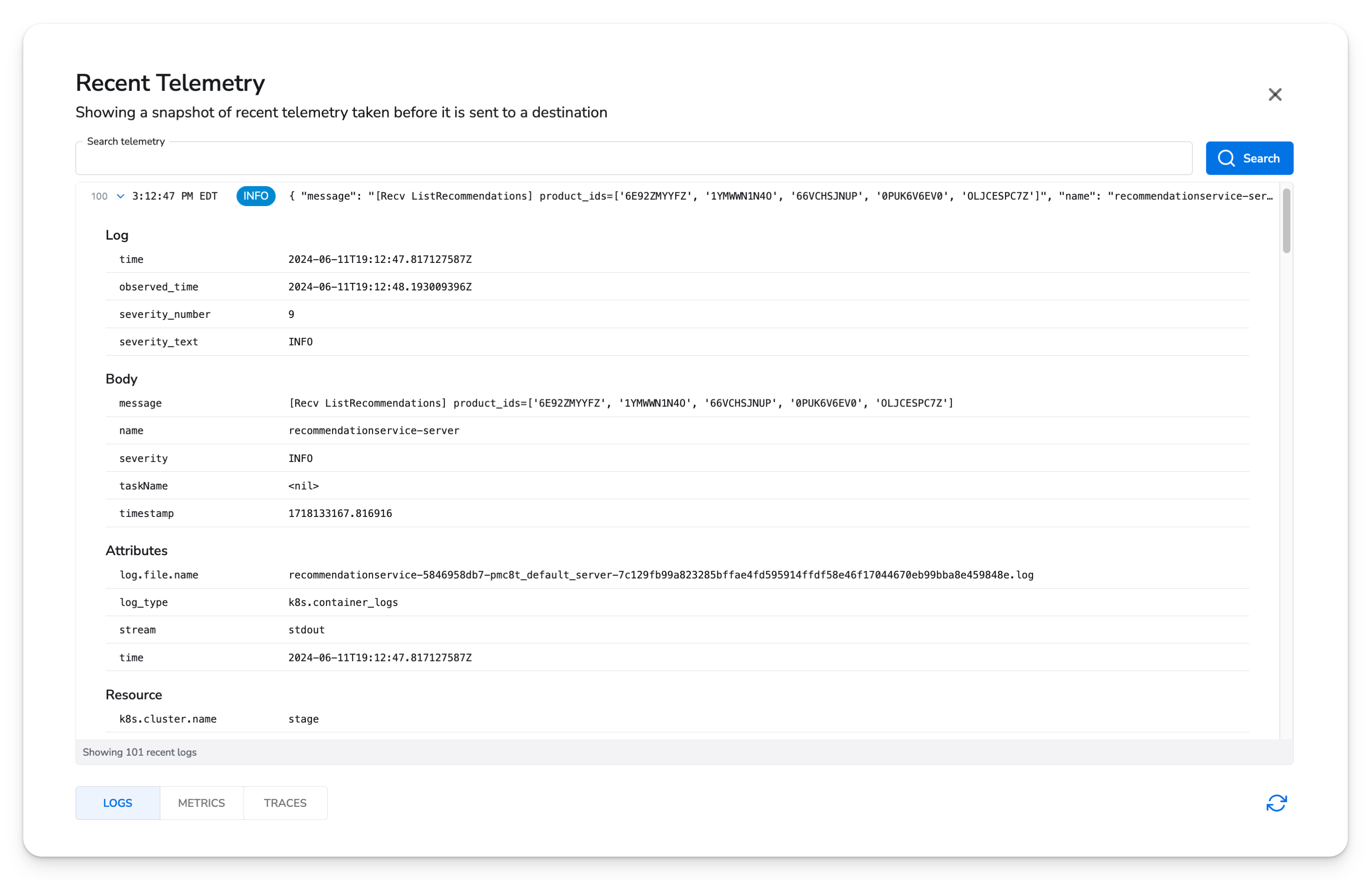
 Once running on an agent, logs will look like this:
 ## Multi Line Logging
Multi line logging is useful for re-assembling multi line logs into a single log entry. Multi-line log
re-assembly requires that all logs emitted by the application are consistent in structure. For example, the
logs must start or end in a consistent way, in order to reliably match on the beginning or end of the log.
If your application has inconsistent logging, multi-line log re-assembly will behave in irregular ways, such
as combining two unique logs into one.
Multi line logging is supported by configuring a selector, selector match expression, and a recombine match expression.
| Field | Description |
| -------------------------- | ----------------------------------------------------------------------------------- |
| Selector | The OTTL path to match on. |
| Selector Match Expression | A regular expression used to match the selector. |
| Recombine Type | Whether or not to recombine logs by matching the first or last line in the log. |
| Recombine With | The delimiter used to recombine logs. Defaults a single space or newline character. |
| Recombine Match Expression | The regular expression used to recombine the multi-line log. |
### Example
In this example, there are two Deployments. One is logging XML while the other is logging JSON.
```bash theme={}
NAME READY STATUS RESTARTS AGE
json-7d4fd9fd99-f29sl 1/1 Running 1 (38m ago) 3h49m
xml-b44858b84-hdbqp 1/1 Running 1 (38m ago) 3h49m
```
The XML logs are a combination of multi-line and single line logs. Each log has a timestamp prefix
indicating the start of the log.
```xml theme={}
2024-07-01 18:49:15
John Doe
30
2024-07-01 18:49:15 John Doe30
```
The JSON logs are a combination of multi-line and single line logs. Each log has a trailing `}` without
a comma, indicating the end of the log.
```json theme={}
{
"timestamp": "2024-07-01 18:51:56",
"name": "John Doe",
"user": {
"name": "John Doe",
"age": 25
},
"location": "New York",
"type": "Checking",
"severity": "warn"
}
{"timestamp":"2024-07-01 18:51:56","name":"John Doe","user":{"name":"John Doe","age":25},"location":"New York","type":"Checking","severity":"warn"}
```
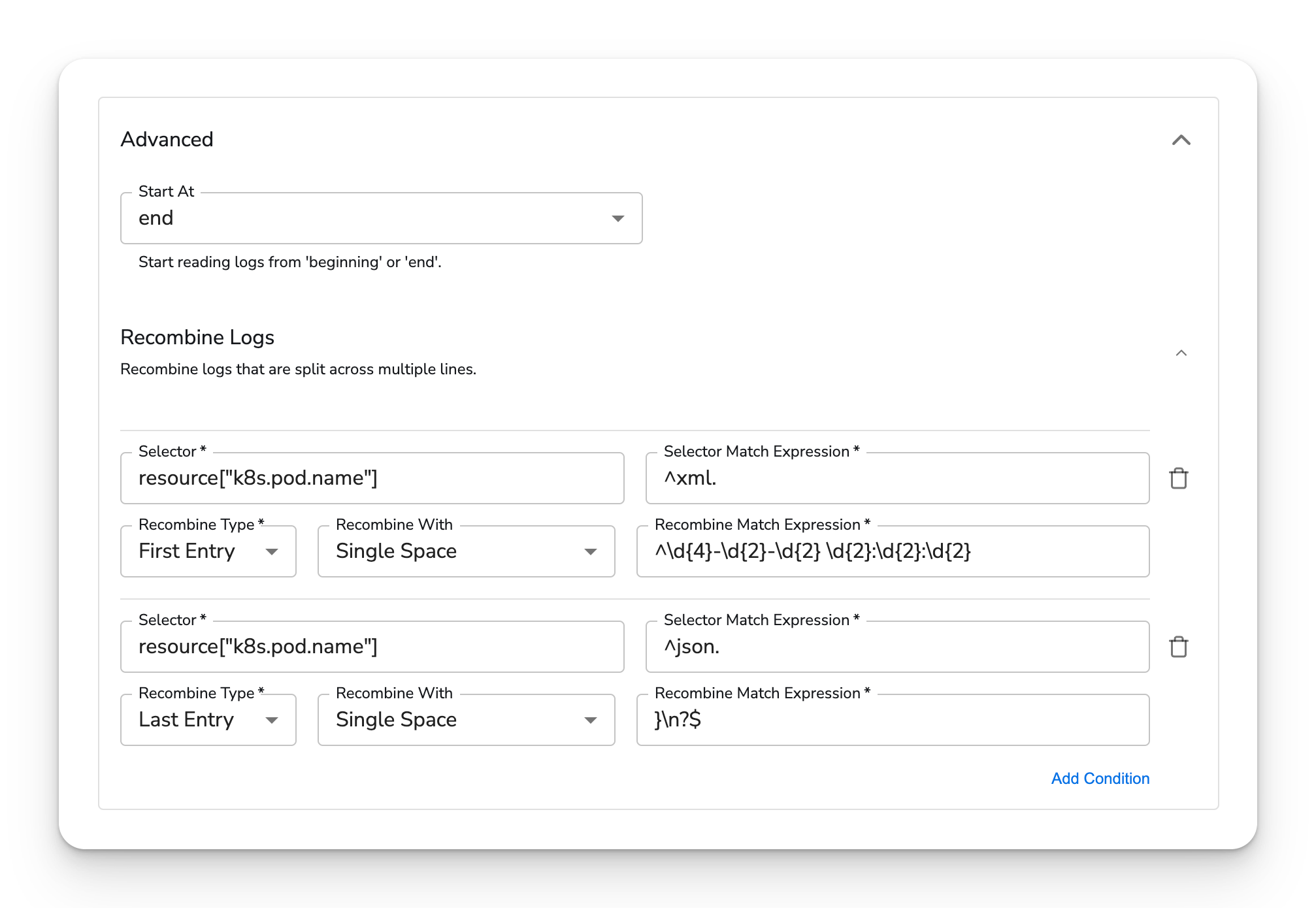
Multi-line logging can be configured by matching on the First Entry of the XML logs and the Last Entry
of the JSON logs. The `k8s.pod.name` resource attribute is used to select the XML and JSON pods.
## Multi Line Logging
Multi line logging is useful for re-assembling multi line logs into a single log entry. Multi-line log
re-assembly requires that all logs emitted by the application are consistent in structure. For example, the
logs must start or end in a consistent way, in order to reliably match on the beginning or end of the log.
If your application has inconsistent logging, multi-line log re-assembly will behave in irregular ways, such
as combining two unique logs into one.
Multi line logging is supported by configuring a selector, selector match expression, and a recombine match expression.
| Field | Description |
| -------------------------- | ----------------------------------------------------------------------------------- |
| Selector | The OTTL path to match on. |
| Selector Match Expression | A regular expression used to match the selector. |
| Recombine Type | Whether or not to recombine logs by matching the first or last line in the log. |
| Recombine With | The delimiter used to recombine logs. Defaults a single space or newline character. |
| Recombine Match Expression | The regular expression used to recombine the multi-line log. |
### Example
In this example, there are two Deployments. One is logging XML while the other is logging JSON.
```bash theme={}
NAME READY STATUS RESTARTS AGE
json-7d4fd9fd99-f29sl 1/1 Running 1 (38m ago) 3h49m
xml-b44858b84-hdbqp 1/1 Running 1 (38m ago) 3h49m
```
The XML logs are a combination of multi-line and single line logs. Each log has a timestamp prefix
indicating the start of the log.
```xml theme={}
2024-07-01 18:49:15
John Doe
30
2024-07-01 18:49:15 John Doe30
```
The JSON logs are a combination of multi-line and single line logs. Each log has a trailing `}` without
a comma, indicating the end of the log.
```json theme={}
{
"timestamp": "2024-07-01 18:51:56",
"name": "John Doe",
"user": {
"name": "John Doe",
"age": 25
},
"location": "New York",
"type": "Checking",
"severity": "warn"
}
{"timestamp":"2024-07-01 18:51:56","name":"John Doe","user":{"name":"John Doe","age":25},"location":"New York","type":"Checking","severity":"warn"}
```
Multi-line logging can be configured by matching on the First Entry of the XML logs and the Last Entry
of the JSON logs. The `k8s.pod.name` resource attribute is used to select the XML and JSON pods.
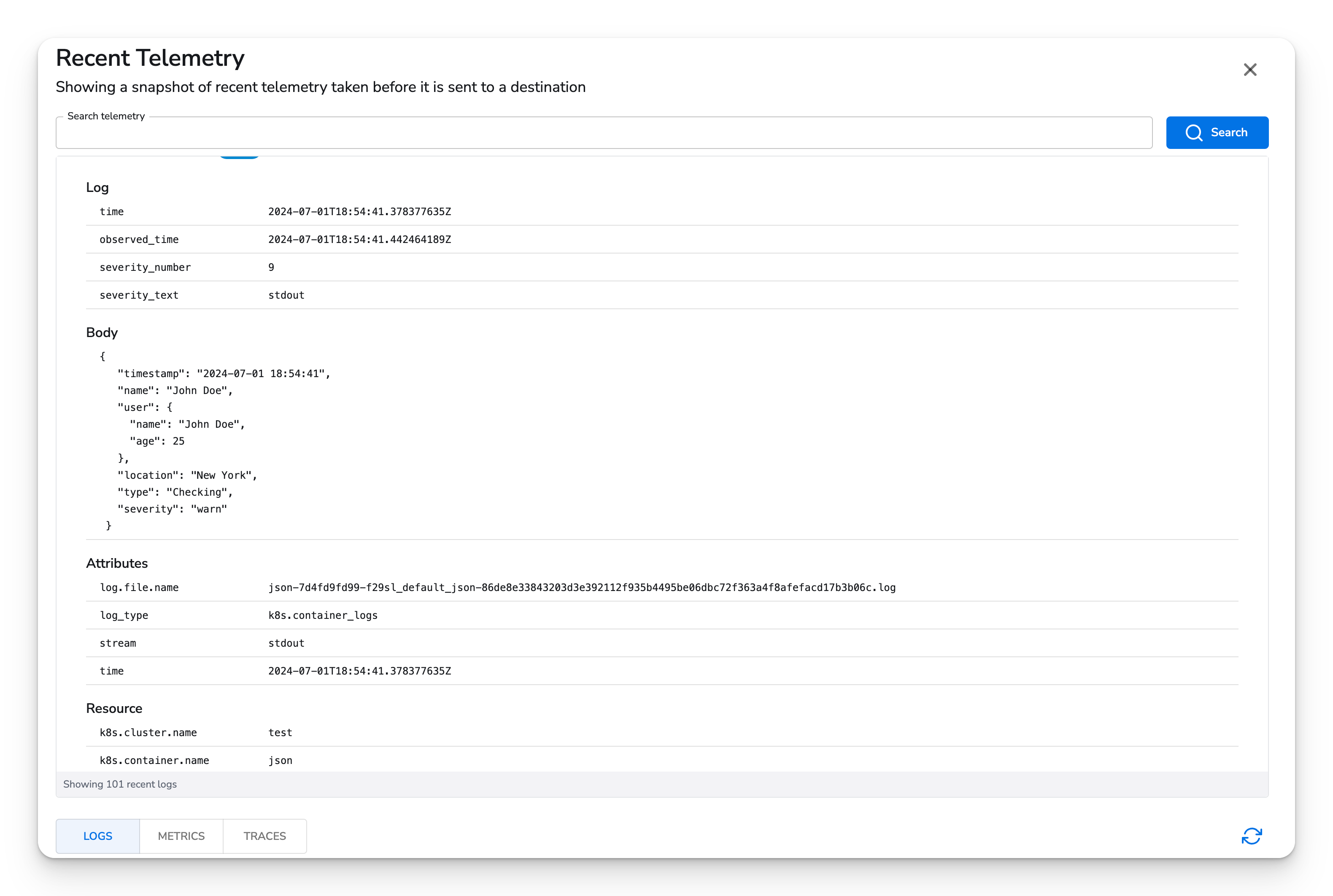
 Once configured, logs will be re-assembled into a single line.