> ## Documentation Index
> Fetch the complete documentation index at: https://docs.honeycomb.io/llms.txt
> Use this file to discover all available pages before exploring further.
# Modify Triggers
> Edit trigger queries, thresholds, and recipients, or delete Triggers you no longer need using the Honeycomb UI.
export const HnyIcon = ({alias, path, size = 16, iconColor}) => {
const iconMap = {
"home": "house.svg",
"marker": "caretFilledDown.svg",
"show-marker-options": "chatTextLeft.svg",
"download": "arrowLineDown.svg",
"trace-waterfall": "trace.svg",
"show-query-details": "listDashes.svg",
"table": "table.svg",
"log-lines": "logLines.svg",
"chart": "chartLine.svg",
"show-settings": "gear.svg",
"add": "plus.svg",
"remove": "delete.svg",
"persist": "caretDown.svg",
"close": "close.svg",
"copy": "copy.svg",
"zoom-in": "magnifyingGlassPlus.svg",
"zoom-out": "magnifyingGlassMinus.svg",
"color-assignment": "drop.svg",
"drag": "dots-six-vertical.svg",
"drawer": "drawer.svg",
"show-actions": "dotsThree.svg",
"edit": "pencil.svg",
"delete": "trash.svg",
"move": "arrowsOutCardinal.svg",
"show-legend": "circleInfo.svg",
"usage-ok": "usageGood.svg",
"usage-warning": "usageWarning.svg",
"usage-danger": "usageDanger.svg",
"open-query-builder": "query.svg",
"home-menu": "house.svg",
"query-menu": "query.svg",
"boards-menu": "board.svg",
"triggers-menu": "bell.svg",
"slos-menu": "handshake.svg",
"service-map-menu": "serviceMap.svg",
"history-menu": "clockCounterClockwise.svg",
"manage-data-menu": "cube.svg",
"usage-menu": "usageGood.svg",
"canvas-menu": "sparkle.svg",
"anomalies-menu": "anomalies.svg",
"show-details": "dotsThreeVertical.svg",
"resize-handle": "board-panel-resize-handle.png",
"standard-dataset": "cube.svg",
"trace-dataset": "cubeChat.svg",
"all-datasets": "linkedSquares.svg",
"share": "arrowBentRight.svg",
"run-in-query-builder": "arrowSquareUpRight.svg",
"link": "link.svg",
"text": "text.svg",
"receive": "arrowLineDown.svg",
"process": "lightning.svg",
"sample": "drop.svg",
"send": "arrowLineUp.svg",
"submit": "arrowUp.svg",
"canvas-menu": "sparkle.svg",
"canvas": "sparkle.svg",
"chat-about-this-page": "sparkle.svg",
"private": "lockKey.svg",
"shared": "people.svg",
"expand": "caretDown.svg",
"previous": "caretLeft.svg",
"next": "caretRight.svg",
"expand-chat": "caretLeft.svg",
"minimize-chat": "caretRight.svg",
"open-in-canvas": "arrowSquareUpRight.svg"
};
const iconBasePath = "/_assets/icons/";
const iconPath = path || (alias ? `${iconBasePath}${iconMap[alias]}` : undefined);
return ;
};
## Edit Triggers
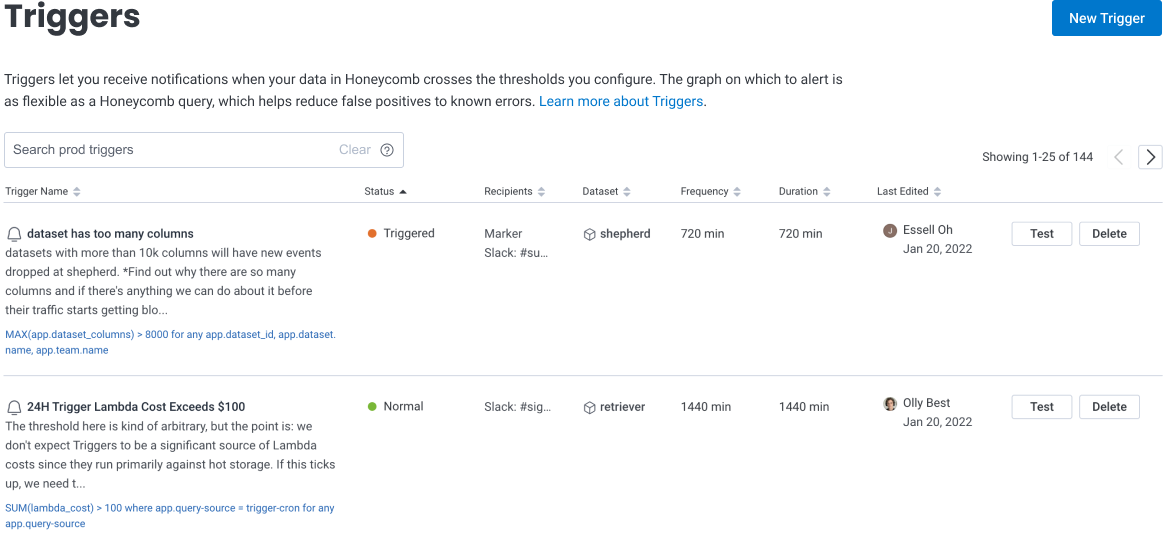
View all triggers for your team by selecting **Triggers** () in the left navigation bar.
You will see a full list of the triggers.
Select the trigger name to view and edit each trigger.
Use the search function to find a Trigger based on its name.
When editing a Trigger, using the Run in Query Builder icon () within the Query Trigger section only opens your Trigger Query in Query Builder in a new tab.
Any changes made to the subsequent Query Builder display will not update the original Query Trigger.
 ### Remove Recipients
To remove a Recipient from a Trigger:
1. Navigate to **Triggers** () in the left navigation bar.
2. Select the Trigger you want to modify.
3. In the Edit Trigger page, navigate to the Recipients section.
4. Select **Remove** next to the Recipient to remove.
5. Select **Save**.
The page refreshes, and the Trigger updates to reflect your changes.
## Test Triggers
After creation, Trigger notification testing becomes available.
Use this feature to test if Trigger notifications appear as expected before an alert situation occurs.
* For a Trigger with a limited alert, the test sends a Triggered and Resolved message for each configured notification option(s).
* For a Trigger with a continuous alert, the test sends the Triggered notification only for each configured notification option(s).
To test your Trigger notifications:
1. Navigate to the [Triggers display](/reference/honeycomb-ui/triggers/).
2. Select **Test** for the target Trigger. A confirmation modal appears.
3. Select **Launch Test** to confirm.
## Disable Triggers
To disable a Trigger:
1. [Edit an existing Trigger](#edit-triggers).
2. Select the Enabled toggle to \[off].
3. Select **Save Trigger** to save changes.
Once disabled, a Trigger will not run and stop alerting.
## Delete Triggers
To delete a trigger, either select the **Delete** button on the Triggers page, or while editing, select the **Delete** button at the bottom of the Edit Trigger page.
## Filter Triggers
If your Triggers have tags applied to them, you can filter by tags.
This helps you focus on related items.
To filter Triggers by tag:
1. Select **Triggers** () from the navigation menu.
2. Select the **Filter by tags** field (or the tag area if a default tag is already applied), and choose the tags you want to filter by.
### Remove Recipients
To remove a Recipient from a Trigger:
1. Navigate to **Triggers** () in the left navigation bar.
2. Select the Trigger you want to modify.
3. In the Edit Trigger page, navigate to the Recipients section.
4. Select **Remove** next to the Recipient to remove.
5. Select **Save**.
The page refreshes, and the Trigger updates to reflect your changes.
## Test Triggers
After creation, Trigger notification testing becomes available.
Use this feature to test if Trigger notifications appear as expected before an alert situation occurs.
* For a Trigger with a limited alert, the test sends a Triggered and Resolved message for each configured notification option(s).
* For a Trigger with a continuous alert, the test sends the Triggered notification only for each configured notification option(s).
To test your Trigger notifications:
1. Navigate to the [Triggers display](/reference/honeycomb-ui/triggers/).
2. Select **Test** for the target Trigger. A confirmation modal appears.
3. Select **Launch Test** to confirm.
## Disable Triggers
To disable a Trigger:
1. [Edit an existing Trigger](#edit-triggers).
2. Select the Enabled toggle to \[off].
3. Select **Save Trigger** to save changes.
Once disabled, a Trigger will not run and stop alerting.
## Delete Triggers
To delete a trigger, either select the **Delete** button on the Triggers page, or while editing, select the **Delete** button at the bottom of the Edit Trigger page.
## Filter Triggers
If your Triggers have tags applied to them, you can filter by tags.
This helps you focus on related items.
To filter Triggers by tag:
1. Select **Triggers** () from the navigation menu.
2. Select the **Filter by tags** field (or the tag area if a default tag is already applied), and choose the tags you want to filter by.