> ## Documentation Index
> Fetch the complete documentation index at: https://docs.honeycomb.io/llms.txt
> Use this file to discover all available pages before exploring further.
# Create a Service Level Indicator (SLI)
> Define the SLI query that your SLO uses to measure success, specifying the conditions that determine whether each request counts as a good or bad event.
EntPro
This feature is available as part of the [Honeycomb Enterprise and Pro plans](https://www.honeycomb.io/pricing/).
When creating a Service Level Objective (SLO), you must define a service level indicator (SLI) that your SLO will use to evaluate your level of success.
## Determine Your SLI
To identify a suitable SLI:
1. Express your SLI in terms of user goals.
For example, "a user should be able to load our home page and see a result quickly".
2. Identify qualified events, which are events that contain information about the SLI.
In this example, qualified events are events where `request.path = "/home"`.
For events that are not qualified, Honeycomb returns `null`.
3. Establish the criterion you will use to determine which qualified events you consider as "successful".
In this example, success means `duration_ms < 100`.
Honeycomb evaluates "success" according to your definition.
For each event in the Dataset, the SLI returns `true` (success), `false` (failure), or `null` (not applicable).
In other words, a SLI is defined as the number of successful events divided by the total (valid) events, and multiplied by 100 for a resulting percentage:
$$
SLI = (\textit{Successful events} / \textit{Total valid events}) * 100
$$
## Define Your SLI
SLIs are represented as Calculated Fields in Honeycomb, and thus visible after creation as a field in your schema, in Query Builder, or in Triggers.
SLIs can be created using the [Calculated Field creation workflow](/investigate/query/build/calculated-fields/#creating-calculated-fields) in Dataset Settings, but this creation experience is not optimized for SLIs.
Instead, when creating your SLO, use the New SLI workflow as outlined below.
To define your SLI, we recommend creating your SLI during the [SLO creation process](/notify/slos/create/#create-your-slo).
Two options exist to define your SLI:
* [Build Query mode](#define-your-sli-with-a-query) - Allows to filter for total and successful events using syntax from the Query Builder.
* [Write Formula mode](#define-your-sli-with-a-formula) - Allows advanced formula capabilities using Calculated Field syntax.
You can switch from Build Query mode to Write Formula mode.
Returning to Build Query mode from Write Formula mode removes any entered syntax.
### Define Your SLI with a Query
To use query syntax to define your SLI, create a new SLI and select **Build Query**:
1. During the [SLO creation process](/notify/slos/create/#create-your-slo), select **+ New SLI**:
2. In the New Service Level Indicator (SLI) window, enter a **Display Name**, which will appear elsewhere as a field name in the Query Builder.
Enter a display name that is unique across the Dataset and its containing Environment.
Your SLI name should not match the name of any other Calculated Field or any other field in any Dataset contained within the Environment.
Although Honeycomb tries to prevent duplicate field names, they can still occur.
To learn more about behaviors related to name collision and solutions, visit [Common Issues with Queries: Calculated Fields](/troubleshoot/common-issues/queries/#a-link-points-to-the-wrong-location).
3. Optionally, include a description for your SLI.
4. Select **Build Query** to use Honeycomb's query language and to define filters for total and successful events.
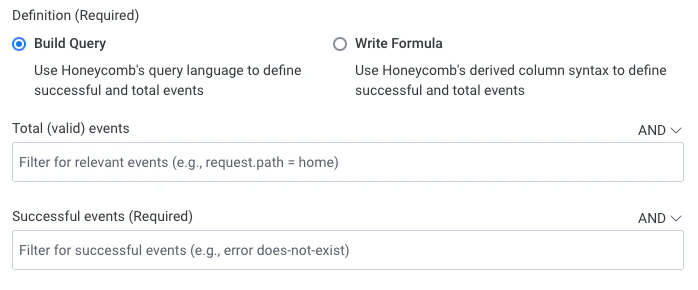 Following our previous example, this SLI's query syntax for each filter would be:
**Total (valid) events**: `request.path = /home`
**Successful events**: `http:response_duration < 100`
Some functionality is not currently supported in Build Query mode, such as regex and type coercion.
To access more advanced functionality, switch to using [calculated field syntax](#define-your-sli-with-a-formula) by selecting **Write Formula**.
Learn more about translating between modes and their [Supported Syntax](#supported-syntax).
5. Optionally, use the Preview Data section to preview the results of the function.
Sample data from recent events helps you to verify the expression before it is saved.
6. Select **Save** and continue [creating your SLO](/notify/slos/create/#create-your-slo).
### Define Your SLI with a Formula
To use calculated field syntax to define your SLI, create a new SLI and select **Write Formula**:
1. During the [SLO creation process](/notify/slos/create/#create-your-slo), select **+ New SLI**.
2. In the New Service Level Indicator (SLI) window, enter a **Display Name**, which will appear elsewhere as a field name in the Query Builder.
Enter a display name that is unique across the Dataset and its containing Environment.
Your SLI name should not match the name of any other Calculated Field or any other field in any Dataset contained within the Environment.
Although Honeycomb tries to prevent duplicate field names, they can still occur.
To learn more about behaviors related to name collision and solutions, visit [Common Issues with Queries: Calculated Fields](/troubleshoot/common-issues/queries/#a-link-points-to-the-wrong-location).
3. Optionally, include a description for your SLI.
4. Select **Write Formula** and define the Calculated Field formula for your SLI.
Following our previous example, this SLI's query syntax for each filter would be:
**Total (valid) events**: `request.path = /home`
**Successful events**: `http:response_duration < 100`
Some functionality is not currently supported in Build Query mode, such as regex and type coercion.
To access more advanced functionality, switch to using [calculated field syntax](#define-your-sli-with-a-formula) by selecting **Write Formula**.
Learn more about translating between modes and their [Supported Syntax](#supported-syntax).
5. Optionally, use the Preview Data section to preview the results of the function.
Sample data from recent events helps you to verify the expression before it is saved.
6. Select **Save** and continue [creating your SLO](/notify/slos/create/#create-your-slo).
### Define Your SLI with a Formula
To use calculated field syntax to define your SLI, create a new SLI and select **Write Formula**:
1. During the [SLO creation process](/notify/slos/create/#create-your-slo), select **+ New SLI**.
2. In the New Service Level Indicator (SLI) window, enter a **Display Name**, which will appear elsewhere as a field name in the Query Builder.
Enter a display name that is unique across the Dataset and its containing Environment.
Your SLI name should not match the name of any other Calculated Field or any other field in any Dataset contained within the Environment.
Although Honeycomb tries to prevent duplicate field names, they can still occur.
To learn more about behaviors related to name collision and solutions, visit [Common Issues with Queries: Calculated Fields](/troubleshoot/common-issues/queries/#a-link-points-to-the-wrong-location).
3. Optionally, include a description for your SLI.
4. Select **Write Formula** and define the Calculated Field formula for your SLI.
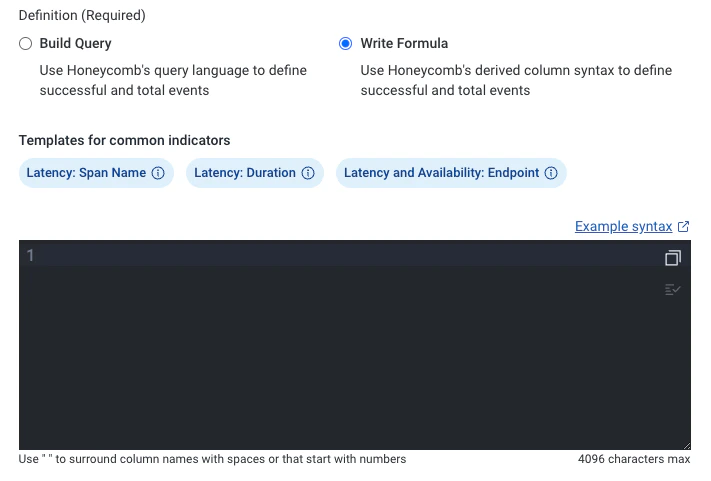 Most SLIs are written using Honeycomb's [two-argument "IF" command](/reference/calculated-field-expression/conditional/#if): `IF(qualifier, criterion)`.
With this command, `IF( $a, $b)` returns `$b` only if `$a` is `true`.
Otherwise, it returns `null`.
Following our previous example, the Calculated Field formula for this SLI would be:
`IF( EQUALS( $request.path, "/home"), LT( $http.response_duration, 100))`
To explore more examples of formulas for SLIs, visit [SLI Formulas](/notify/slos/create/sli-formulas/).
To learn more about syntax and available functions, visit [Calculated Field Formula Reference](/reference/calculated-field-expression/).
Hover over any syntax errors, as indicated by red underlines or red triangles, for suggestions to correct them.
5. Optionally, use the Preview Data section to preview the results of the function.
Sample data from recent events helps you to verify the expression before it is saved.
6. Select **Save** and continue [creating your SLO](/notify/slos/create/#create-your-slo).
### Supported Syntax
Use the chart below to translate between Calculated Field syntax in Write Formula mode and Query syntax in Build Query mode.
| Calculated Field Function | Query Syntax |
| ------------------------------------- | -------------------------------- |
| LT() | \< |
| LTE() | \<= |
| GT() | > |
| GTE() | >= |
| EQUALS() / NOT(EQUALS()) | =, != |
| IN() / NOT(IN()) | in, not-in |
| EXISTS() / NOT(EXISTS()) | exists, does-not-exist |
| STARTS\_WITH() / NOT(STARTS\_WITH()) | starts-with, does-not-start-with |
| ENDS\_WITH() / NOT(ENDS\_WITH()) | ends-with, does-not-end-with |
| CONTAINS() / NOT(CONTAINS()) | contains, does-not-contain |
Referencing another Calculated Field from a SLI (or Calculated Field) is not supported.
## Test Your SLI
To test your SLI:
1. From the left navigation menu, select **Query**.
2. Query the dataset that contains your SLO.
| VISUALIZE | GROUP BY |
| ---------------------------------- | ------------------------ |
| COUNT
Most SLIs are written using Honeycomb's [two-argument "IF" command](/reference/calculated-field-expression/conditional/#if): `IF(qualifier, criterion)`.
With this command, `IF( $a, $b)` returns `$b` only if `$a` is `true`.
Otherwise, it returns `null`.
Following our previous example, the Calculated Field formula for this SLI would be:
`IF( EQUALS( $request.path, "/home"), LT( $http.response_duration, 100))`
To explore more examples of formulas for SLIs, visit [SLI Formulas](/notify/slos/create/sli-formulas/).
To learn more about syntax and available functions, visit [Calculated Field Formula Reference](/reference/calculated-field-expression/).
Hover over any syntax errors, as indicated by red underlines or red triangles, for suggestions to correct them.
5. Optionally, use the Preview Data section to preview the results of the function.
Sample data from recent events helps you to verify the expression before it is saved.
6. Select **Save** and continue [creating your SLO](/notify/slos/create/#create-your-slo).
### Supported Syntax
Use the chart below to translate between Calculated Field syntax in Write Formula mode and Query syntax in Build Query mode.
| Calculated Field Function | Query Syntax |
| ------------------------------------- | -------------------------------- |
| LT() | \< |
| LTE() | \<= |
| GT() | > |
| GTE() | >= |
| EQUALS() / NOT(EQUALS()) | =, != |
| IN() / NOT(IN()) | in, not-in |
| EXISTS() / NOT(EXISTS()) | exists, does-not-exist |
| STARTS\_WITH() / NOT(STARTS\_WITH()) | starts-with, does-not-start-with |
| ENDS\_WITH() / NOT(ENDS\_WITH()) | ends-with, does-not-end-with |
| CONTAINS() / NOT(CONTAINS()) | contains, does-not-contain |
Referencing another Calculated Field from a SLI (or Calculated Field) is not supported.
## Test Your SLI
To test your SLI:
1. From the left navigation menu, select **Query**.
2. Query the dataset that contains your SLO.
| VISUALIZE | GROUP BY |
| ---------------------------------- | ------------------------ |
| COUNT
HEATMAP(duration\_ms) | `` |
3. In your results, confirm that three groups exist: `true` (successful qualified events), `false` (failed qualified events), and blank (events that are not qualified).
4. Confirm that the three groups look correct for your use case and understanding of the dataset's contents.
To explore this process in more detail, read our [Working Toward Service Level Objectives](https://www.honeycomb.io/blog/working-toward-service-level-objectives-slos-part-1/) blog post.