> ## Documentation Index
> Fetch the complete documentation index at: https://docs.honeycomb.io/llms.txt
> Use this file to discover all available pages before exploring further.
# Query Math
> Build queries from multiple statements, perform math between them, and visualize the final result.
export const HnyIcon = ({alias, path, size = 16, iconColor}) => {
const iconMap = {
"home": "house.svg",
"marker": "caretFilledDown.svg",
"show-marker-options": "chatTextLeft.svg",
"download": "arrowLineDown.svg",
"trace-waterfall": "trace.svg",
"show-query-details": "listDashes.svg",
"table": "table.svg",
"log-lines": "logLines.svg",
"chart": "chartLine.svg",
"show-settings": "gear.svg",
"add": "plus.svg",
"remove": "delete.svg",
"persist": "caretDown.svg",
"close": "close.svg",
"copy": "copy.svg",
"zoom-in": "magnifyingGlassPlus.svg",
"zoom-out": "magnifyingGlassMinus.svg",
"color-assignment": "drop.svg",
"drag": "dots-six-vertical.svg",
"drawer": "drawer.svg",
"show-actions": "dotsThree.svg",
"edit": "pencil.svg",
"delete": "trash.svg",
"move": "arrowsOutCardinal.svg",
"show-legend": "circleInfo.svg",
"usage-ok": "usageGood.svg",
"usage-warning": "usageWarning.svg",
"usage-danger": "usageDanger.svg",
"open-query-builder": "query.svg",
"home-menu": "house.svg",
"query-menu": "query.svg",
"boards-menu": "board.svg",
"triggers-menu": "bell.svg",
"slos-menu": "handshake.svg",
"service-map-menu": "serviceMap.svg",
"history-menu": "clockCounterClockwise.svg",
"manage-data-menu": "cube.svg",
"usage-menu": "usageGood.svg",
"canvas-menu": "sparkle.svg",
"anomalies-menu": "anomalies.svg",
"show-details": "dotsThreeVertical.svg",
"resize-handle": "board-panel-resize-handle.png",
"standard-dataset": "cube.svg",
"trace-dataset": "cubeChat.svg",
"all-datasets": "linkedSquares.svg",
"share": "arrowBentRight.svg",
"run-in-query-builder": "arrowSquareUpRight.svg",
"link": "link.svg",
"text": "text.svg",
"receive": "arrowLineDown.svg",
"process": "lightning.svg",
"sample": "drop.svg",
"send": "arrowLineUp.svg",
"submit": "arrowUp.svg",
"canvas-menu": "sparkle.svg",
"canvas": "sparkle.svg",
"chat-about-this-page": "sparkle.svg",
"private": "lockKey.svg",
"shared": "people.svg",
"expand": "caretDown.svg",
"previous": "caretLeft.svg",
"next": "caretRight.svg",
"expand-chat": "caretLeft.svg",
"minimize-chat": "caretRight.svg",
"open-in-canvas": "arrowSquareUpRight.svg"
};
const iconBasePath = "/_assets/icons/";
const iconPath = path || (alias ? `${iconBasePath}${iconMap[alias]}` : undefined);
return ;
};
## Introduction
Query Math adds support for multi-step queries in Honeycomb.
You can now define multiple query steps, perform math between them, and visualize the final result—all inline in the Query Builder.
This feature helps you express richer queries without creating temporary calculated fields.
Instead of building complex calculated field expressions, you can break down your analysis into logical steps and combine them using simple mathematical formulas.
Use Query Math to:
* Calculate ratios and percentages directly in your query
* Combine multiple aggregates (for example, error counts and request totals)
* Perform time-series math with functions like `RATE()` and `INCREASE()`
* Simplify complex calculated fields into inline formulas
* Compare conditional aggregations side by side
## How it works
Query Math lets you create multiple query steps, such as Step A and Step B—each with its own **SELECT**, **WHERE**, and **GROUP BY** clauses.
You can then define a formula that references these steps using variables like `$A`, `$B`, and so on.
When you run the query, Honeycomb:
1. Executes each step independently.
2. Evaluates your formula using the results from each step.
3. Visualizes the final result.
Only the final formula result appears in your visualization.
To see individual step results, remove the formula from your query.
## Using Query Math
To build a query with Query Math:
1. Select **Query** () from the navigation menu.
2. Define your first step (Step A):
1. Select fields in the **SELECT** clause.
2. Add filters in the **WHERE** clause.
3. Optionally, add groupings in the **GROUP BY** clause.
3. Select **Add Query** to create additional steps (for example, Step B).
4. Select **Add Formula** to define the mathematical relationship between your query steps.
5. In the formula editor, reference your steps using `$A`, `$B`, and so on, and combine them using mathematical operators.
6. Select **Run Query** to see the result.
All query steps must use the same **GROUP BY** dimensions.
For example, if Step A groups by `k8s.pod.name`, then Step B must also group by `k8s.pod.name`.
 ## Supported operators in query formulas
Query formulas support standard mathematical operators in infix notation:
| Operator | Description | Example |
| -------- | ------------------------ | ---------------- |
| `+` | Addition | `$A + $B` |
| `-` | Subtraction | `$A - $B` |
| `*` | Multiplication | `$A * $B` |
| `/` | Division | `$A / $B` |
| `()` | Parentheses for grouping | `($A + $B) / $C` |
You can combine these operators to create complex formulas:
```js theme={}
(($A / $B) * 100)
```
Include spaces around arithmetic operators to ensure that the formula parses correctly.
## Query math examples
These examples demonstrate common use cases for Query Math.
Each shows how to structure your query stages and combine them with formulas.
### Error rate
Compute the percentage of all requests that resulted in `500` errors.
**Step A**:
* `SELECT COUNT`
* `WHERE status = 500`
**Step B**:
* `SELECT COUNT`
**Formula C**:
```js theme={}
($A / $B) * 100
```
### Success rate
Calculate the percentage of successful requests (non-error status codes).
**Step A**:
* `SELECT COUNT`
* `WHERE status < 400`
**Step B**:
* `SELECT COUNT`
**Formula C**:
```js theme={}
($A / $B) * 100
```
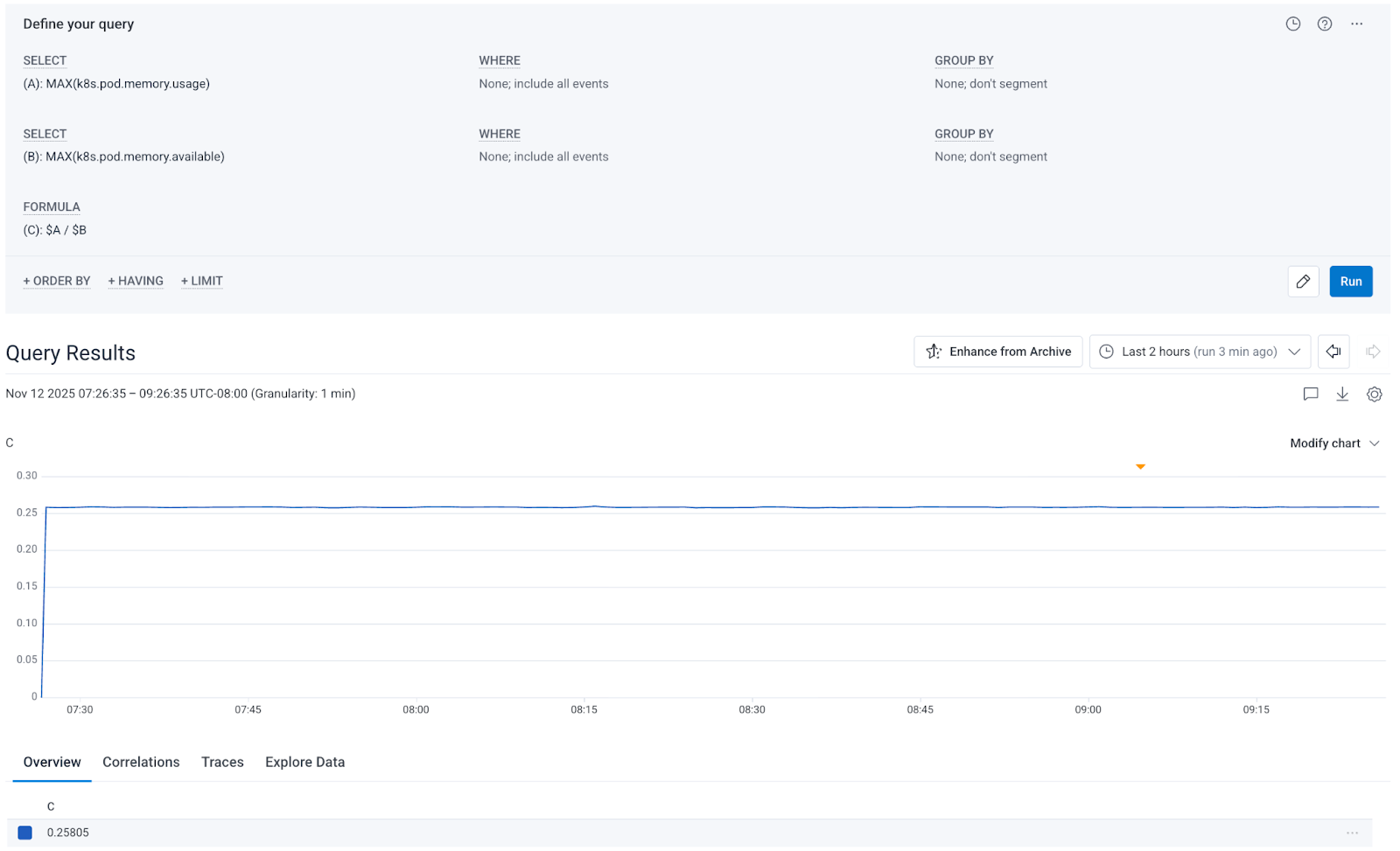
### Memory utilization percentage
Calculate the percentage of available memory that is currently in use, which makes it easier to identify which pods are approaching capacity.
**Step A**:
* `SELECT MAX(k8s.pod.memory.usage)`
**Step B**:
* `SELECT MAX(k8s.pod.memory.available)`
**Formula C**:
```js theme={}
($A / ($A / $B)) * 100
```
### Request rate difference
Compare the request rate between two services, which can help you identify load imbalances.
**Step A**:
* `SELECT AVG(request_rate)` (create query-scoped calculated field `request_rate` with definition `RATE($http.server.requests)`)
* `WHERE service.name = "api"`
**Step B**:
* `SELECT AVG(request_rate)`
* `WHERE service.name = "frontend"`
Query-scoped calculated fields defined in any step are automatically available in all other steps within the same query.
**Formula C**:
```js theme={}
$A - $B
```
### CPU utilization
Combine different temporal aggregation functions to analyze metric behavior.
This query compares the current CPU utilization snapshot against the rate of change, helping you understand CPU usage patterns.
**Step A**:
* `SELECT AVG(last_cpu)` (create query-scoped calculated field `last_cpu` with definition `LAST($k8s.pod.cpu.utilization)`)
**Step B**:
* `SELECT AVG(rate_cpu)` (create query-scoped calculated field `rate_cpu` with definition `RATE($k8s.pod.cpu.time)`)
**Formula C**:
```js theme={}
$A / $B
```
## Working with Groupings
When using **GROUP BY** in Query Math, all query statements must group by the same dimensions.
If your query statements have different **GROUP BY** clauses, the query will fail.
For example, if you want to calculate error rates per route:
**Step A**:
* `SELECT COUNT`
* `WHERE status >= 400`
* `GROUP BY http.route`
**Step B**:
* `SELECT COUNT`
* `GROUP BY http.route`
**Formula C**:
```js theme={}
($A / $B) * 100
```
Honeycomb evaluates the formula for each unique value of `http.route`, producing a separate result for each route.
## Combining with Temporal Aggregation
Query Math works seamlessly with [temporal aggregation functions](/investigate/query/temporal-aggregation/).
You can use `RATE()`, `INCREASE()`, `SUMMARIZE()`, and `LAST()` in your query steps, then perform math across the results.
For example, to calculate your error rate as a percentage of total throughput:
**Step A**:
* `SELECT SUM(error_rate)` (create query-scoped calculated field `error_rate` with definition `RATE($http.server.errors)`
)
**Step B**:
* `SELECT SUM(request_rate)` (create query-scoped calculated field `request_rate` with definition `RATE($http.server.requests)`)
**Formula C**:
```js theme={}
($A / $B) * 100
```
This query shows what percentage of your requests per second are errors, using temporal aggregation to normalize both metrics to per-second rates before calculating the ratio.
## Visualizing results
When you add a formula to your query, only the formula result appears in the visualization.
This keeps your charts focused on the final calculated value.
If you want to see the individual step results:
1. Remove the formula temporarily.
2. Run the query to see each step's results independently.
3. Add the formula back when ready.
This workflow is useful for debugging or validating intermediate results before combining them.
## Tips for building multi-statement queries
Use these strategies to build effective Query Math queries:
* **Start simple**: Build and test each query statement individually before adding a formula.
* **Use descriptive calculated field names**: Names like `error_rate` or `memory_util` make steps easier to understand.
* **Validate groupings**: Ensure all statements use identical **GROUP BY** clauses to avoid query errors.
* **Test incrementally**: Add one formula operation at a time to isolate any issues.
* **Use parentheses**: Explicitly group operations to control evaluation order, especially in complex formulas.
## Supported operators in query formulas
Query formulas support standard mathematical operators in infix notation:
| Operator | Description | Example |
| -------- | ------------------------ | ---------------- |
| `+` | Addition | `$A + $B` |
| `-` | Subtraction | `$A - $B` |
| `*` | Multiplication | `$A * $B` |
| `/` | Division | `$A / $B` |
| `()` | Parentheses for grouping | `($A + $B) / $C` |
You can combine these operators to create complex formulas:
```js theme={}
(($A / $B) * 100)
```
Include spaces around arithmetic operators to ensure that the formula parses correctly.
## Query math examples
These examples demonstrate common use cases for Query Math.
Each shows how to structure your query stages and combine them with formulas.
### Error rate
Compute the percentage of all requests that resulted in `500` errors.
**Step A**:
* `SELECT COUNT`
* `WHERE status = 500`
**Step B**:
* `SELECT COUNT`
**Formula C**:
```js theme={}
($A / $B) * 100
```
### Success rate
Calculate the percentage of successful requests (non-error status codes).
**Step A**:
* `SELECT COUNT`
* `WHERE status < 400`
**Step B**:
* `SELECT COUNT`
**Formula C**:
```js theme={}
($A / $B) * 100
```
### Memory utilization percentage
Calculate the percentage of available memory that is currently in use, which makes it easier to identify which pods are approaching capacity.
**Step A**:
* `SELECT MAX(k8s.pod.memory.usage)`
**Step B**:
* `SELECT MAX(k8s.pod.memory.available)`
**Formula C**:
```js theme={}
($A / ($A / $B)) * 100
```
### Request rate difference
Compare the request rate between two services, which can help you identify load imbalances.
**Step A**:
* `SELECT AVG(request_rate)` (create query-scoped calculated field `request_rate` with definition `RATE($http.server.requests)`)
* `WHERE service.name = "api"`
**Step B**:
* `SELECT AVG(request_rate)`
* `WHERE service.name = "frontend"`
Query-scoped calculated fields defined in any step are automatically available in all other steps within the same query.
**Formula C**:
```js theme={}
$A - $B
```
### CPU utilization
Combine different temporal aggregation functions to analyze metric behavior.
This query compares the current CPU utilization snapshot against the rate of change, helping you understand CPU usage patterns.
**Step A**:
* `SELECT AVG(last_cpu)` (create query-scoped calculated field `last_cpu` with definition `LAST($k8s.pod.cpu.utilization)`)
**Step B**:
* `SELECT AVG(rate_cpu)` (create query-scoped calculated field `rate_cpu` with definition `RATE($k8s.pod.cpu.time)`)
**Formula C**:
```js theme={}
$A / $B
```
## Working with Groupings
When using **GROUP BY** in Query Math, all query statements must group by the same dimensions.
If your query statements have different **GROUP BY** clauses, the query will fail.
For example, if you want to calculate error rates per route:
**Step A**:
* `SELECT COUNT`
* `WHERE status >= 400`
* `GROUP BY http.route`
**Step B**:
* `SELECT COUNT`
* `GROUP BY http.route`
**Formula C**:
```js theme={}
($A / $B) * 100
```
Honeycomb evaluates the formula for each unique value of `http.route`, producing a separate result for each route.
## Combining with Temporal Aggregation
Query Math works seamlessly with [temporal aggregation functions](/investigate/query/temporal-aggregation/).
You can use `RATE()`, `INCREASE()`, `SUMMARIZE()`, and `LAST()` in your query steps, then perform math across the results.
For example, to calculate your error rate as a percentage of total throughput:
**Step A**:
* `SELECT SUM(error_rate)` (create query-scoped calculated field `error_rate` with definition `RATE($http.server.errors)`
)
**Step B**:
* `SELECT SUM(request_rate)` (create query-scoped calculated field `request_rate` with definition `RATE($http.server.requests)`)
**Formula C**:
```js theme={}
($A / $B) * 100
```
This query shows what percentage of your requests per second are errors, using temporal aggregation to normalize both metrics to per-second rates before calculating the ratio.
## Visualizing results
When you add a formula to your query, only the formula result appears in the visualization.
This keeps your charts focused on the final calculated value.
If you want to see the individual step results:
1. Remove the formula temporarily.
2. Run the query to see each step's results independently.
3. Add the formula back when ready.
This workflow is useful for debugging or validating intermediate results before combining them.
## Tips for building multi-statement queries
Use these strategies to build effective Query Math queries:
* **Start simple**: Build and test each query statement individually before adding a formula.
* **Use descriptive calculated field names**: Names like `error_rate` or `memory_util` make steps easier to understand.
* **Validate groupings**: Ensure all statements use identical **GROUP BY** clauses to avoid query errors.
* **Test incrementally**: Add one formula operation at a time to isolate any issues.
* **Use parentheses**: Explicitly group operations to control evaluation order, especially in complex formulas.