> ## Documentation Index
> Fetch the complete documentation index at: https://docs.honeycomb.io/llms.txt
> Use this file to discover all available pages before exploring further.
# Get Started with Boards
> Create Boards, add queries and SLOs, interact with panels, and share your work with teammates.
export const HnyIcon = ({alias, path, size = 16, iconColor}) => {
const iconMap = {
"home": "house.svg",
"marker": "caretFilledDown.svg",
"show-marker-options": "chatTextLeft.svg",
"download": "arrowLineDown.svg",
"trace-waterfall": "trace.svg",
"show-query-details": "listDashes.svg",
"table": "table.svg",
"log-lines": "logLines.svg",
"chart": "chartLine.svg",
"show-settings": "gear.svg",
"add": "plus.svg",
"remove": "delete.svg",
"persist": "caretDown.svg",
"close": "close.svg",
"copy": "copy.svg",
"zoom-in": "magnifyingGlassPlus.svg",
"zoom-out": "magnifyingGlassMinus.svg",
"color-assignment": "drop.svg",
"drag": "dots-six-vertical.svg",
"drawer": "drawer.svg",
"show-actions": "dotsThree.svg",
"edit": "pencil.svg",
"delete": "trash.svg",
"move": "arrowsOutCardinal.svg",
"show-legend": "circleInfo.svg",
"usage-ok": "usageGood.svg",
"usage-warning": "usageWarning.svg",
"usage-danger": "usageDanger.svg",
"open-query-builder": "query.svg",
"home-menu": "house.svg",
"query-menu": "query.svg",
"boards-menu": "board.svg",
"triggers-menu": "bell.svg",
"slos-menu": "handshake.svg",
"service-map-menu": "serviceMap.svg",
"history-menu": "clockCounterClockwise.svg",
"manage-data-menu": "cube.svg",
"usage-menu": "usageGood.svg",
"canvas-menu": "sparkle.svg",
"anomalies-menu": "anomalies.svg",
"show-details": "dotsThreeVertical.svg",
"resize-handle": "board-panel-resize-handle.png",
"standard-dataset": "cube.svg",
"trace-dataset": "cubeChat.svg",
"all-datasets": "linkedSquares.svg",
"share": "arrowBentRight.svg",
"run-in-query-builder": "arrowSquareUpRight.svg",
"link": "link.svg",
"text": "text.svg",
"receive": "arrowLineDown.svg",
"process": "lightning.svg",
"sample": "drop.svg",
"send": "arrowLineUp.svg",
"submit": "arrowUp.svg",
"canvas-menu": "sparkle.svg",
"canvas": "sparkle.svg",
"chat-about-this-page": "sparkle.svg",
"private": "lockKey.svg",
"shared": "people.svg",
"expand": "caretDown.svg",
"previous": "caretLeft.svg",
"next": "caretRight.svg",
"expand-chat": "caretLeft.svg",
"minimize-chat": "caretRight.svg",
"open-in-canvas": "arrowSquareUpRight.svg"
};
const iconBasePath = "/_assets/icons/";
const iconPath = path || (alias ? `${iconBasePath}${iconMap[alias]}` : undefined);
return ;
};
This page reflects the Flexible Boards experience.
If you are using a legacy Board, [migrate to Flexible Boards](/troubleshoot/product-lifecycle/recommended-migrations/#migrate-to-flexible-boards) to access these features.
## Overview
Create a Board to organize related queries and SLOs, making them easier to access.
For example, you can use a Board to monitor a specific service, or gather queries for a particular investigation.
## Creating a Board from a Template
You can create a Board from a pre-configured template to quickly gain insights with minimal effort and ensure a consistent approach to collaboration.
Customize these templates to fit your needs or use them as-is.
Depending on the template and how you [defined your data](/configure/datasets/definitions/), you may need to map required fields for the template's queries to successfully populate.
To create a Board from a template:
1. Select **Boards** () from the navigation menu.
2. Go to the **Templates** view, or select **Create Boards** and **From Template**.
3. Choose a template to preview with your data.
4. In the template preview, review the data displayed in the query panels.
The progress bar shows how many queries are successfully populated with your data.
To share your customized template, select **Copy Link**.
If some queries aren't displaying correctly, you may need to map required fields to your data:
1. Go to the **Setup** view.
2. Find any queries marked **Unable to display**.
3. In the **Required fields** column, select the target field, then choose the appropriate replacement field.
Your field mapping applies to all template queries using that target field.
To revert to the original template field, select the remove icon () next to the replacement field name.
4. Repeat this process for any additional fields or queries.
5. Select **Use Template**.
Your new Board appears on the Boards page.
Any queries marked as unable to display during creation are not included.
## Creating a Board Manually
Creating a Board manually gives you complete control over how you organize and visualize your data.
This approach is ideal when you have specific monitoring or investigation needs that aren't covered by existing templates.
To create a Board manually:
1. Select **Query** () from the navigation menu.
2. [Build and run a query](/investigate/query/build/).
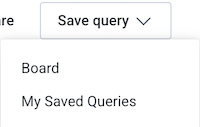
3. Select **Save query**, and then choose **Board**.
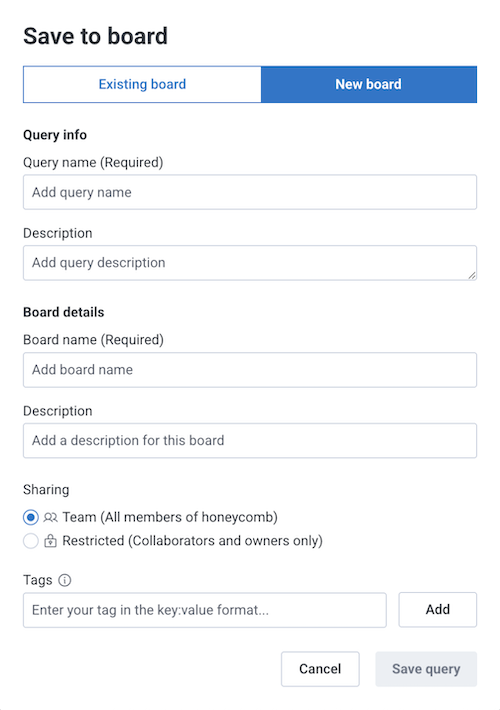
 4. In the modal, select **New board**, and enter details:
| Field | Description |
| ----------------- | ------------------------------------------------------------------------------------------------------------------------------------------------------------------------------------------------------------------------------------------------------------------------------------------------------------------------------------------------------------------------------------------------------------------------------ |
| Query name | Name that will appear on the Board. If the query has been saved to a board previously, this field will auto-fill for editing. |
| Query description | Description of the query that will appear on the Board. If this query has been saved to a board previously, this field will auto-fill for editing. Supports basic markdown formatting, including links. |
| Board name | Name of the new Board. Choose a name that clearly reflects the Board's purpose. |
| Board description | Description of the new Board. Supports basic markdown formatting, including links. |
| Sharing | Specifies who has access to the Board. **Team** restricts to your Honeycomb team. **Restricted** restricts to selected collaborators and team owners. You can adjust collaborators when you share a Board. |
| Tags | Labels that organize and group related Boards, making it easier to [filter by tag](/investigate/observe/boards/manage#filtering-boards) and find them. Enter tags in key:value format (for example, `area:pipelines` or `team:prism`). Tag keys can contain letters only, up to 32 characters. Tag values can include alphanumeric characters and the special characters `/` and `-`, with a maximum length of 128 characters. |
4. In the modal, select **New board**, and enter details:
| Field | Description |
| ----------------- | ------------------------------------------------------------------------------------------------------------------------------------------------------------------------------------------------------------------------------------------------------------------------------------------------------------------------------------------------------------------------------------------------------------------------------ |
| Query name | Name that will appear on the Board. If the query has been saved to a board previously, this field will auto-fill for editing. |
| Query description | Description of the query that will appear on the Board. If this query has been saved to a board previously, this field will auto-fill for editing. Supports basic markdown formatting, including links. |
| Board name | Name of the new Board. Choose a name that clearly reflects the Board's purpose. |
| Board description | Description of the new Board. Supports basic markdown formatting, including links. |
| Sharing | Specifies who has access to the Board. **Team** restricts to your Honeycomb team. **Restricted** restricts to selected collaborators and team owners. You can adjust collaborators when you share a Board. |
| Tags | Labels that organize and group related Boards, making it easier to [filter by tag](/investigate/observe/boards/manage#filtering-boards) and find them. Enter tags in key:value format (for example, `area:pipelines` or `team:prism`). Tag keys can contain letters only, up to 32 characters. Tag values can include alphanumeric characters and the special characters `/` and `-`, with a maximum length of 128 characters. |
 5. Select **Save query**.
If no Boards have been created yet, select **Run a query to get started** and follow the instructions for **From Query Builder** instead.
1. Select **Boards** () from the navigation menu.
2. Select **Create Board** and select **Blank board**.
3. In the modal, enter details:
| Field | Description |
| ----------- | ------------------------------------------------------------------------------------------------------------------------------------------------------------------------------------------------------------------------------------------------------------------------------------------------------------------------------------------------------------------------------------------------------------------------------ |
| Name | Name of the new Board. Choose a name that clearly reflects the Board's purpose. |
| Description | Description of the new Board. Enter a description that helps others understand its purpose and how to use it. Supports basic markdown formatting, including links. |
| Sharing | Specifies who has access to the Board. **Team** restricts to your Honeycomb team. **Restricted** restricts to selected collaborators and team owners. You can adjust collaborators when you share a Board. |
| Tags | Labels that organize and group related Boards, making it easier to [filter by tag](/investigate/observe/boards/manage#filtering-boards) and find them. Enter tags in key:value format (for example, `area:pipelines` or `team:prism`). Tag keys can contain letters only, up to 32 characters. Tag values can include alphanumeric characters and the special characters `/` and `-`, with a maximum length of 128 characters. |
5. Select **Save query**.
If no Boards have been created yet, select **Run a query to get started** and follow the instructions for **From Query Builder** instead.
1. Select **Boards** () from the navigation menu.
2. Select **Create Board** and select **Blank board**.
3. In the modal, enter details:
| Field | Description |
| ----------- | ------------------------------------------------------------------------------------------------------------------------------------------------------------------------------------------------------------------------------------------------------------------------------------------------------------------------------------------------------------------------------------------------------------------------------ |
| Name | Name of the new Board. Choose a name that clearly reflects the Board's purpose. |
| Description | Description of the new Board. Enter a description that helps others understand its purpose and how to use it. Supports basic markdown formatting, including links. |
| Sharing | Specifies who has access to the Board. **Team** restricts to your Honeycomb team. **Restricted** restricts to selected collaborators and team owners. You can adjust collaborators when you share a Board. |
| Tags | Labels that organize and group related Boards, making it easier to [filter by tag](/investigate/observe/boards/manage#filtering-boards) and find them. Enter tags in key:value format (for example, `area:pipelines` or `team:prism`). Tag keys can contain letters only, up to 32 characters. Tag values can include alphanumeric characters and the special characters `/` and `-`, with a maximum length of 128 characters. |
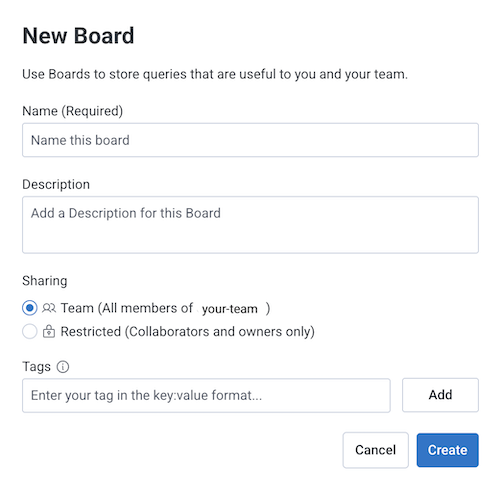 4. Select **Create**.
## Duplicating a Board
Duplicate a Board to preserve its structure while adapting it for a new project or making experimental changes.
It's a useful way to create a backup or repurpose an existing Board.
To duplicate a Board:
1. Select **Boards** () from the navigation menu.
2. Select the Board you want to duplicate.
3. On the Board's details page, select the Settings icon (), then choose **Duplicate**.
4. In the modal, enter details:
| Field | Description |
| ----------- | ------------------------------------------------------------------------------------------------------------------------------------------------------------------------------------------------------------------------------------------------------------------------------------------ |
| Title | Name of the new Board. The default name will be "Duplicate of" followed by the original Board's name, but you can edit it to reflect the new Board's purpose. |
| Environment | Specifies the environment to which you want to copy the Board. To successfully duplicate a Board, both environments must have matching schema sets. Only queries with dataset and field names that match the destination environment will be copied; incompatible queries will be omitted. |
5. Select **Create duplicate**.
The screen refreshes to display the new Board.
## Adding Panels to a Board
Control which work items remain easily accessible and visible within your workspace.
### Adding Queries
Organize and easily revisit important queries without having to recreate them.
Once added, selecting a query from the Board opens the Query Results page, where you can perform the same analysis and access all the same features as you would directly from the page.
To add a query:
1. Select **Query** () from the navigation menu.
2. [Build and run a query](/investigate/query/build/).
3. Select **Save query**, and then choose **Board**.
4. In the modal, select the appropriate board type, and enter details:
* To add the query to an **Existing board**:
| Field | Description |
| ----------------- | ------------------------------------------------------------------------------------------------------------------------------------------------------------------------------------------------------- |
| Query name | Name that will appear on the Board. If the query has been added to a board previously, this field will auto-fill for editing. |
| Query description | Description of the query that will appear on the Board. If this query has been added to a board previously, this field will auto-fill for editing. Supports basic markdown formatting, including links. |
| Existing board | Select the Board to which you want to add the query. |
4. Select **Create**.
## Duplicating a Board
Duplicate a Board to preserve its structure while adapting it for a new project or making experimental changes.
It's a useful way to create a backup or repurpose an existing Board.
To duplicate a Board:
1. Select **Boards** () from the navigation menu.
2. Select the Board you want to duplicate.
3. On the Board's details page, select the Settings icon (), then choose **Duplicate**.
4. In the modal, enter details:
| Field | Description |
| ----------- | ------------------------------------------------------------------------------------------------------------------------------------------------------------------------------------------------------------------------------------------------------------------------------------------ |
| Title | Name of the new Board. The default name will be "Duplicate of" followed by the original Board's name, but you can edit it to reflect the new Board's purpose. |
| Environment | Specifies the environment to which you want to copy the Board. To successfully duplicate a Board, both environments must have matching schema sets. Only queries with dataset and field names that match the destination environment will be copied; incompatible queries will be omitted. |
5. Select **Create duplicate**.
The screen refreshes to display the new Board.
## Adding Panels to a Board
Control which work items remain easily accessible and visible within your workspace.
### Adding Queries
Organize and easily revisit important queries without having to recreate them.
Once added, selecting a query from the Board opens the Query Results page, where you can perform the same analysis and access all the same features as you would directly from the page.
To add a query:
1. Select **Query** () from the navigation menu.
2. [Build and run a query](/investigate/query/build/).
3. Select **Save query**, and then choose **Board**.
4. In the modal, select the appropriate board type, and enter details:
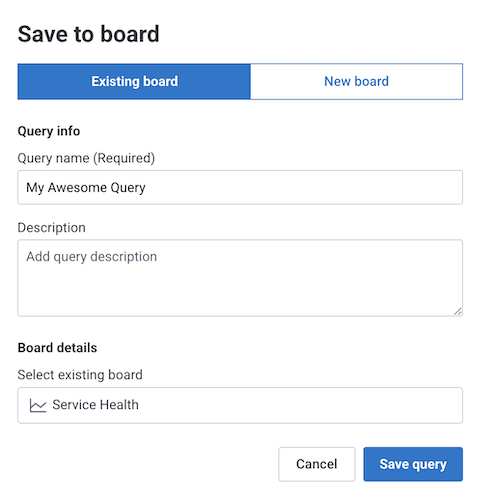
* To add the query to an **Existing board**:
| Field | Description |
| ----------------- | ------------------------------------------------------------------------------------------------------------------------------------------------------------------------------------------------------- |
| Query name | Name that will appear on the Board. If the query has been added to a board previously, this field will auto-fill for editing. |
| Query description | Description of the query that will appear on the Board. If this query has been added to a board previously, this field will auto-fill for editing. Supports basic markdown formatting, including links. |
| Existing board | Select the Board to which you want to add the query. |
 * To create a **New board** for the query:
| Field | Description |
| ----------------- | ------------------------------------------------------------------------------------------------------------------------------------------------------------------------------------------------------- |
| Query name | Name that will appear on the Board. If the query has been added to a board previously, this field will auto-fill for editing. |
| Query description | Description of the query that will appear on the Board. If this query has been added to a board previously, this field will auto-fill for editing. Supports basic markdown formatting, including links. |
| Board name | Name of the new Board. Choose a name that clearly reflects the Board's purpose. |
| Board description | Description of the new Board. Supports basic markdown formatting, including links. |
| Sharing | Specifies who has access to the Board. **Team** restricts to your Honeycomb team. **Restricted** restricts to collaborators and owners only. |
5. Select **Save query**.
If no Boards have been created yet, you must first [create a Board](/observe/boards/#creating-a-board).
1. Select **Boards** () from the navigation menu.
2. Select the Board to which you want to add a query.
3. From the Board's details page, select the Add icon (), and choose **Query** ().
4. Select **Add Query**.
5. [Build and run a query](/investigate/query/build/).
6. In the modal, select **Existing board**, and enter details:
| Field | Description |
| ----------------- | --------------------------------------------------------------------------------------------------------------------------------------------------------------------------------------------------- |
| Query name | Name that will appear on the Board. If the query has been saved to a Board before, this field will auto-fill for editing. |
| Query description | Description of the query that will appear on the Board. Supports basic markdown formatting, including links. If this query has been saved to a Board before, this field will auto-fill for editing. |
| Existing board | Board to which you want to add the query. This field should be pre-populated with your selected Board. |
7. Select **Save query**.
The page refreshes, and the Board updates to reflect your new query.
If you're using an AI assistant with Honeycomb's Model Context Protocol (MCP), the assistant can create new Boards but can't yet directly add queries to existing ones.
To add AI-generated queries to an existing Board:
1. Ask your AI assistant to create the queries you want.
2. Copy the URLs of the created graphs from the AI's response.
3. Visit those URLs in your browser.
4. Manually add the queries to your desired Board using the Honeycomb UI.
To learn more about using AI with Honeycomb, visit [Honeycomb MCP](/integrations/mcp/).
### Adding Service Level Objectives (SLOs)
Keep key performance indicators and related queries in one place for streamlined monitoring.
Group SLOs with their corresponding queries to quickly assess service performance, identify issues, and ensure reliability targets are met.
[Service Level Objectives (SLOs)](/notify/slos/) are available on Pro and Enterprise plans, but the ability to add an SLO to a Board is exclusive to the [Enterprise plan](https://www.honeycomb.io/pricing/).
To add an SLO:
If no Boards have been created yet, you must first [create a Board](/observe/boards/#creating-a-board).
1. Select **SLOs** () from the navigation menu.
2. Select the SLO that you want to add to a Board.
3. From the SLO's details page, select **Manage**, then choose **Save to Board**.
4. In the modal, select the target Board.
5. Select **Save SLO**.
If no Boards have been created yet, you must first [create a Board](/observe/boards/#creating-a-board).
1. Select **Boards** () from the navigation menu.
2. Select the Board to which you want to add an SLO.
3. From the Board's details page, select the Add icon (), and choose **SLO** ().
4. In the modal, select the target SLO.
5. Select **Save SLO**.
The page refreshes, and the Board updates to reflect your new SLO.
### Adding Text Panels
Text panels let you provide additional context alongside your visualizations.
You can use text panels to explain what the data means, highlight key insights, or link to related runbooks and playbooks right where your team is working.
#### Creating a Text Panel
1. Select **Boards** () from the navigation menu.
2. Select the Board to which you want to add a text panel.
3. From the Board's details page, select the Add icon (), and choose **Text** ().
4. Enter your content in the editor.
Text panels support Markdown, so you can [format content](#formatting-with-markdown) to fit your needs.
5. Select **Apply**.
The page refreshes, and the Board updates to reflect your new text panel.
#### Formatting with Markdown
Text panels support standard Markdown syntax.
You can combine these options to create rich, structured explanations:
* **Bold** (`**bold**`) and *italic* (`*italic*`) text for emphasis
* Headings (`#`, `##`, `###`) to organize content
* Links (`[link](https://www.wikipedia.org/)`) to internal or external resources
* Inline code (`` `code` ``) and fenced code blocks (` ``` `) for snippets
* Blockquotes (`> Note`) for important callouts
* Bulleted (`- item`) and numbered (`1. item`) lists for steps or best practices
* Horizontal rules (`---`) to separate sections
* Highlight text with `==highlighted text==` for emphasis
### Removing Queries
Remove a query to clear outdated or unnecessary visualizations.
When you remove a query from a Board, it won't be deleted, but any customizations specific to the Board will be removed.
This may make it harder for you to access the query later.
If you think you'll need it again, be sure to save the query elsewhere or check your Team's query history.
To remove a query:
1. Select **Boards** () from the navigation menu.
2. Select the Board that contains the query you want to delete.
3. On the Board's details page, enter **Edit** mode.
4. Locate the target query and select the Show Actions icon ().
5. Select **Remove Query**.
6. Select **Confirm**.
The page refreshes, and the Board updates to reflect your changes.
### Removing SLOs
Remove an SLO to declutter your Board and ensure you are focusing on the most relevant metrics.
This is useful when you no longer need to track a particular SLO or want to simplify your board for easier access to critical data.
To remove an SLO:
1. Select **Boards** () from the navigation menu.
2. Select the Board that contains the SLO you want to remove.
3. On the Board's details page, enter **Edit** mode.
4. Locate the target SLO and select the Show Actions icon ().
5. Select **Remove SLO**.
6. Select **Confirm**.
The page refreshes, and the Board updates to reflect your changes.
### Removing Text Panels
1. Select **Boards** () from the navigation menu.
2. Select the Board that contains the text panel you want to remove.
3. On the Board's details page, enter **Edit** mode.
4. Locate the target text panel, and select the Show Actions icon ().
5. Select **Remove Panel**
The page refreshes, and the Board updates to reflect your changes.
## Interacting with Panels
Interacting with query and SLO panels directly from a Board lets you access detailed insights and perform familiar actions without leaving your workspace.
### Interacting with Queries
Interacting with a query from a Board gives you direct access to detailed query results, so you can monitor performance and dig deeper into data without switching pages.
From a Board, you can perform familiar query actions, such as:
* Viewing visualizations and summary tables.
* Inspecting traces and events.
* Zooming in on specific time ranges.
* Adding markers to label key points in time.
* Detecting anomalies using heatmaps.
* Filtering summary tables by groups for focused analysis.
For more detailed insights, you can quickly navigate to the full query details and data views.
To access full query details:
1. Select **Boards** () from the navigation menu.
2. Choose the Board containing the query you want to explore.
3. On the Board's details page, select the query.
4. Interact with the query and its results as you would on the Query Results page.
### Interacting with SLOs
Interacting with an SLO from a Board provides an at-a-glance view of your service's compliance and burn rate, helping you quickly assess service health and performance.
For more in-depth analysis, you can quickly navigate to the full SLO details at any time.
To access full SLO details:
1. Select **Boards** () from the navigation menu.
2. Choose the Board containing the SLO you want to examine.
3. On the Board's details page, select the SLO.
4. Interact with the SLO just as you would on the SLO Details page.
## Sharing a Board
Easily share a Board with others, for quick access to content without needing to manually invite collaborators.
This is ideal for sharing board details with teammates or stakeholders who need to view the board but not necessarily modify it.
To learn more about changing Board access, visit [Manage Boards: Changing Access](/investigate/observe/boards/manage#changing-access).
1. Select **Boards** () from the navigation menu.
2. Select the Board you want to modify.
3. Select **Share**.
4. Select **Copy link**.
## Deleting a Board
If a Board is no longer needed, delete it to remove it from your workspace.
To delete a Board:
1. Select **Boards** () from the navigation menu.
2. Select the Board you want to delete.
3. On the Board's details page, select **Manage**, then choose **Delete board**.
4. In the modal, enter the Board's unique identifier (listed in parentheses).
5. Select **I understand the consequences. Delete this board.**.
The page refreshes to reflect the deletion.
* To create a **New board** for the query:
| Field | Description |
| ----------------- | ------------------------------------------------------------------------------------------------------------------------------------------------------------------------------------------------------- |
| Query name | Name that will appear on the Board. If the query has been added to a board previously, this field will auto-fill for editing. |
| Query description | Description of the query that will appear on the Board. If this query has been added to a board previously, this field will auto-fill for editing. Supports basic markdown formatting, including links. |
| Board name | Name of the new Board. Choose a name that clearly reflects the Board's purpose. |
| Board description | Description of the new Board. Supports basic markdown formatting, including links. |
| Sharing | Specifies who has access to the Board. **Team** restricts to your Honeycomb team. **Restricted** restricts to collaborators and owners only. |
5. Select **Save query**.
If no Boards have been created yet, you must first [create a Board](/observe/boards/#creating-a-board).
1. Select **Boards** () from the navigation menu.
2. Select the Board to which you want to add a query.
3. From the Board's details page, select the Add icon (), and choose **Query** ().
4. Select **Add Query**.
5. [Build and run a query](/investigate/query/build/).
6. In the modal, select **Existing board**, and enter details:
| Field | Description |
| ----------------- | --------------------------------------------------------------------------------------------------------------------------------------------------------------------------------------------------- |
| Query name | Name that will appear on the Board. If the query has been saved to a Board before, this field will auto-fill for editing. |
| Query description | Description of the query that will appear on the Board. Supports basic markdown formatting, including links. If this query has been saved to a Board before, this field will auto-fill for editing. |
| Existing board | Board to which you want to add the query. This field should be pre-populated with your selected Board. |
7. Select **Save query**.
The page refreshes, and the Board updates to reflect your new query.
If you're using an AI assistant with Honeycomb's Model Context Protocol (MCP), the assistant can create new Boards but can't yet directly add queries to existing ones.
To add AI-generated queries to an existing Board:
1. Ask your AI assistant to create the queries you want.
2. Copy the URLs of the created graphs from the AI's response.
3. Visit those URLs in your browser.
4. Manually add the queries to your desired Board using the Honeycomb UI.
To learn more about using AI with Honeycomb, visit [Honeycomb MCP](/integrations/mcp/).
### Adding Service Level Objectives (SLOs)
Keep key performance indicators and related queries in one place for streamlined monitoring.
Group SLOs with their corresponding queries to quickly assess service performance, identify issues, and ensure reliability targets are met.
[Service Level Objectives (SLOs)](/notify/slos/) are available on Pro and Enterprise plans, but the ability to add an SLO to a Board is exclusive to the [Enterprise plan](https://www.honeycomb.io/pricing/).
To add an SLO:
If no Boards have been created yet, you must first [create a Board](/observe/boards/#creating-a-board).
1. Select **SLOs** () from the navigation menu.
2. Select the SLO that you want to add to a Board.
3. From the SLO's details page, select **Manage**, then choose **Save to Board**.
4. In the modal, select the target Board.
5. Select **Save SLO**.
If no Boards have been created yet, you must first [create a Board](/observe/boards/#creating-a-board).
1. Select **Boards** () from the navigation menu.
2. Select the Board to which you want to add an SLO.
3. From the Board's details page, select the Add icon (), and choose **SLO** ().
4. In the modal, select the target SLO.
5. Select **Save SLO**.
The page refreshes, and the Board updates to reflect your new SLO.
### Adding Text Panels
Text panels let you provide additional context alongside your visualizations.
You can use text panels to explain what the data means, highlight key insights, or link to related runbooks and playbooks right where your team is working.
#### Creating a Text Panel
1. Select **Boards** () from the navigation menu.
2. Select the Board to which you want to add a text panel.
3. From the Board's details page, select the Add icon (), and choose **Text** ().
4. Enter your content in the editor.
Text panels support Markdown, so you can [format content](#formatting-with-markdown) to fit your needs.
5. Select **Apply**.
The page refreshes, and the Board updates to reflect your new text panel.
#### Formatting with Markdown
Text panels support standard Markdown syntax.
You can combine these options to create rich, structured explanations:
* **Bold** (`**bold**`) and *italic* (`*italic*`) text for emphasis
* Headings (`#`, `##`, `###`) to organize content
* Links (`[link](https://www.wikipedia.org/)`) to internal or external resources
* Inline code (`` `code` ``) and fenced code blocks (` ``` `) for snippets
* Blockquotes (`> Note`) for important callouts
* Bulleted (`- item`) and numbered (`1. item`) lists for steps or best practices
* Horizontal rules (`---`) to separate sections
* Highlight text with `==highlighted text==` for emphasis
### Removing Queries
Remove a query to clear outdated or unnecessary visualizations.
When you remove a query from a Board, it won't be deleted, but any customizations specific to the Board will be removed.
This may make it harder for you to access the query later.
If you think you'll need it again, be sure to save the query elsewhere or check your Team's query history.
To remove a query:
1. Select **Boards** () from the navigation menu.
2. Select the Board that contains the query you want to delete.
3. On the Board's details page, enter **Edit** mode.
4. Locate the target query and select the Show Actions icon ().
5. Select **Remove Query**.
6. Select **Confirm**.
The page refreshes, and the Board updates to reflect your changes.
### Removing SLOs
Remove an SLO to declutter your Board and ensure you are focusing on the most relevant metrics.
This is useful when you no longer need to track a particular SLO or want to simplify your board for easier access to critical data.
To remove an SLO:
1. Select **Boards** () from the navigation menu.
2. Select the Board that contains the SLO you want to remove.
3. On the Board's details page, enter **Edit** mode.
4. Locate the target SLO and select the Show Actions icon ().
5. Select **Remove SLO**.
6. Select **Confirm**.
The page refreshes, and the Board updates to reflect your changes.
### Removing Text Panels
1. Select **Boards** () from the navigation menu.
2. Select the Board that contains the text panel you want to remove.
3. On the Board's details page, enter **Edit** mode.
4. Locate the target text panel, and select the Show Actions icon ().
5. Select **Remove Panel**
The page refreshes, and the Board updates to reflect your changes.
## Interacting with Panels
Interacting with query and SLO panels directly from a Board lets you access detailed insights and perform familiar actions without leaving your workspace.
### Interacting with Queries
Interacting with a query from a Board gives you direct access to detailed query results, so you can monitor performance and dig deeper into data without switching pages.
From a Board, you can perform familiar query actions, such as:
* Viewing visualizations and summary tables.
* Inspecting traces and events.
* Zooming in on specific time ranges.
* Adding markers to label key points in time.
* Detecting anomalies using heatmaps.
* Filtering summary tables by groups for focused analysis.
For more detailed insights, you can quickly navigate to the full query details and data views.
To access full query details:
1. Select **Boards** () from the navigation menu.
2. Choose the Board containing the query you want to explore.
3. On the Board's details page, select the query.
4. Interact with the query and its results as you would on the Query Results page.
### Interacting with SLOs
Interacting with an SLO from a Board provides an at-a-glance view of your service's compliance and burn rate, helping you quickly assess service health and performance.
For more in-depth analysis, you can quickly navigate to the full SLO details at any time.
To access full SLO details:
1. Select **Boards** () from the navigation menu.
2. Choose the Board containing the SLO you want to examine.
3. On the Board's details page, select the SLO.
4. Interact with the SLO just as you would on the SLO Details page.
## Sharing a Board
Easily share a Board with others, for quick access to content without needing to manually invite collaborators.
This is ideal for sharing board details with teammates or stakeholders who need to view the board but not necessarily modify it.
To learn more about changing Board access, visit [Manage Boards: Changing Access](/investigate/observe/boards/manage#changing-access).
1. Select **Boards** () from the navigation menu.
2. Select the Board you want to modify.
3. Select **Share**.
4. Select **Copy link**.
## Deleting a Board
If a Board is no longer needed, delete it to remove it from your workspace.
To delete a Board:
1. Select **Boards** () from the navigation menu.
2. Select the Board you want to delete.
3. On the Board's details page, select **Manage**, then choose **Delete board**.
4. In the modal, enter the Board's unique identifier (listed in parentheses).
5. Select **I understand the consequences. Delete this board.**.
The page refreshes to reflect the deletion.