> ## Documentation Index
> Fetch the complete documentation index at: https://docs.honeycomb.io/llms.txt
> Use this file to discover all available pages before exploring further.
# Explore Team Query History
> Search every query your team has run in Honeycomb to reuse effective queries, find out how a teammate debugged a similar issue, or pick up where you left off.
export const HnyIcon = ({alias, path, size = 16, iconColor}) => {
const iconMap = {
"home": "house.svg",
"marker": "caretFilledDown.svg",
"show-marker-options": "chatTextLeft.svg",
"download": "arrowLineDown.svg",
"trace-waterfall": "trace.svg",
"show-query-details": "listDashes.svg",
"table": "table.svg",
"log-lines": "logLines.svg",
"chart": "chartLine.svg",
"show-settings": "gear.svg",
"add": "plus.svg",
"remove": "delete.svg",
"persist": "caretDown.svg",
"close": "close.svg",
"copy": "copy.svg",
"zoom-in": "magnifyingGlassPlus.svg",
"zoom-out": "magnifyingGlassMinus.svg",
"color-assignment": "drop.svg",
"drag": "dots-six-vertical.svg",
"drawer": "drawer.svg",
"show-actions": "dotsThree.svg",
"edit": "pencil.svg",
"delete": "trash.svg",
"move": "arrowsOutCardinal.svg",
"show-legend": "circleInfo.svg",
"usage-ok": "usageGood.svg",
"usage-warning": "usageWarning.svg",
"usage-danger": "usageDanger.svg",
"open-query-builder": "query.svg",
"home-menu": "house.svg",
"query-menu": "query.svg",
"boards-menu": "board.svg",
"triggers-menu": "bell.svg",
"slos-menu": "handshake.svg",
"service-map-menu": "serviceMap.svg",
"history-menu": "clockCounterClockwise.svg",
"manage-data-menu": "cube.svg",
"usage-menu": "usageGood.svg",
"canvas-menu": "sparkle.svg",
"anomalies-menu": "anomalies.svg",
"show-details": "dotsThreeVertical.svg",
"resize-handle": "board-panel-resize-handle.png",
"standard-dataset": "cube.svg",
"trace-dataset": "cubeChat.svg",
"all-datasets": "linkedSquares.svg",
"share": "arrowBentRight.svg",
"run-in-query-builder": "arrowSquareUpRight.svg",
"link": "link.svg",
"text": "text.svg",
"receive": "arrowLineDown.svg",
"process": "lightning.svg",
"sample": "drop.svg",
"send": "arrowLineUp.svg",
"submit": "arrowUp.svg",
"canvas-menu": "sparkle.svg",
"canvas": "sparkle.svg",
"chat-about-this-page": "sparkle.svg",
"private": "lockKey.svg",
"shared": "people.svg",
"expand": "caretDown.svg",
"previous": "caretLeft.svg",
"next": "caretRight.svg",
"expand-chat": "caretLeft.svg",
"minimize-chat": "caretRight.svg",
"open-in-canvas": "arrowSquareUpRight.svg"
};
const iconBasePath = "/_assets/icons/";
const iconPath = path || (alias ? `${iconBasePath}${iconMap[alias]}` : undefined);
return ;
};
Search your team's queries to learn from past investigations.
Need to understand how a teammate debugged a similar issue?
Want to find that query you built last week?
Query History tracks every query run by your team, making it easy to learn from past investigations, reuse effective queries, and build on your team's collective knowledge.
## What is Query History?
Query History is a searchable record of all queries run by your Team across all Datasets.
When you open Query History, you can browse recent activity, search for specific queries, or explore saved queries from yourself and your teammates.
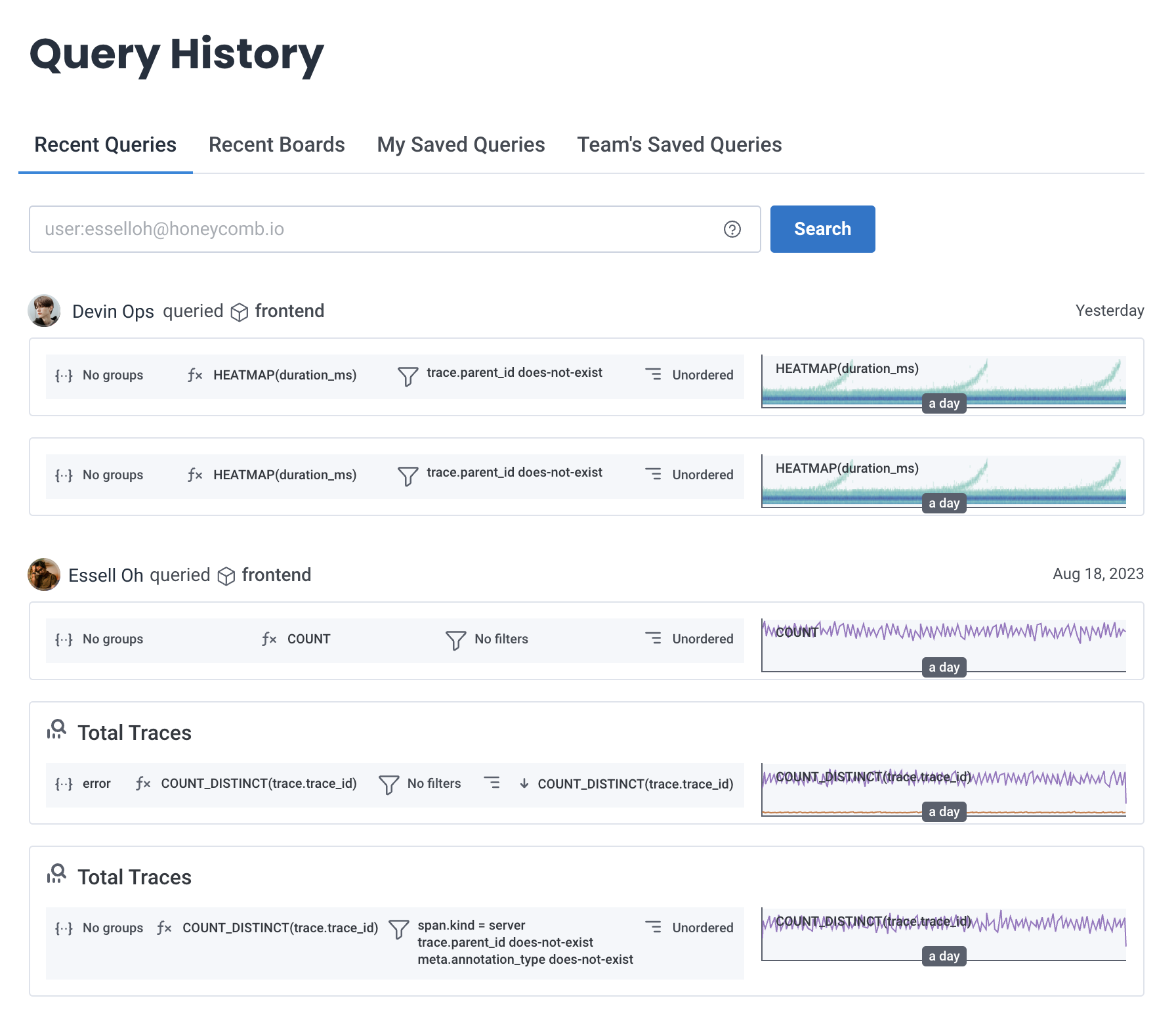 ## How It Works
Query History tracks all queries across all Datasets in your team.
Search works across multiple fields, and results are limited to your selected Environment.
### Search
Query History searches across:
* Titles
* Descriptions
* Query fields
* Team member email addresses
* Time
Queries with detailed names and descriptions are easier to find because they provide more search context.
To narrow results, use [search prefixes](#search-prefixes).
### Scope
Query History shows queries from the Environment selected in your environment selector and searches across all Datasets in that Environment.
To explore query history for a different Environment, switch Environments using the environment selector.
## Searching Query History
Use Query History search to find queries you built in the past, discover how teammates solved problems, or replay the debugging steps from an incident.
1. Select **History** () from the navigation menu.
2. Enter your search terms in the search bar.
Add [search prefixes](#search-prefixes) to narrow your results.
3. Select **Search**.
The screen refreshes and shows the queries that match your criteria.
### Search Prefixes
Add prefixes to narrow the results of your search.
You can use each prefix once per search.
| Syntax | Description | Example |
| ----------------------- | -------------------------------------------------------------------------------------------------------------------------------------- | ----------------------------- |
| `user:me` | Show only your queries. | `user:me` |
| `user:`email\_address | Show queries run by a specific user. | `user:bee@example.com` |
| `before:`yyyy-mm-dd | Show queries run before this date. | `before:2022-02-08` |
| `after:`yyyy-mm-dd | Show queries run after this date. | `after:2022-03-13` |
| `dataset:`dataset\_slug | Show queries from a specific Dataset. The dataset slug is the URL-friendly identifier for your dataset that appears in Honeycomb URLs. | `dataset:frontend-production` |
### Example Search
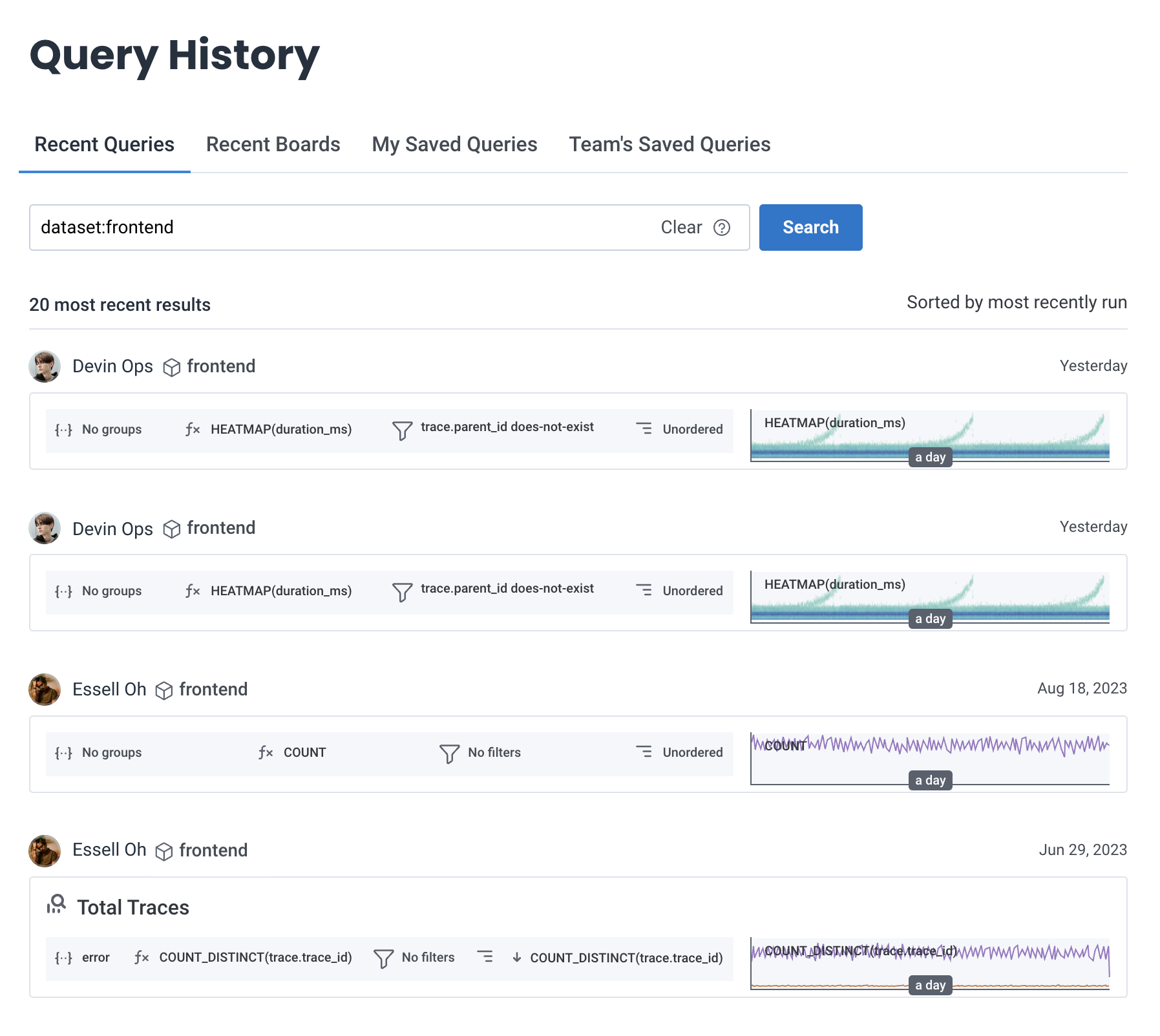
This example searches the `frontend` dataset for queries run after a specific date:
## How It Works
Query History tracks all queries across all Datasets in your team.
Search works across multiple fields, and results are limited to your selected Environment.
### Search
Query History searches across:
* Titles
* Descriptions
* Query fields
* Team member email addresses
* Time
Queries with detailed names and descriptions are easier to find because they provide more search context.
To narrow results, use [search prefixes](#search-prefixes).
### Scope
Query History shows queries from the Environment selected in your environment selector and searches across all Datasets in that Environment.
To explore query history for a different Environment, switch Environments using the environment selector.
## Searching Query History
Use Query History search to find queries you built in the past, discover how teammates solved problems, or replay the debugging steps from an incident.
1. Select **History** () from the navigation menu.
2. Enter your search terms in the search bar.
Add [search prefixes](#search-prefixes) to narrow your results.
3. Select **Search**.
The screen refreshes and shows the queries that match your criteria.
### Search Prefixes
Add prefixes to narrow the results of your search.
You can use each prefix once per search.
| Syntax | Description | Example |
| ----------------------- | -------------------------------------------------------------------------------------------------------------------------------------- | ----------------------------- |
| `user:me` | Show only your queries. | `user:me` |
| `user:`email\_address | Show queries run by a specific user. | `user:bee@example.com` |
| `before:`yyyy-mm-dd | Show queries run before this date. | `before:2022-02-08` |
| `after:`yyyy-mm-dd | Show queries run after this date. | `after:2022-03-13` |
| `dataset:`dataset\_slug | Show queries from a specific Dataset. The dataset slug is the URL-friendly identifier for your dataset that appears in Honeycomb URLs. | `dataset:frontend-production` |
### Example Search
This example searches the `frontend` dataset for queries run after a specific date:
 ## Saving a Query
Save queries to **My Saved Queries** for personal reuse.
To save a query:
1. Select **Query** () from the navigation menu.
2. Build your query in Query Builder, and select **Run Query**.
3. From the **Save query** dropdown, choose **My Saved Queries**.
4. In the modal, enter query details:
| Field | Description |
| ----------- | ------------------------- |
| Query name | Name of your query. |
| Description | Description of the query. |
Give your queries meaningful names and detailed descriptions to make them easier to find.
Explain what you're investigating, why you ran the query, what you found, or what problem it solves.
5. Select **Save query**.
Your query is saved to **My Saved Queries**.
## Best Practices
* **Use descriptive query names:** Give queries meaningful names that explain what you're investigating. "API latency spike investigation" is more useful than "query 1."
* **Add context in descriptions:** Explain why you ran the query, what you found, or what problem it solves.
* **Save important queries:** Don't rely on browsing **Recent Queries** to find queries you'll need again. Save them to **My Saved Queries**.
* **Search by user:** Use the `user:` prefix to see how specific teammates approach problems or to find queries from subject matter experts.
* **Combine prefixes:** Narrow results by combining prefixes, like `user:me after:2025-06-01 dataset:frontend` to find your recent frontend queries.
## Saving a Query
Save queries to **My Saved Queries** for personal reuse.
To save a query:
1. Select **Query** () from the navigation menu.
2. Build your query in Query Builder, and select **Run Query**.
3. From the **Save query** dropdown, choose **My Saved Queries**.
4. In the modal, enter query details:
| Field | Description |
| ----------- | ------------------------- |
| Query name | Name of your query. |
| Description | Description of the query. |
Give your queries meaningful names and detailed descriptions to make them easier to find.
Explain what you're investigating, why you ran the query, what you found, or what problem it solves.
5. Select **Save query**.
Your query is saved to **My Saved Queries**.
## Best Practices
* **Use descriptive query names:** Give queries meaningful names that explain what you're investigating. "API latency spike investigation" is more useful than "query 1."
* **Add context in descriptions:** Explain why you ran the query, what you found, or what problem it solves.
* **Save important queries:** Don't rely on browsing **Recent Queries** to find queries you'll need again. Save them to **My Saved Queries**.
* **Search by user:** Use the `user:` prefix to see how specific teammates approach problems or to find queries from subject matter experts.
* **Combine prefixes:** Narrow results by combining prefixes, like `user:me after:2025-06-01 dataset:frontend` to find your recent frontend queries.