> ## Documentation Index
> Fetch the complete documentation index at: https://docs.honeycomb.io/llms.txt
> Use this file to discover all available pages before exploring further.
# Automatic SLO, Trigger, and Anomaly Investigations with Canvas
> Automatically start a Canvas investigation when anomalies are detected, trigger alerts fire, or SLO burn alerts fire.
export const HnyIcon = ({alias, path, size = 16, iconColor}) => {
const iconMap = {
"home": "house.svg",
"marker": "caretFilledDown.svg",
"show-marker-options": "chatTextLeft.svg",
"download": "arrowLineDown.svg",
"trace-waterfall": "trace.svg",
"show-query-details": "listDashes.svg",
"table": "table.svg",
"log-lines": "logLines.svg",
"chart": "chartLine.svg",
"show-settings": "gear.svg",
"add": "plus.svg",
"remove": "delete.svg",
"persist": "caretDown.svg",
"close": "close.svg",
"copy": "copy.svg",
"zoom-in": "magnifyingGlassPlus.svg",
"zoom-out": "magnifyingGlassMinus.svg",
"color-assignment": "drop.svg",
"drag": "dots-six-vertical.svg",
"drawer": "drawer.svg",
"show-actions": "dotsThree.svg",
"edit": "pencil.svg",
"delete": "trash.svg",
"move": "arrowsOutCardinal.svg",
"show-legend": "circleInfo.svg",
"usage-ok": "usageGood.svg",
"usage-warning": "usageWarning.svg",
"usage-danger": "usageDanger.svg",
"open-query-builder": "query.svg",
"home-menu": "house.svg",
"query-menu": "query.svg",
"boards-menu": "board.svg",
"triggers-menu": "bell.svg",
"slos-menu": "handshake.svg",
"service-map-menu": "serviceMap.svg",
"history-menu": "clockCounterClockwise.svg",
"manage-data-menu": "cube.svg",
"usage-menu": "usageGood.svg",
"canvas-menu": "sparkle.svg",
"anomalies-menu": "anomalies.svg",
"show-details": "dotsThreeVertical.svg",
"resize-handle": "board-panel-resize-handle.png",
"standard-dataset": "cube.svg",
"trace-dataset": "cubeChat.svg",
"all-datasets": "linkedSquares.svg",
"share": "arrowBentRight.svg",
"run-in-query-builder": "arrowSquareUpRight.svg",
"link": "link.svg",
"text": "text.svg",
"receive": "arrowLineDown.svg",
"process": "lightning.svg",
"sample": "drop.svg",
"send": "arrowLineUp.svg",
"submit": "arrowUp.svg",
"canvas-menu": "sparkle.svg",
"canvas": "sparkle.svg",
"chat-about-this-page": "sparkle.svg",
"private": "lockKey.svg",
"shared": "people.svg",
"expand": "caretDown.svg",
"previous": "caretLeft.svg",
"next": "caretRight.svg",
"expand-chat": "caretLeft.svg",
"minimize-chat": "caretRight.svg",
"open-in-canvas": "arrowSquareUpRight.svg"
};
const iconBasePath = "/_assets/icons/";
const iconPath = path || (alias ? `${iconBasePath}${iconMap[alias]}` : undefined);
return ;
};
Canvas can automatically investigate trigger alerts, Service Level Objective (SLO) burn alerts, and anomaly detections when they fire, so your team has findings waiting before they start troubleshooting.
## How it works
When a configured alert fires, Canvas automatically starts an investigation and analyzes the data to identify what changed and why.
### Finding your investigations
Auto-investigations appear in Canvas alongside your other investigations, and work the same way: you can continue the investigation interactively, share it with your team, or use it as a starting point for further analysis.
To explore all auto-investigations, select **Canvas** () from the navigation menu and filter by **Auto Investigations**.
### Accessing investigations from alerts
When an auto-investigation completes, the alert notification includes an **Investigate** link so your team can jump straight into the findings in Canvas without having to start an investigation manually.
### Investigations in Slack
If you have the [Honeycomb Canvas Slack App](/investigate/canvas/slack-app) installed and the alert is configured to send notifications to a Slack channel, Canvas also joins the alert thread in Slack with AI-powered insights directly in chat.
### Limits
You can configure automatic investigations for up to:
* 25 triggers
* 25 SLO burn alerts
* 25 anomaly detections
### Requirements
Auto-investigations require that you enable [Honeycomb Intelligence](/security-compliance/honeycomb-intelligence) for your team.
## Configuring auto-investigations
Auto-investigations are configured individually on each trigger, SLO, and anomaly detection, not globally.
Enable them on the specific resources where you want Canvas to investigate automatically when an alert fires.
### Triggers
Enabling auto-investigations on a trigger means Canvas starts investigating the moment that trigger fires, giving your on-call team immediate context alongside the alert.
To enable Canvas to start automatic investigations for a trigger:
1. Select **Triggers** () from the navigation menu.
2. Select the name of the trigger you want to configure, or select **New Trigger** to create a new one.
3. Locate the **Alerts** section.
4. Enable the **Automatic Investigation** toggle.
5. Select **Save Trigger** to save changes.
If the trigger is configured to send alerts to a Slack channel and you have installed the [Honeycomb Canvas Slack App](/investigate/canvas/slack-app), Canvas joins the alert thread and provides AI-powered insights directly in Slack.
### Service Level Objectives (SLOs)
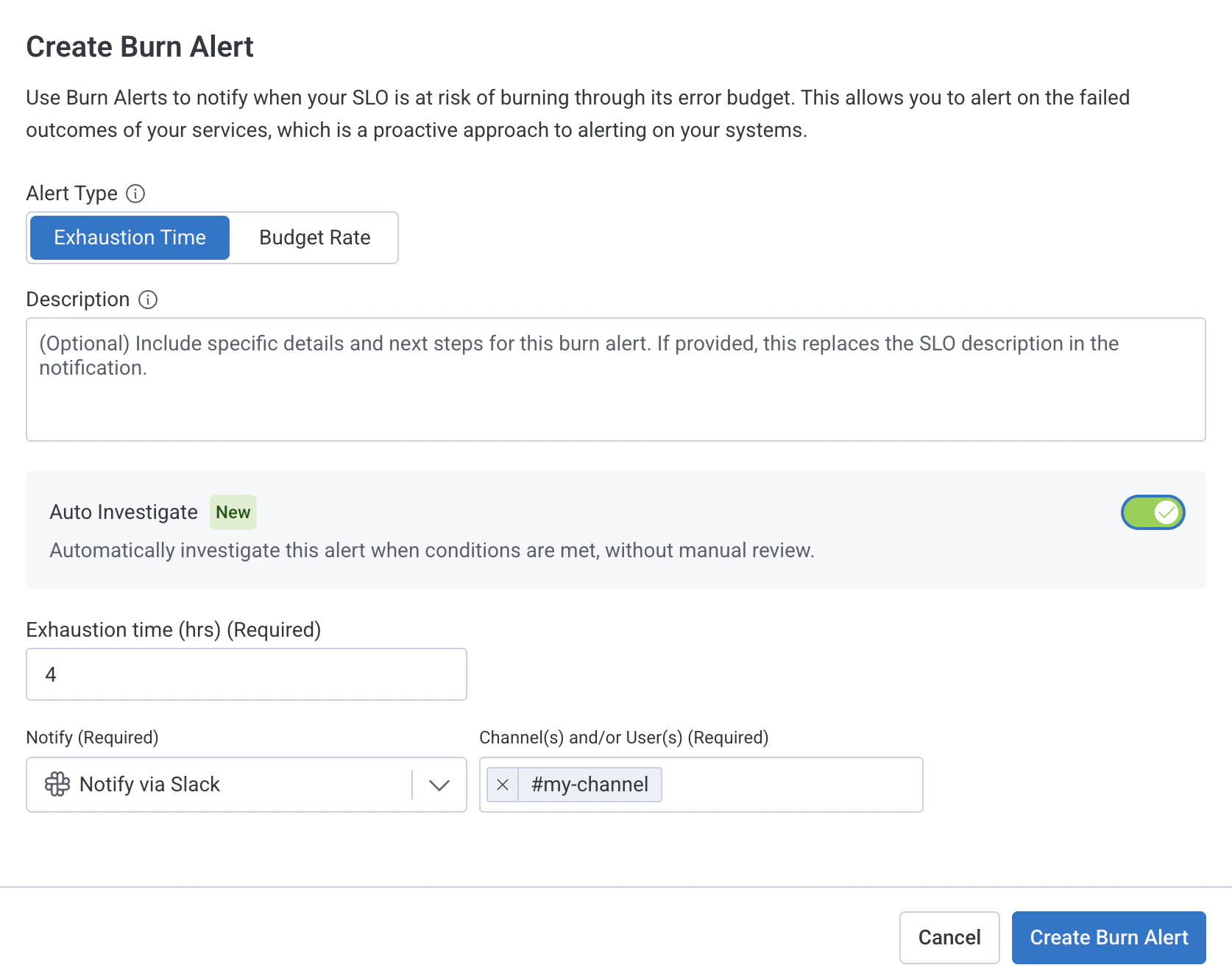
Enabling auto-investigations on an SLO burn alert means Canvas investigates when budget consumption exceeds your threshold, so your team understands what's driving the burn before they start troubleshooting.
To enable Canvas to start automatic investigations for an SLO:
1. Select **SLOs** () from the navigation menu.
2. Select the name of the SLO you want to configure, or select **New SLO** to create a new one.
3. Select **Configure Burn Alerts**.
4. Select **Edit** for an existing burn alert, or select **New Burn Alert** to create a new one.
5. Enable the **Automatic Investigation** toggle.
6. Select **Update Burn Alert** to save changes.
If the SLO is configured to send alerts to a Slack channel and you have installed the [Honeycomb Canvas Slack App](/investigate/canvas/slack-app), Canvas joins the alert thread and provides AI-powered insights directly in Slack.
 ### Anomaly detections
Auto-investigate for anomaly detections is only available to teams invited to its Early Access.
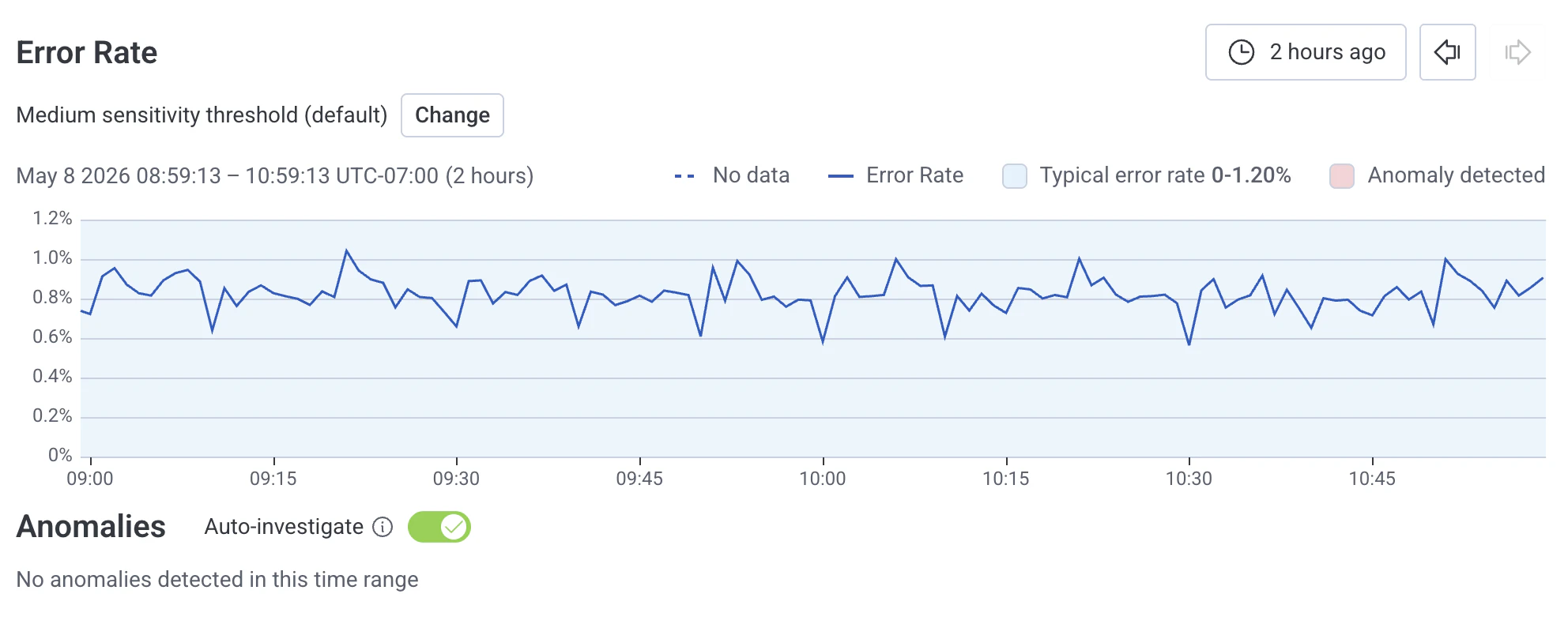
Enabling auto-investigations on an anomaly means Canvas starts investigating as soon as that anomaly is detected, so your team has findings waiting before they even open Honeycomb.
To enable Canvas to start automatic investigations for an anomaly:
1. Select **Anomalies** () from the navigation menu.
2. Select the name of the anomaly you want to configure.
3. Locate the **Anomalies** section.
4. Enable the **Auto-investigate** toggle.
If the anomaly is configured to send alerts to a Slack channel and you have the [Honeycomb Canvas Slack App](/investigate/canvas/slack-app) installed, Canvas joins the alert thread and provides AI-powered insights directly in Slack.
### Anomaly detections
Auto-investigate for anomaly detections is only available to teams invited to its Early Access.
Enabling auto-investigations on an anomaly means Canvas starts investigating as soon as that anomaly is detected, so your team has findings waiting before they even open Honeycomb.
To enable Canvas to start automatic investigations for an anomaly:
1. Select **Anomalies** () from the navigation menu.
2. Select the name of the anomaly you want to configure.
3. Locate the **Anomalies** section.
4. Enable the **Auto-investigate** toggle.
If the anomaly is configured to send alerts to a Slack channel and you have the [Honeycomb Canvas Slack App](/investigate/canvas/slack-app) installed, Canvas joins the alert thread and provides AI-powered insights directly in Slack.